Removing the Test Mode Watermark From the Windows 10 Desktop
概要: The Windows 10 Test mode message may present itself in one of two different ways. See the section that matches what is on your computer.
この記事は次に適用されます:
この記事は次には適用されません:
この記事は、特定の製品に関連付けられていません。
すべての製品パージョンがこの記事に記載されているわけではありません。
手順
Note: Microsoft will end support for Windows 10 on October 14, 2025. See our Microsoft Windows 10 End of Support Announcement for more information.
Are you looking to remove the test mode messaging from the Windows 10 desktop on your personal computer?
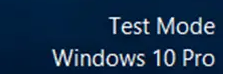
There is a function of Windows 10 called Test Mode which allows you to install and test drivers that have not been digitally signed through Microsoft. This mode as the name indicates helps test software or drivers that are still being developed or have not been certified yet. If you start up your personal computer and a message or watermark is visible saying Test Mode or Testing Mode, that indicates that the mode has been activated and is running on your personal computer.
The most common reason for this is the installation of some drivers that are still in their testing phase. You will see either a message in the lower left corner or a full-screen message in gray.
 |
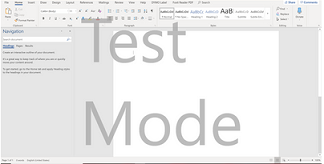 |
(Figure.1 Test Mode Messaging)
To help resolve the issue, perform the following steps.
- Press and hold the Windows key (
 ), and then press the X key.
 - Right-click Command Prompt or Terminal, and then select Run as administrator.
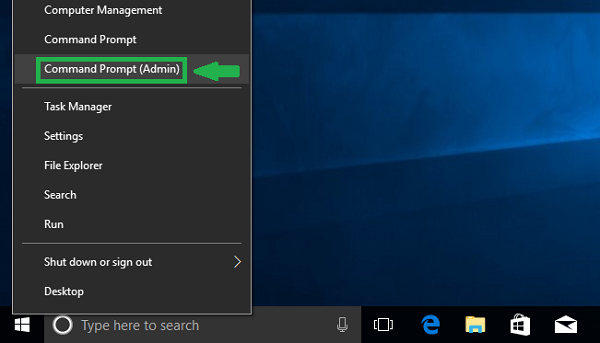
(Figure.2 PowerUser Menu)
- In the User Account Control window may appear, select Yes.
- In the Command Prompt window, type
bcdedit -set TESTSIGNING OFFand then press Enter.Warning: If you see a message indicatingAn error has occurred setting the element data. The value is protected by Secure Boot policy and cannot be modified or delete
, reboot your computer. Use the F2 key to access the BIOS and deactivate the option Secure Boot. After booting into Windows, repeat the command. - When you see the confirmation, close the Command Prompt window.
- Save any open work and close any programs, and restart the computer. The
testsigning off
command should be enough to turn off the Test Mode. - After the reboot, if you are still seeing the
Test Mode
message, then open the Command Prompt/PowerShell with administrator privileges again:- Type
Bcdedit.exe -set loadoptions ENABLE_INTEGRITY_CHECKSand then press Enter. - Next, type
Bcdedit.exe -set TESTSIGNING OFFand then press Enter.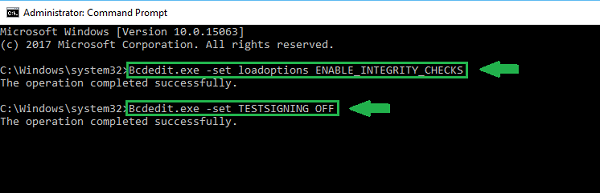
(Figure.3 Integrity Checks Window)
- Type
- Reboot the computer and confirm that the Test Mode is disabled and the watermark/messaging removed from the visible desktop.
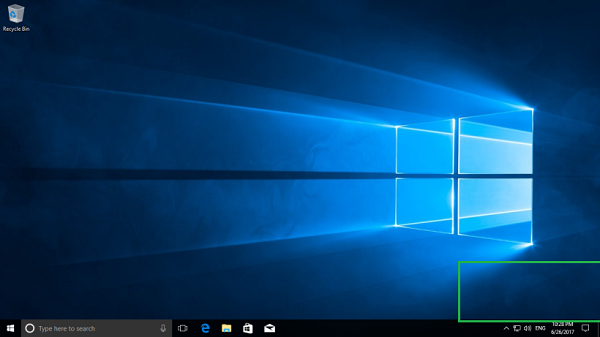
(Figure.4 No Test Mode messaging seen)Note: These steps can also be used on Windows 7 and Windows 8.x operating systems.
You can extract the Windows product key and redo the activation. The way to extract the windows activation key is to use the following PowerShell Command: Get-WmiObject -query 'select * from SoftwareLicensingService').OA3xOriginalProductKey
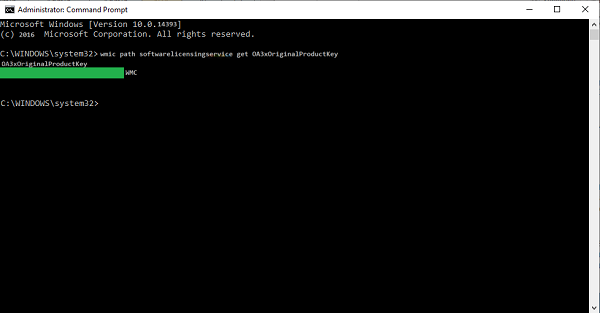
(Figure.5 Windows 10 retrieve the product key)
After extracting the product key, simply enter the key back into the system and the system will clear the activation request.
Note: When these steps do not resolve the issue, see the Microsoft Knowledge Base article Activate Windows 10, to ensure your Windows 10 has been activated.
その他の情報
 Out of warranty? No problem. Browse to the Dell.com/support website and enter your Dell Service Tag and view our offers.
NOTE: Offers are only available for US, Canada, UK, France, Germany, China, and Japan personal computer customers. Server and Storage not applicable.
対象製品
Alienware, Inspiron, OptiPlex, XPS, G Series, G Series, Alienware, Inspiron, Latitude, Dell Pro Rugged, XPS, Fixed Workstations, Mobile Workstations文書のプロパティ
文書番号: 000190354
文書の種類: How To
最終更新: 21 5月 2025
バージョン: 6
質問に対する他のDellユーザーからの回答を見つける
サポート サービス
お使いのデバイスがサポート サービスの対象かどうかを確認してください。