How to Install McAfee Small Business Security from Dell
概要: This article covers how to download and install McAfee Small Business Security that is purchased from Dell.
この記事は次に適用されます:
この記事は次には適用されません:
この記事は、特定の製品に関連付けられていません。
すべての製品パージョンがこの記事に記載されているわけではありません。
手順
Affected Products:
- McAfee Small Business Security
A McAfee Small Business Security subscription can be purchased with a Dell consumer or commercial computer.
Note: For more information about changing your McAfee subscription, reference How to Cancel or Renew Your McAfee Subscription Purchased at Dell.
Click either New Setup or Reinstall for the appropriate installation directions.
New Setup
Warning: These steps are intended for customers who have never activated McAfee Small Business Security. Reference the Reinstall section if you previously registered an account with McAfee.
McAfee Small Business Security may be preinstalled with your Dell computer. To confirm if the product is preinstalled, click Show hidden icons and then locate the McAfee Small Business Security - PC Security icon.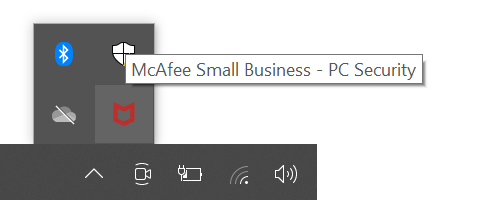
Click either Preinstalled or Not Installed for the appropriate setup instructions.
Preinstalled
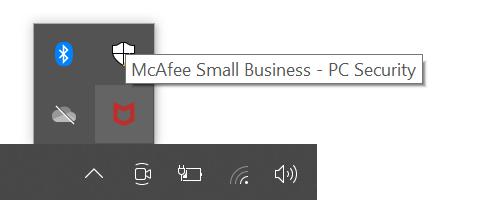
- In the Windows Notification Area, click Show hidden icons and then double-click McAfee Small Business - PC Security.
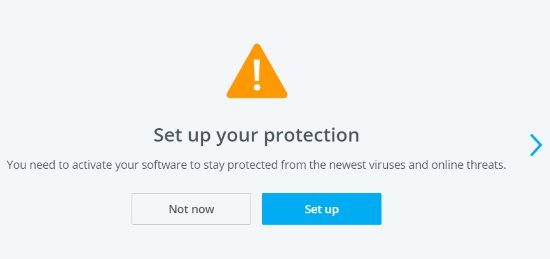
- In the product user interface (UI), click Set up.
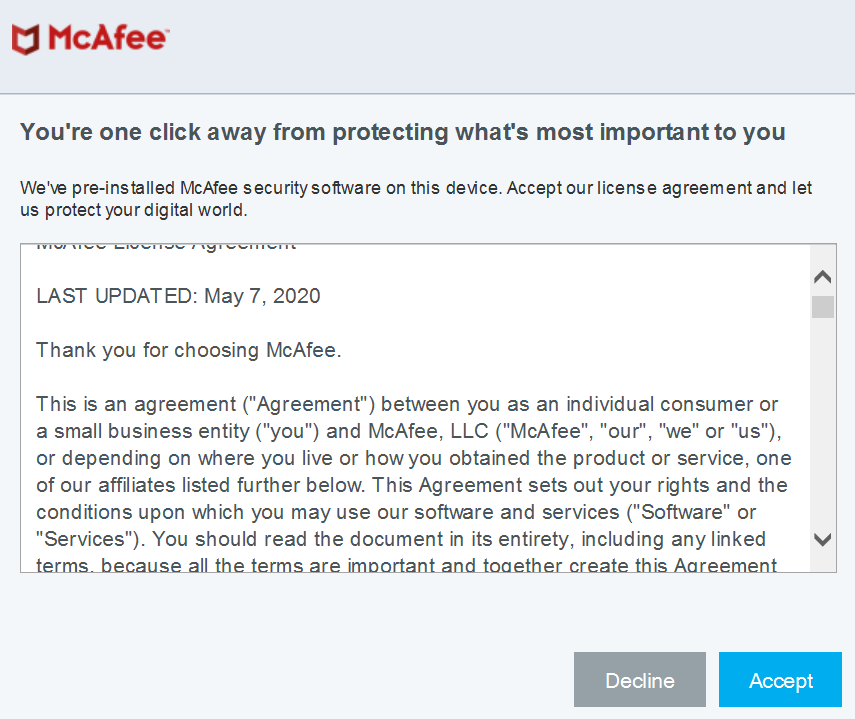
- Accept the McAfee End User License Agreement.
- Populate an Email to associate to the McAfee Small Business Security subscription and then click Continue.
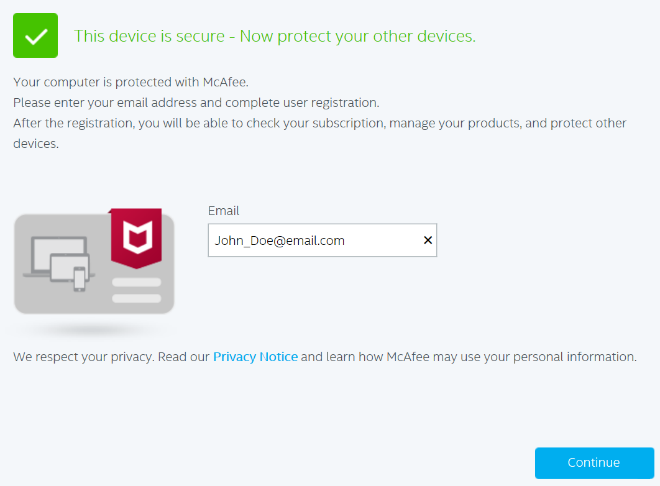
- Click Create Password.
 Note: If the Email (Step 4) already has a McAfee account, the UI requests the account’s password instead of creating a password.
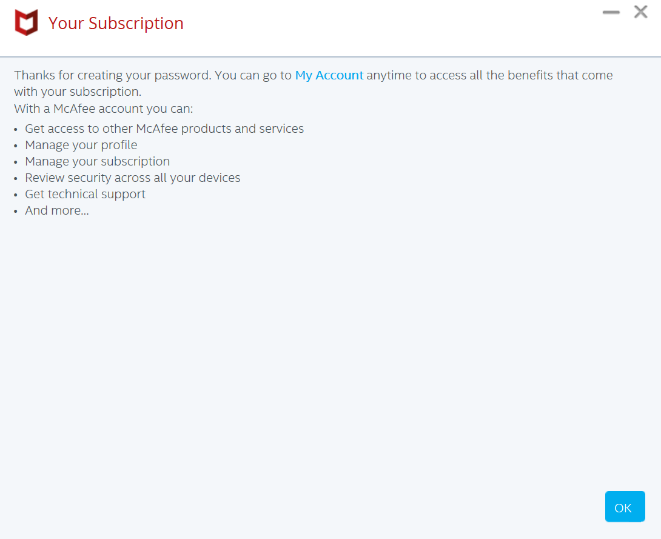
 - On password creation, click OK.
Not installed
- In the Windows Start Menu, search and then click Dell Digital Delivery.
 Note:
Note:- If Dell Digital Delivery is missing, reference How to Download and Install Dell Digital Delivery.
- The Dell Digital Delivery icon reflects the latest version and may differ on your computer.
- In the user interface (UI), click Download.
 Note:
Note:- If McAfee Small Business Security is missing from Dell Digital Delivery, reference How to Troubleshoot Dell Digital Delivery.
- For technical support, reference How to Get Support for McAfee Products Sold at Dell and provide this KB article (000193765) to the agent.
- In the Windows Notification Area, click Show hidden icons and then double-click McAfee Small Business - PC Security.
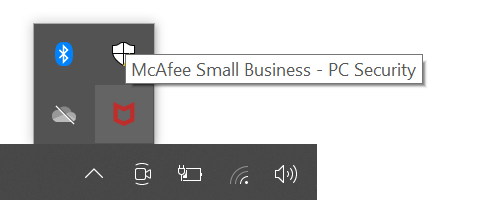
- In the product UI, click Set up.
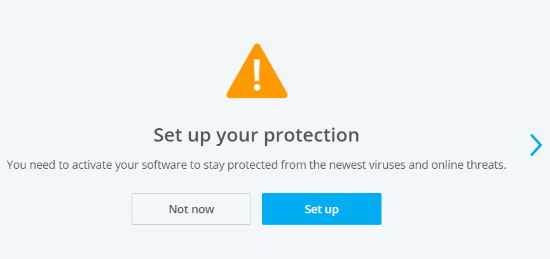
- Accept the McAfee End User License Agreement.
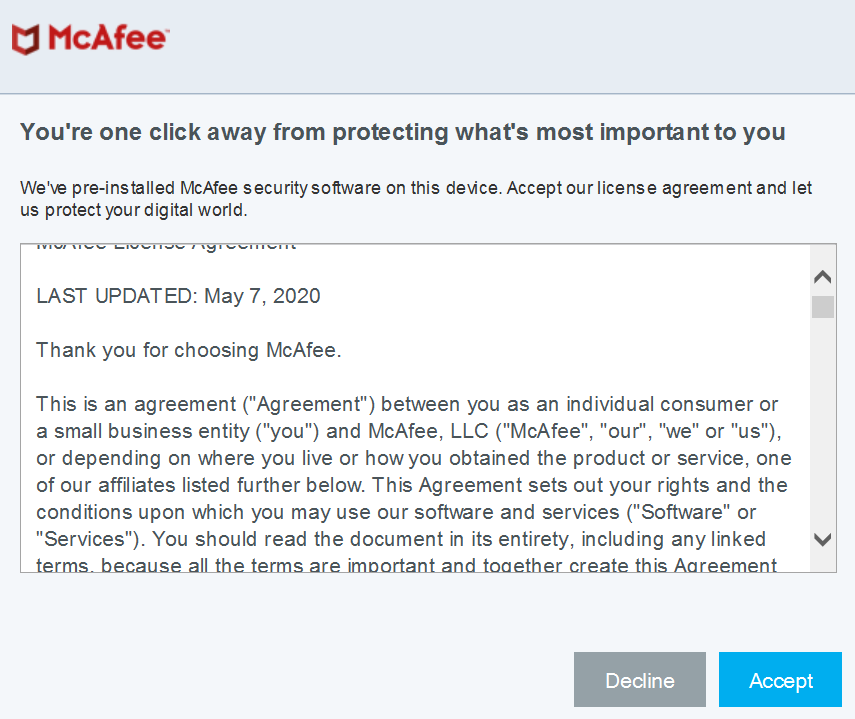
- Populate an Email to associate to the McAfee Small Business Security subscription and then click Continue.
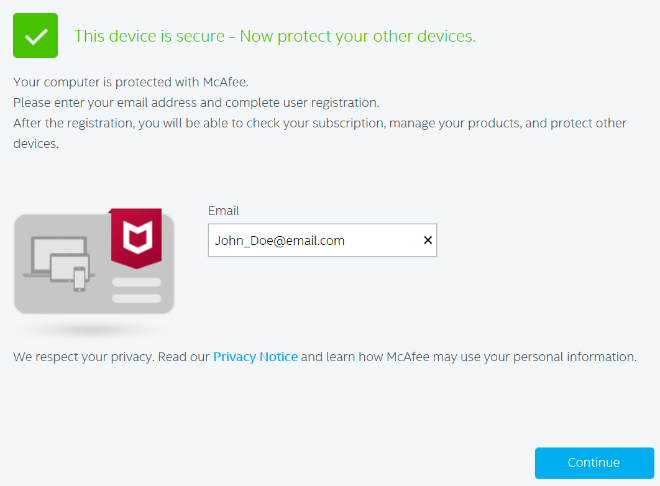
- Click Create Password.
 Note: If the Email (Step 6) already has a McAfee account, the UI requests the account's password instead of creating a password.
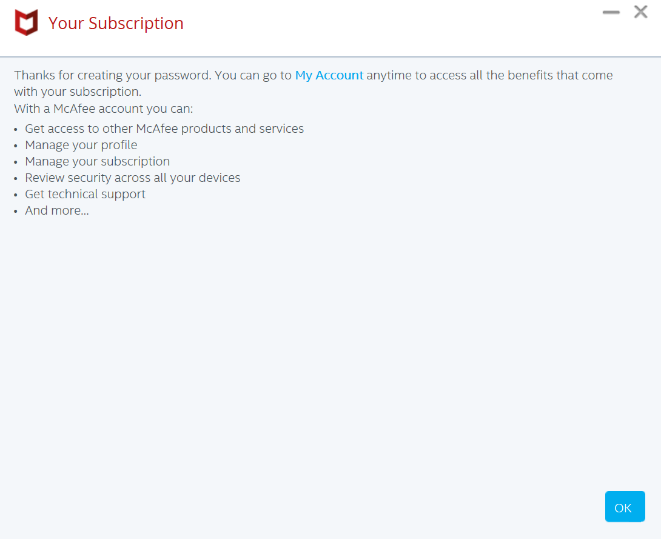
 - On password creation, click OK.
Reinstall
Note: An active McAfee Small Business Security subscription is required to install the product.
- Go to https://www.mcafee.com
.
- In the upper right, click Login.
- Sign in using your McAfee account.
 Note:
Note:- A McAfee account is generated during the initial setup of a McAfee subscription.
- For issues accessing your McAfee account:
- Validate the email that is used is tied to a McAfee subscription.
- To protect your privacy, Dell technical support is unable to validate the email used to setup the McAfee subscription. Contact the vendor directly for assistance at https://service.mcafee.com
- Click Downloads & devices.
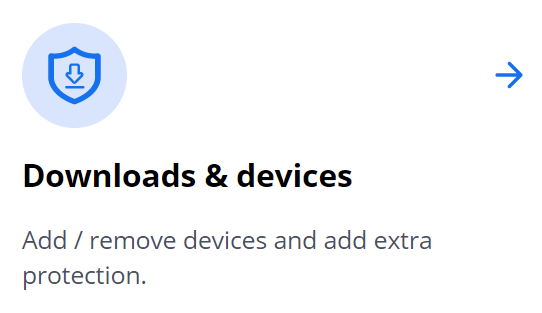
- From the drop-down menu, select McAfee Small Business Security and then click Download.
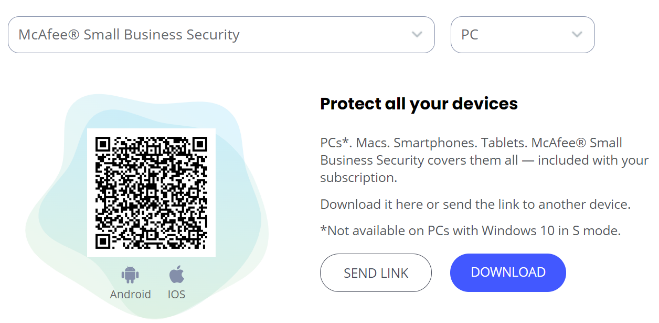
- Click Agree and Download.
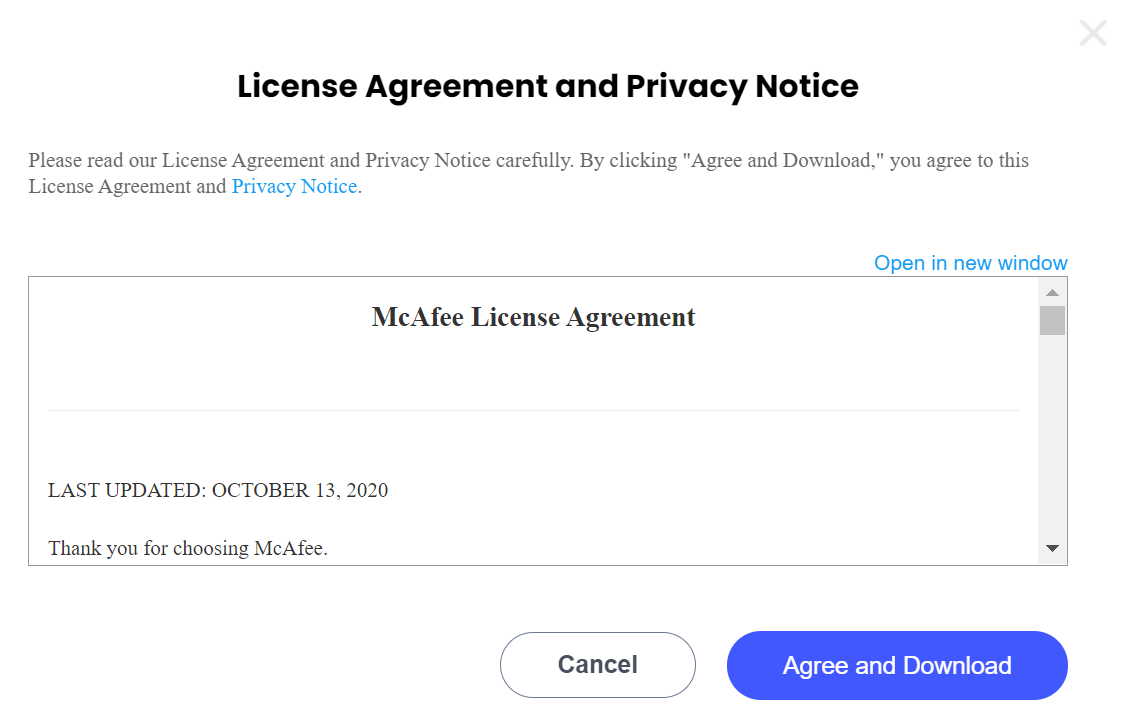
- On download, double-click
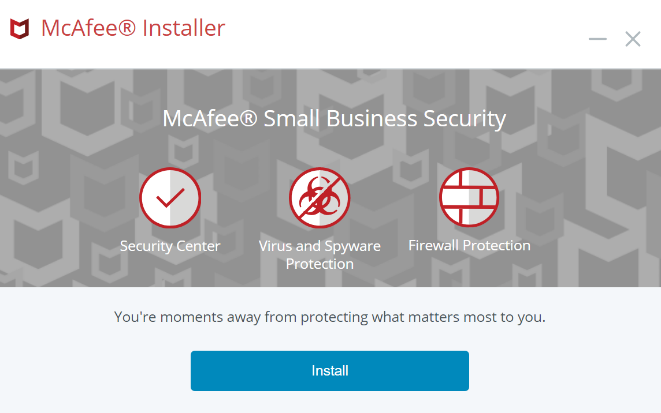
McAfee_Installer_[BUILD NUMBER].exe.Note:[BUILD NUMBER]= Serial Number - In the installation wizard, click Install.
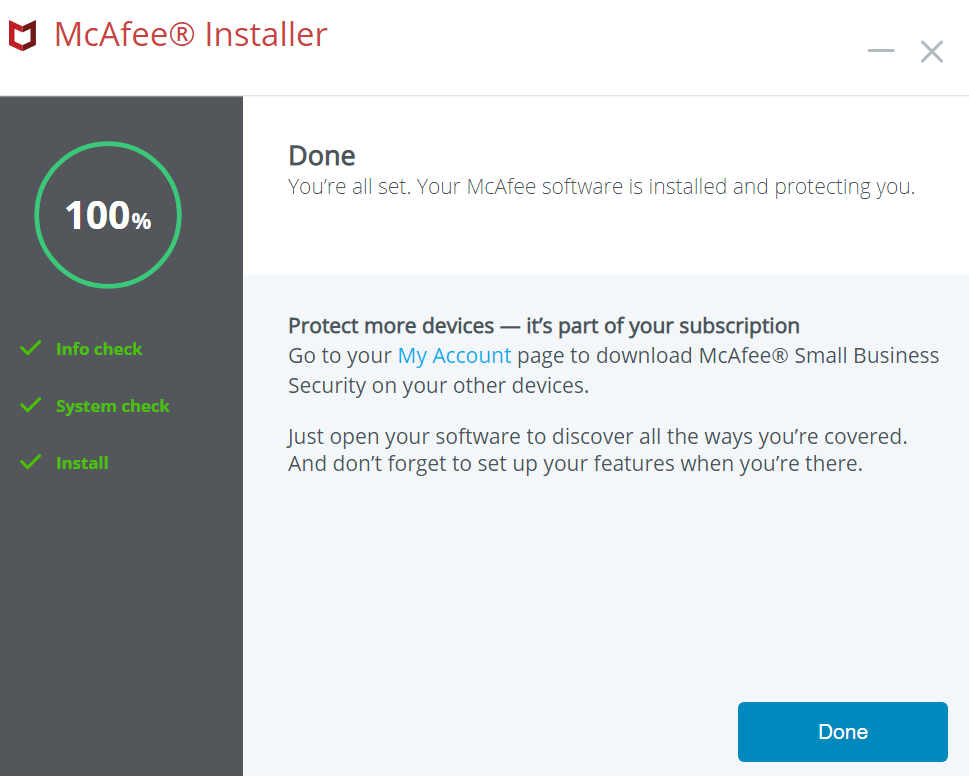
- On installation, click Done.
文書のプロパティ
文書番号: 000193765
文書の種類: How To
最終更新: 17 2月 2025
バージョン: 18
質問に対する他のDellユーザーからの回答を見つける
サポート サービス
お使いのデバイスがサポート サービスの対象かどうかを確認してください。