How to Safely Plug and Unplug Your Type-C Connector on Dell Laptops, Monitors, and Docks
概要: The following article provides information about the proper way to insert and remove the USB Type-C connector on Dell laptops and devices. (For example: Docking Stations and Monitors.)
この記事は次に適用されます:
この記事は次には適用されません:
この記事は、特定の製品に関連付けられていません。
すべての製品パージョンがこの記事に記載されているわけではありません。
手順
Table of contents:
- Why This Matters
- What Can Go Wrong?
- Affected Dell products
- How to Plug In the USB Type-C Connector
- How to Unplug the USB Type-C Connector
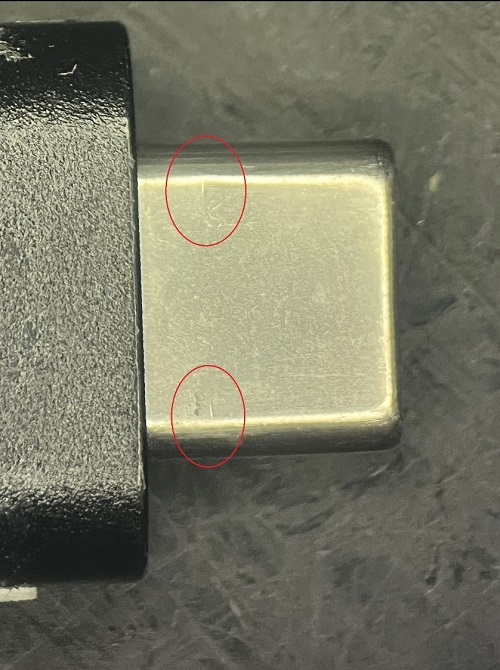
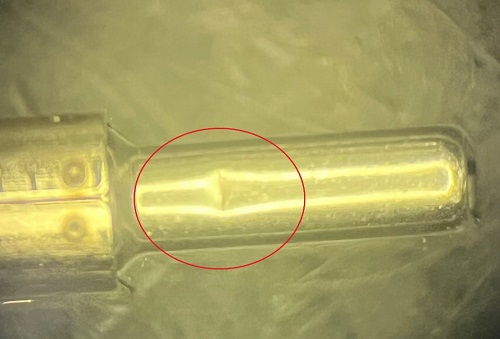
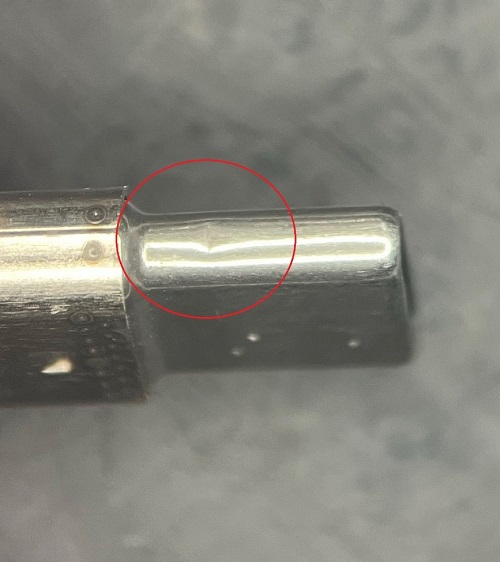
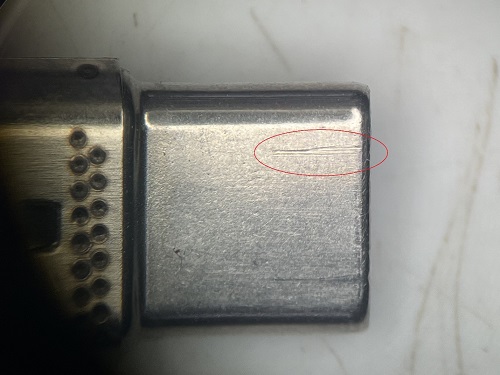
- Examples of Common USB Type-C damage
- Further Help with USB-C and Laptop Handling
Why This Matters
Improper handling of USB Type-C connectors can lead to physical damage, connectivity issues, and expensive repairs. This guide helps to avoid those problems with simple, clear steps.
What Can Go Wrong?
If the USB Type-C connector is routed, connected, or unplugged incorrectly, you might experience:
- Loose or damaged connectors and ports
- Connection or detection issues with connected devices
- Intermittent functionality (For Example: Moving the cable affects the connection.)
- Cracked connectors of broken solder joints
Affected Dell Products
This applies to the following products:
- Wired Dell Docking stations with USB Type-C connector and ports
- USB Type-C Dell Monitors and Dell Monitors with USB Type-C ports
- Dell Laptops with USB Type-C ports
How to Plug In the USB Type-C Connector
Do This: (Correct plugging technique)
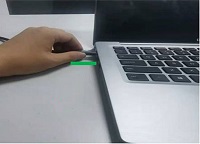
- Insert the connector horizontally into the port
- Ensure that you leave slack in the cable to avoid tension
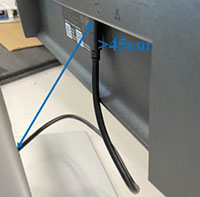
- Hold the connector firmly and align it straight and level with the port
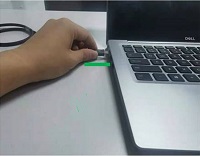
Avoid This: (Incorrect plugging technique)
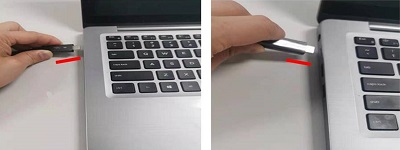
- Do Not insert the connector at an angle or with force into the port
- Do Not pull the cable tight against the port or device
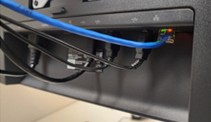
- Do Not twist or bend the connector during insertion
How to Unplug the USB Type-C Connector
Do This: (Correct unplugging technique)
- Remove the connector horizontally while keeping it aligned with the port
- Grip the connector not the cable
- Pull gently without applying pressure to either side
Avoid This: (Incorrect unplugging technique)
- Do Not yank on the cable
- Do Not pull the cable out at an angle to the port
- Do Not twist or bend the connector while unplugging from the port
Examples of Common USB Type-C damage
Note: Tip: Always unplug cables before moving your laptop to prevent accidental strain or damage.
Cable Damage
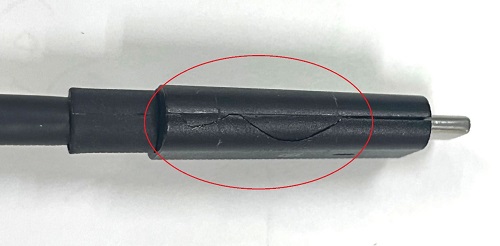
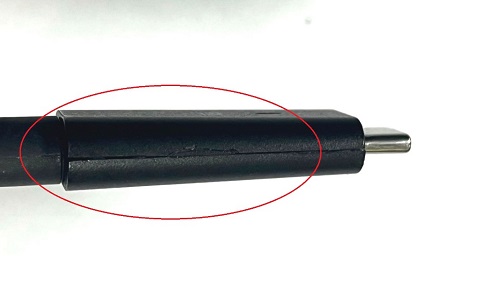
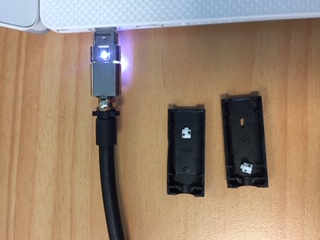
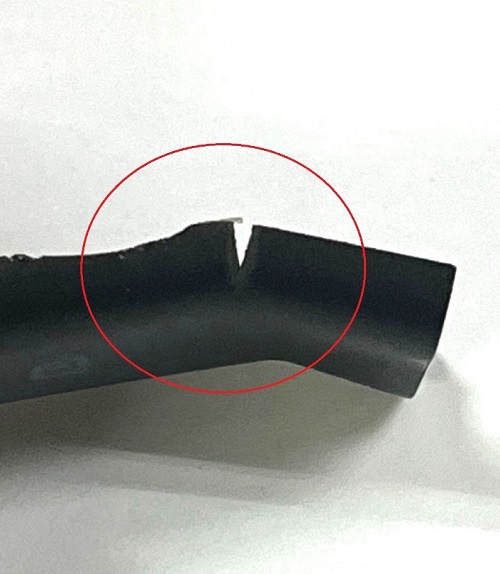
Cracked Connector
A visible crack in the plastic housing of the USB-C plug can lead to poor contact and eventual failure.
Bent or Deformed Plug
This occurs when the connector is inserted or removed at an angle or with excessive force.
Cable Frayed Behind the Plug
Strain on the cable can cause the outer sheath to wear out, exposing internal wires.
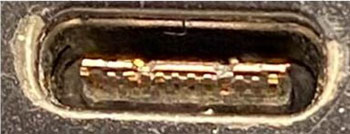
Port Damage
Cracked Port Housing
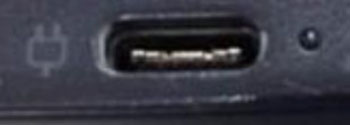
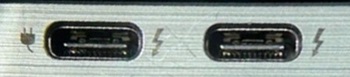
The laptop, monitor, or dock’s USB-C port may show visible cracks. They are often caused by connecting or disconnecting the cable at an angle.
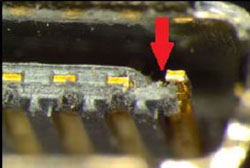
Broken Solder Joints
Internal damage prevents the port from maintaining a stable connection.
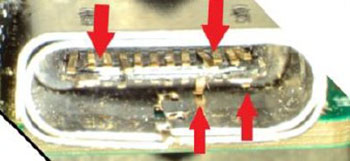
Port No Longer Detects Devices
Even if the port looks fine externally, internal damage (soldered joints to the motherboard) can cause functionality loss.
Further Help with USB-C and Laptop Handling
Still having trouble with your USB-C port or laptop care? Explore these resources for troubleshooting and best practices:
- Troubleshoot a USB Port When it is Not Working: Step-by-step guidance to fix USB port issues, including driver updates, BIOS resets, and hardware diagnostics
- Dell Laptop Best Practices for Care, Use, and Handling: Learn how to protect your laptop from physical damage, improve longevity, and maintain optimal performance
対象製品
P Series, S Series, UltraSharp (U) Series, Dell Plus Monitors, Dell Pro Plus Monitors, Chromebook, G Series, Alienware, Dell Laptops, Dell Plus, Dell Pro, Dell Pro Max, Dell Pro Plus, Dell Pro Premium, Inspiron, Latitude, Dell Pro Rugged, Vostro, XPS
, Mobile Workstations, Dell Dual Charge Dock HD22Q, Dell Pro Max 14 Premium MA14250, Dell Pro Max 16 Premium MA16250, Dell Pro Max 16 Plus MB16250, Dell Pro Max 18 Plus MB18250, Dell Pro Smart Dock SD25, Dell Pro Thunderbolt 4 Smart Dock SD25TB4, Dell Pro Thunderbolt 5 Smart Dock SD25TB5, Dell Pro Dock WD25, Dell Pro Thunderbolt 4 Dock WD25TB4, Dell Pro Thunderbolt 5 Dock WD25TB5, Dell Pro Dock WD25Z, Dell Precision Dual USB-C Thunderbolt Dock - TB18DC, Dell Universal Dock UD22, Dell Dock WD19, Dell Performance Dock - WD19DC, Dell Performance Dock – WD19DCS, Dell Dock – WD19S, Dell Thunderbolt Dock - WD19TB, Dell Thunderbolt Dock – WD19TBS, Dell P2225H, Dell P2425, Dell P2425E, Dell P2425HE, Dell P2725H, Dell U2424H, Dell U2424HE, Dell U2724D, Dell U3425WE, Dell U4924DW, Dell Thunderbolt Dock – WD22TB4
...
文書のプロパティ
文書番号: 000198334
文書の種類: How To
最終更新: 28 8月 2025
バージョン: 20
質問に対する他のDellユーザーからの回答を見つける
サポート サービス
お使いのデバイスがサポート サービスの対象かどうかを確認してください。