Data Domain: How to Reinitialize and Sanitize SDPM | NVRAM
概要: This article describes how to sanitize and reconfigure Software Defined Persistent Memory (SDPM) settings in the BIOS and verify successful initialization after the system returns to DDOS. ...
この記事は次に適用されます:
この記事は次には適用されません:
この記事は、特定の製品に関連付けられていません。
すべての製品パージョンがこの記事に記載されているわけではありません。
手順
Applies to:
- DD9910, DD9410, DD6410, DD9910F systems after NVRAM (VOSS) module replacement.
- PowerProtect Data Domain systems that use SDPM on a VOSS module.
- iDRAC Event:
SDPM7108 - Critical Diagnostic Event (Sanitize Required) - All supported Software (DDOS) versions
Required Actions:
Reinitialize the SDPM:
- Reboot the system
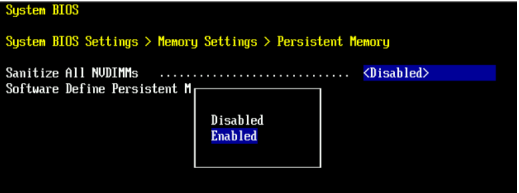
- Access the system BIOS <F2>: System BIOS > Memory Settings > Persistent Memory
- Set Sanitize All NVDIMMs to
Enabled
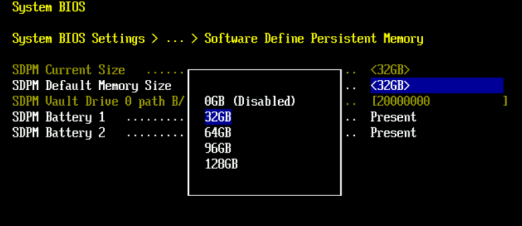
- Set SDPM Memory Size to
32 GB
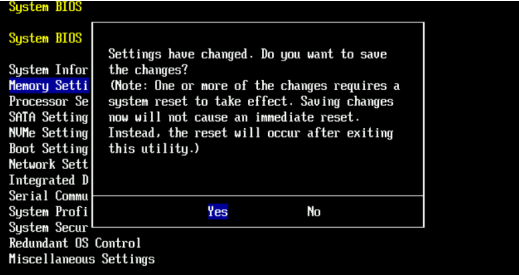
- Confirm SDPM sanitization and reboot.
- Allow the system to reboot to DDOS
- Verify the SDPM by checking for NVRAM failure alerts and ensuring the file system is enabled.
-
# alerts show current
-- There should be no outstanding alert relating to the NVRAM subsystem.
Caution: It may take one to two minutes for the system to clear the NVRAM failure alert.

# system show nvram
Note: The battery must be at least 80% charged for the file system to start.

# filesys status
-- The Filesystem should be Enabled & Running
-
Validation Checklist:
Confirm all of the following:
-
- SDPM sanitization completed successfully.
- No active NVRAM-related alerts are present.
- NVRAM status reports normally.
- The NVRAM battery charge is at least 80%.
- The file system is enabled.
- The file system is running.
If any validation step fails, collect a support bundle and contact Dell Data Protection Support.
その他の情報
These actions can also be completed in iDRAC:
Configuration > BIOS Settings > Memory Settings > Persistent Memory- Set '
Sanitize All NVDIMMs' to <ENABLED>- Ensure 'SDPM Default Memory Size' is set to <
32GB> 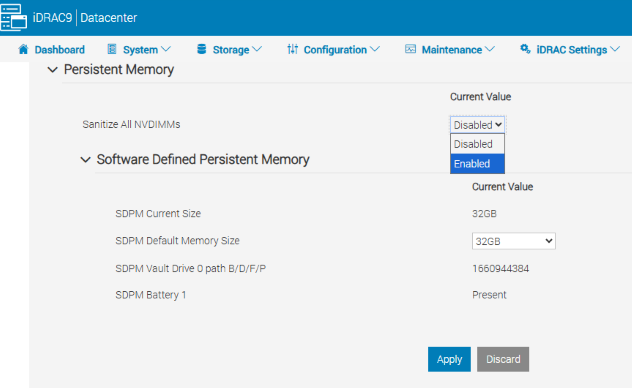
- Ensure 'SDPM Default Memory Size' is set to <
- Select APPLY. Then OK.
- Select 'At Next Reboot' (Bottom of the page)
- Set '
- Proceed to reboot the DD unit (e.g. using DD-CLI:
#system reboot)
References:
Data Domain: How to Diagnose and Resolve SDPM | NVRAM Alerts
Data Domain: NVRAM Hardware Failure Alert | EVT‑NVRAM‑00201
iDRAC (v7.x) Error and Event Messages Reference Guide
対象製品
Data Domain, DD6410 Appliance, DD9410 Appliance, DD9910 Appliance, DD9910F Appliance文書のプロパティ
文書番号: 000283787
文書の種類: How To
最終更新: 27 7月 2026
バージョン: 2
質問に対する他のDellユーザーからの回答を見つける
サポート サービス
お使いのデバイスがサポート サービスの対象かどうかを確認してください。