Adding Programs and Apps to the Startup Folder in Windows 10
요약: How to add apps to the startup folder in Windows 10 using simple steps and commands. Optimize startup programs for a faster boot and know the use of the shell startup command.
이 문서는 다음에 적용됩니다.
이 문서는 다음에 적용되지 않습니다.
이 문서는 특정 제품과 관련이 없습니다.
모든 제품 버전이 이 문서에 나와 있는 것은 아닙니다.
지침
Note: Microsoft will end support for Windows 10 on October 14, 2025. See our Microsoft Windows 10 End of Support Announcement for more information.
Add apps to startup in Windows 10.
-
You must create a shortcut of the app that you would like to add to start up. Drag and drop the app from the Start Menu to the desktop the shortcut of that app is created on the desktop.
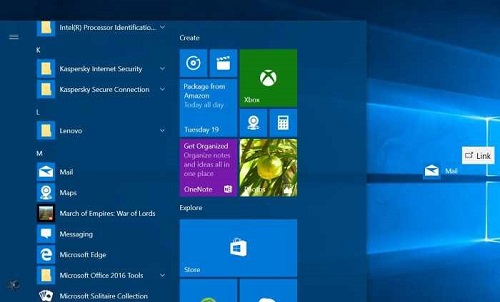
Figure 1: Creating a Desktop shortcut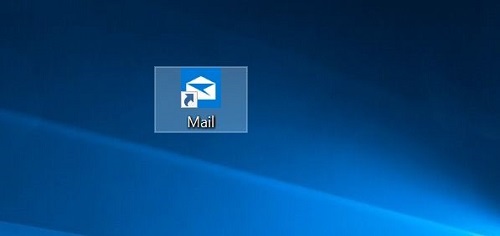
Figure 2: Desktop Shortcut -
Open Run command box by pressing the Windows logo + R keys. In the Run command field, type shell: Startup and then press Enter key to open Startup folder.
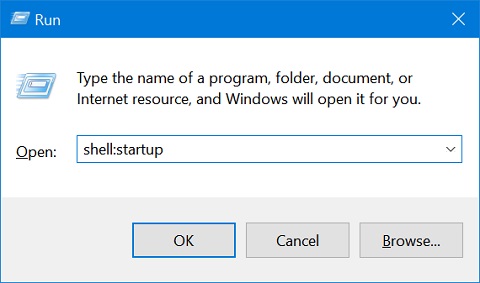
Figure 3: Run Command Box -
Copy and paste the app shortcut from the desktop to this Startup folder and the app is added to startup.
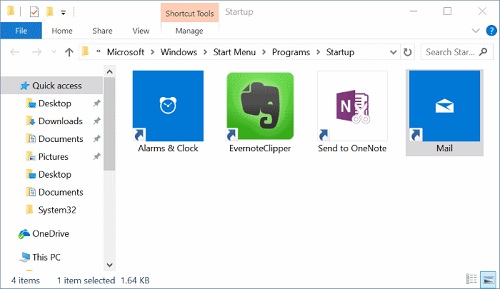
Figure 4: Startup Folder
해당 제품
Chromebox, Alienware, Dell All-in-One, Dell Pro Max Micro, Dell Pro Max Slim, Dell Pro Max Tower, Dell Pro Micro, Dell Pro Slim, Dell Pro Tower, Dell Slim, Dell Tower, Inspiron, Legacy Desktop Models, OptiPlex, Vostro, XPS, G Series, Chromebook
, G Series, Alienware, Dell Plus, Dell Pro, Dell Pro Max, Dell Pro Plus, Dell Pro Premium, Inspiron, Latitude, Dell Pro Rugged, Vostro, XPS, Legacy Laptop Models, Latitude Tablets, Surface, XPS Tablets, Mobile Workstations
...
문서 속성
문서 번호: 000124550
문서 유형: How To
마지막 수정 시간: 10 7월 2025
버전: 15
다른 Dell 사용자에게 질문에 대한 답변 찾기
지원 서비스
디바이스에 지원 서비스가 적용되는지 확인하십시오.