Dell Security Management Server가 보고서를 내보내지 못함
요약: 이 문서에서는 Dell Security Management Server가 원격 콘솔에서 일반 오류로 인해 관리되는 보고서를 내보내지 못하는 원인과 해결 방법에 대해 설명합니다.
이 문서는 다음에 적용됩니다.
이 문서는 다음에 적용되지 않습니다.
이 문서는 특정 제품과 관련이 없습니다.
모든 제품 버전이 이 문서에 나와 있는 것은 아닙니다.
증상
영향을 받는 제품:
- Dell Security Management Server
영향을 받는 버전:
- v10.x 이하
영향을 받는 운영 체제:
- Windows
Dell Security Management Server에서 ReportingManage > Reports로 이동하여 다른 관리 보고서를 생성하고 내보낼 수 있습니다.

보고서를 내보내려면 Export File 을 선택하고 Excel 또는 CSV 형식을 선택하면 됩니다.

주의: 보고서의 크기와 엔드포인트 수로 인해 보고서를 내보내기 위해 기다리는 동안 60초 후에 Dell Security Management Console에서 아래 오류가 발생하고 내보내기가 실패할 수 있습니다.
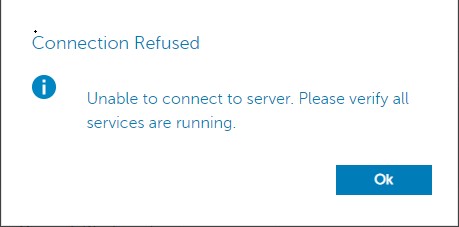
Security Server 서비스 로그인 확인 c:\Program Files\*** 장애 발생 시 아래와 유사한 오류가 보고됩니다.
2020-12-07 12:07:56,350 ERROR com.dell.ddps.webui.controllers.ReportController [qtp1551039242-71115] - Timeout in webservice controller java.lang.IllegalStateException: WRITER
2020-12-07 12:07:56,351 ERROR com.dell.ddps.webui.controllers.ReportController [qtp1551039242-71115] - ServiceException thrown in webservice controller com.dell.ddps.webui.controllers.BaseWebUiController$LocalizedServiceException: The service did not respond in a timely manner.
2020-12-07 12:07:56,352 WARN org.springframework.web.servlet.mvc.method.annotation.ExceptionHandlerExceptionResolver [qtp1551039242-71115] - Failed to invoke @ExceptionHandler method: public java.lang.Object com.dell.ddps.webui.controllers.BaseWebUiController.handleException(javax.servlet.http.HttpServletRequest,javax.servlet.http.HttpServletResponse,java.lang.Exception,java.util.Locale) java.lang.IllegalStateException: WRITER
2020-12-07 12:07:56,353 WARN org.eclipse.jetty.server.HttpChannel [qtp1551039242-71115] - /webui/exportToExcel javax.servlet.ServletException: org.springframework.web.util.NestedServletException: Request processing failed; nested exception is java.lang.IllegalStateException: WRITER
원인
DoS(서비스 거부) 필터는 60초 후에 서버 연결을 종료합니다.
해결
DoS 필터 임계값을 높이려면 다음 단계를 수행합니다.
- 메모장을 사용하여
webdefault.xml, 에 위치C:\Program Files\Dell\Enterprise Edition\Security Server\conf기본적으로,MaxRequestMs및maxIdleTrackerMs60000에서 300000까지의 시간 초과:
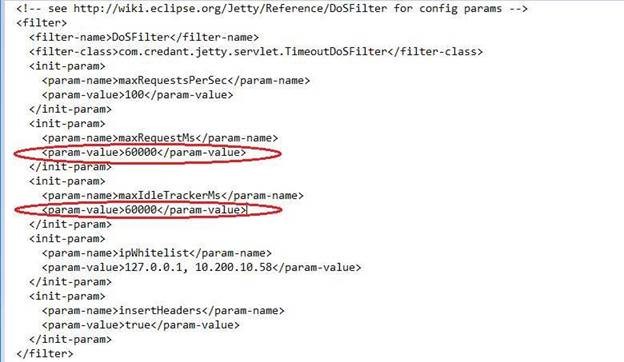
- 값을 60000에서 300000으로 변경한 후 파일을 저장하고 Security Server 서비스를 다시 시작합니다. Security Server 서비스를 재시작하려면 다음 단계를 수행합니다.
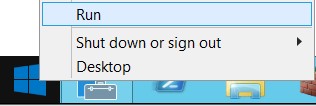
- 오른쪽 클릭 시작 및 실행을 선택합니다.
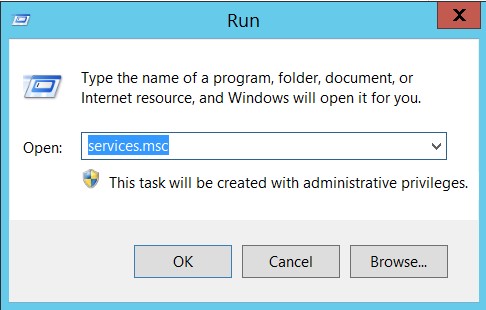
- Run 대화 상자 창에 다음을 입력합니다.
services.msc를 클릭하고 Enter 키를 누르거나 확인을 클릭합니다.
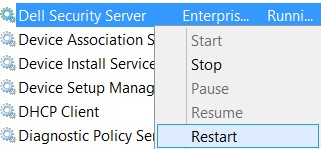
- Dell Security Server 서비스를 마우스 오른쪽 버튼으로 클릭하고 Restart를 선택합니다.
추가 정보
비디오
해당 제품
Dell Encryption문서 속성
문서 번호: 000184829
문서 유형: Solution
마지막 수정 시간: 17 7월 2026
버전: 11
다른 Dell 사용자에게 질문에 대한 답변 찾기
지원 서비스
디바이스에 지원 서비스가 적용되는지 확인하십시오.