Collaboration Touchpad Does Not Control Zoom Application
Zhrnutie: This article provides information about an issue where you cannot control the Zoom application with a single-tap on the Collaboration Touchpad. This is seen on the Latitude 9330 laptop. ...
Tento článok sa vzťahuje na
Tento článok sa nevzťahuje na
Tento článok nie je viazaný na žiadny konkrétny produkt.
V tomto článku nie sú uvedené všetky verzie produktov.
Symptómy
Single-tap does not control Zoom application on Collaboration Touchpad.
Príčina
Double-tap is selected in the Collaboration Touchpad controls.
Riešenie
Clear the double-tap checkbox to use a single tap as the default behavior. To enable additional control over the Collaboration Touchpad feature, follow these instructions:
- Go to the home screen and click Collaboration (Figure 1 [English only]).
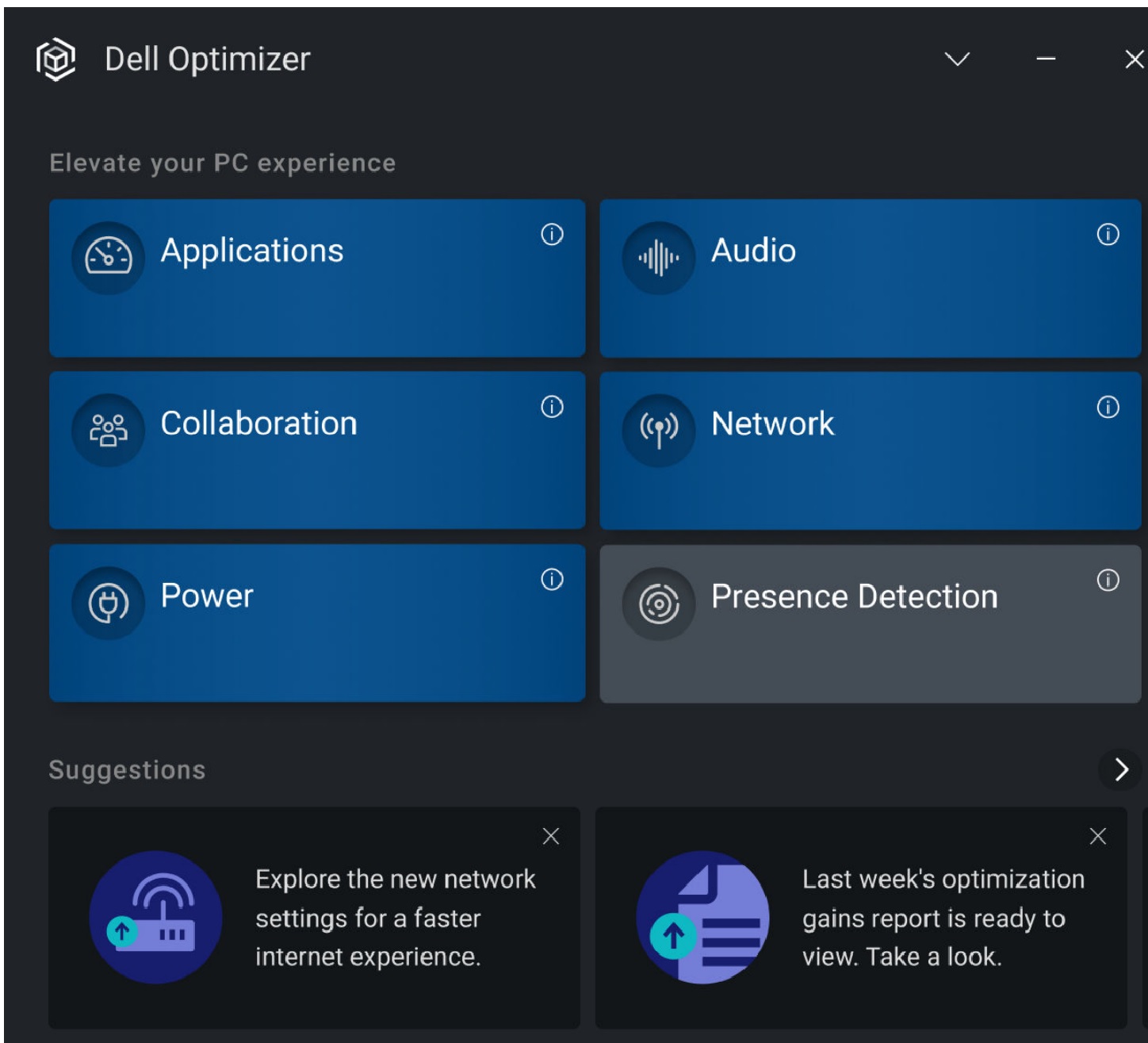
Figure 1: Collaboration Tile - The Collaboration screen is displayed. Confirm if the double-tap setting is enabled (the checkbox is checked). If you prefer to use a single-tap, clear it (Figure 2 [English only]).
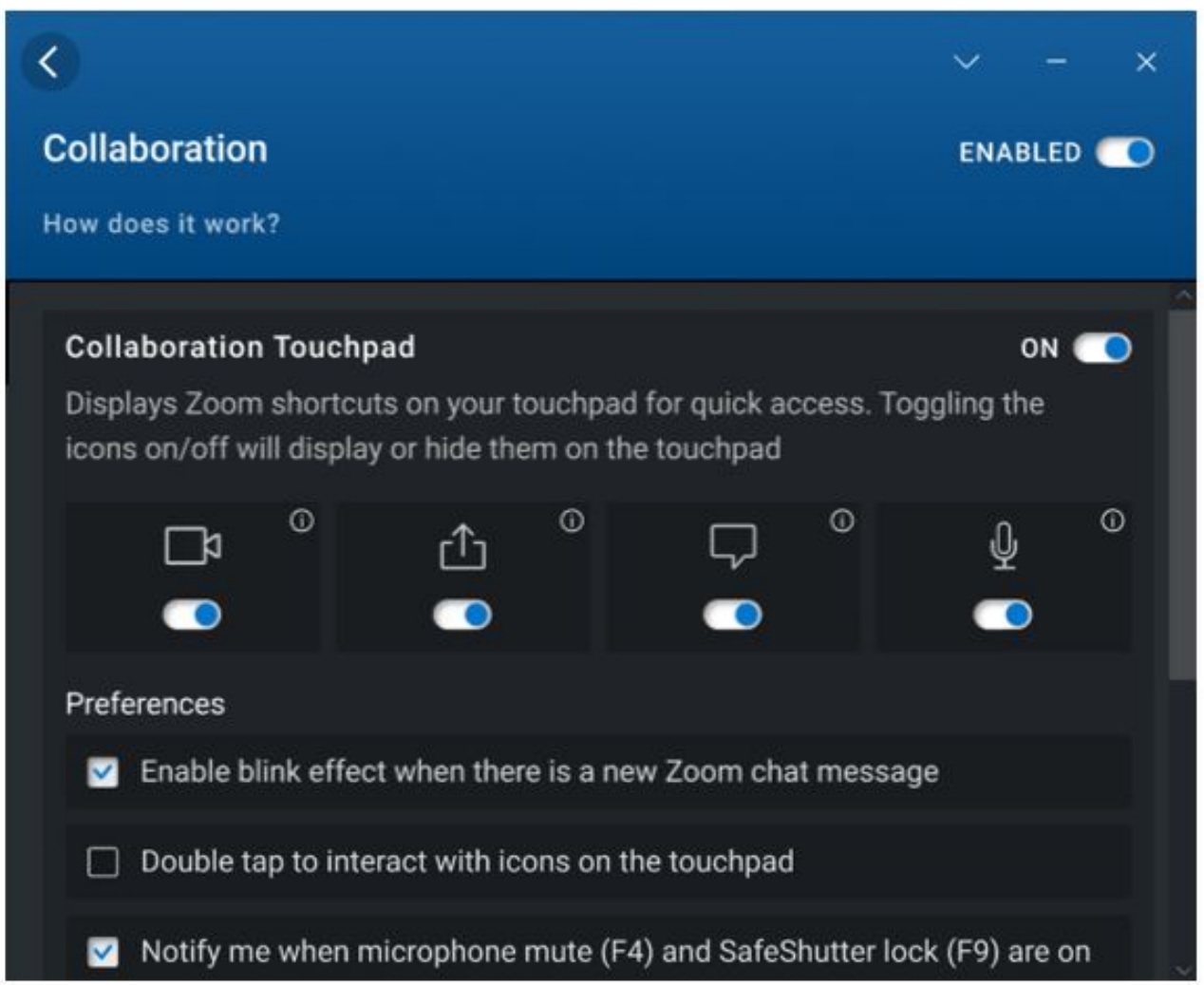
Figure 2: Collaboration settings - Check the double-tap checkbox to engage with the touchpad icons by tapping twice instead of once. Enable this setting to avoid activating the touchpad icons using a single tap accidentally. This checkbox is cleared by default, as single-tap is the default behavior.
Dotknuté produkty
Dell Optimizer, Dell Pro 13 Premium PA13250, Latitude 9330Vlastnosti článku
Číslo článku: 000200990
Typ článku: Solution
Dátum poslednej úpravy: 14 máj 2026
Verzia: 5
Nájdite odpovede na svoje otázky od ostatných používateľov spoločnosti Dell
Služby podpory
Skontrolujte, či sa na vaše zariadenie vzťahujú služby podpory.