Fix Wired, Wireless, and Bluetooth Mouse Not Working Issues
摘要: Fix common mouse issues like restoring your pointer, why your mouse is not moving, and troubleshooting a slow or unresponsive pointer.
本文适用于
本文不适用于
本文并非针对某种特定的产品。
本文并非包含所有产品版本。
说明
Suggested Quick Fixes:
- Reseat the USB cable or wireless USB receiver.
- When you have a wireless USB or Bluetooth mouse, install new batteries.
NOTE: For more information about how to install the batteries and what kind of battery the mouse takes, see the document that came with the mouse or browse to the Dell Manual page for the manual.
- Insert the USB cable or wireless USB receiver into another USB port to test.
- Save any data, close any open programs, and restart the computer.
When your Wired USB, Wireless USB, or Bluetooth mouse is not working as it should, see the expanding section below that best matches the issue that you are having and follow the instructions.
- Locate the wireless USB receiver that came with your mouse.
NOTE:
When buying a keyboard or mouse with a computer:
- Look in every compartment of the box that the devices came in. The wireless USB receiver is small and can be overlooked. The receiver has an informational tag that is attached to help you locate the receiver. See Figure 1 to see the size and shape of the receiver.
When buying a keyboard or mouse separately from a computer:
- The wireless USB receiver is under the keyboard when buying a keyboard or keyboard mouse combination, and under the mouse when bought separately. The receiver has an informational tag that is attached to help you locate the receiver. See Figure 2 for the typical location, size, and shape of the receiver.
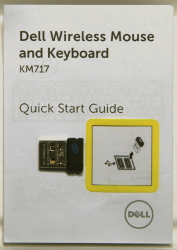
Figure 1: Wireless Receiver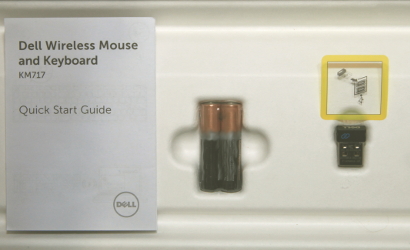
Figure 2: Wireless Receiver Location in PackagingWhen you cannot locate your wireless receiver after you have unpacked the devices, some mouses and keyboards have a place to store the wireless receiver. Look under the mouse buttons where the batteries are or in the battery compartment on a keyboard, but they are not shipped in those locations.
- Insert the wireless USB receiver, as shown in Figure 3.
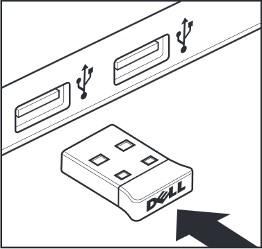
Figure 3: Wireless USB Receiver InsertionNotes:- The receiver only goes in one way. When the connector does not seem to fit, adjust the angle, or flip it over.
- When using the receiver that came with the mouse, no configuration is needed.
NOTE: The connector only goes in one way. When the connector does not seem to fit, adjust the angle, or flip it over.
- Check the connector at the end of the USB mouse cable to determine the type of connector your keyboard or mouse has. For more information, see the figure below:
PS/2 USB 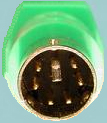
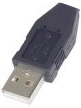
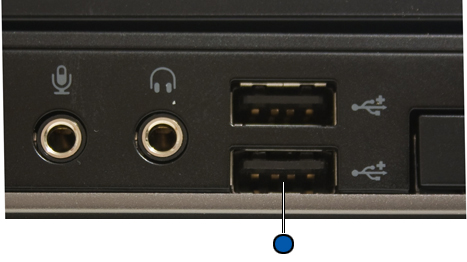
- Find the port and USB symbols on your laptop:
- Laptop:
- Desktop:
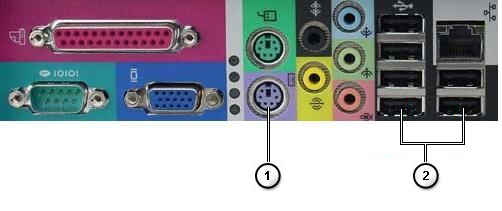
Figure: PS/2 and USB port locationNumbered reference figure: 
PS/2 port 
USB port
- Laptop:
To Pair or Re-pair the Bluetooth mouse to the computer, see the Dell Knowledge Base article Bluetooth Troubleshooting and Usage Guide.
NOTE: The following steps apply to all brands of wired USB mouses.
- Reseat the wired USB mouse cable into the USB port.
- Ensure the optical opening on the bottom of the mouse and around the scroll wheel is clean. For more information, see the How to Clean Your Mouse section.
- Ensure the surface that you are using has enough of a pattern in it that the mouse can tell when it has been moved (a mouse pad is best, since the mouse judges movement by reflections, a uniform surface is harder for the mouse to tell when it has been moved).
- Try the wired USB mouse in another USB port on the computer. A notice that drivers are being installed may appear; if so, wait until a message that the drivers were installed before you use the mouse.
- Try another wired USB mouse, when available. A notice that drivers are being installed may appear, if so, wait until a message that the drivers were installed before you use the mouse.
- Try your wired or wireless mouse on another computer, when available. A notice that drivers are being installed may appear, if so, wait until a message that the drivers were installed before you use the mouse.
- Save any data, close any open programs, and restart the computer. When you do not have another mouse or touch screen, you may have to press and hold the power button down for at least 15 seconds to turn the computer off, and you lose any data that is not saved.
- Using the SupportAssist application provides automatic computer updates and detects issues that are resolved for you. Let us take the effort out of maintaining your Dell Computer or Tablet. For more information about SupportAssist, browse to the SupportAssist for PCs and tablets
- When the mouse still does not work after following the preceding steps, see the Dell Knowledge Base article Resolve Hardware Issues With Integrated and Online Diagnostics (SupportAssist ePSA, ePSA, or PSA Error Codes).
NOTE:
- The test determines if a wired USB mouse is detected at a hardware level below the Operating System. When it is detected, it means that the operating system or installed software is preventing the wired USB mouse from working. You can use a restore point to return the operating system to a previous state when the mouse worked (in Windows 10, it is called refreshing the operating system). If that does not work, you must reinstall your operating system. For more information, see Dell Knowledge Base article Factory reset, restore, or reinstall Microsoft Windows on a Dell computer.
- When an error is reported during the test, write down the error and the validation code as seen. Then on another Internet device, browse to the Enhanced Preboot System Assessment page to submit the issue.
- Ensure to use the wireless USB receiver that came with your wireless mouse. Using another receiver may mean it uses another technology, and is not compatible with the mouse. For more information about the latest technology offered by Dell, see Dell Knowledge Base article How to use the Dell Universal Pairing. For products that are labeled Logitech
 , browse to the Logitech Downloads Site for drivers and software. NOTE:
When buying a keyboard or mouse with a computer:
- Look in every compartment of the box that the devices came in. The wireless USB receiver is small and can be overlooked. The receiver has an informational tag that is attached to help you locate the receiver. See Figure 1 to see the size and shape of the receiver.
When buying a keyboard or mouse separately from a computer:
- The wireless USB receiver is under the keyboard when buying a keyboard or keyboard mouse combination, and under the mouse when bought separately. The receiver has an informational tag that is attached to help you locate the receiver. See Figure 2 for the typical location, size, and shape of the receiver.
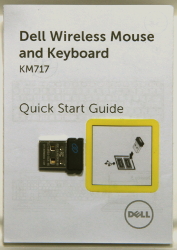
Figure 1: Wireless Receiver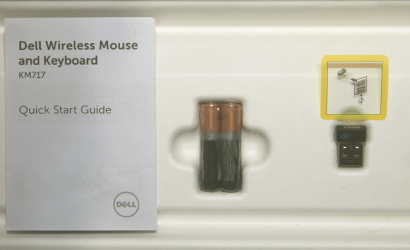
Figure 2: Wireless Receiver Location in PackagingWhen you cannot locate your wireless receiver after you have unpacked the devices, some mouses and keyboards have a place to store the wireless receiver. Look under the mouse buttons where the batteries are or in the battery compartment on a keyboard, but they are not shipped in those locations.
- Ensure that the mouse is within 10 feet (3 meters) of the computer.
- Reseat the wireless USB receiver into the USB port.
- Reinsert the batteries or install fresh batteries. For more information about how to install the batteries and what kind of battery the mouse takes, see the document that came with the mouse or browse to the Dell Manual page for the manual.
- Ensure that the mouse is turned on; see Figure 3 for an example of what the power button may look like. For more information about where the power switch is, see the document that came with the wireless mouse or browse to the Keyboard and Mouse Manual page for the manual.
 Or
Or 
Figure 3: Power Button Examples - Your receiver and mouse may have a connect button: If so, press the connect button on the receiver and on the bottom of the mouse. See Figure 4 for an example.
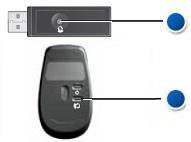
Figure 4: Wireless Mouse Connect Button Location - Ensure the optical opening on the bottom of the mouse and around the scroll wheel is clean. For more information, see the How to Clean Your Mouse section.
- Ensure the surface that you are using has enough of a pattern in it so that the mouse can tell when it has been moved (a mouse pad is best, since the mouse judges movement by reflections, a uniform surface is harder for the mouse to tell when it has been moved).
- Try the wireless USB receiver in another USB port on the computer. A notice that drivers are being installed may appear, if so, wait until a message that the drivers were installed before you use the mouse.
NOTE: When using a wireless USB mouse with a connect button, ensure to press the connect button on the receiver and on the bottom of the mouse again.
- Try another wireless USB mouse and receiver, when available. A notice that drivers are being installed may appear, if so, wait until a message that the drivers were installed before you use the mouse.
NOTE: When using a wireless USB mouse with a connect button, ensure to press the connect button on the receiver and on the bottom of the mouse again.
- Save any data, close any open programs, and restart the computer. When you do not have another mouse or touch screen, you may have to hold the power button down for at least 15 seconds to turn the computer off, and you lose any data that is not saved.
- When the mouse still does not work after following the preceding steps, see Dell Knowledge Base article Resolve Hardware Issues With Integrated and Online Diagnostics (SupportAssist ePSA, ePSA, or PSA Error Codes).
NOTE:
- The test determines if the wireless USB mouse receiver is detected at a hardware level below the Operating System. When it is detected, it means that the operating system or installed software is preventing the USB wireless mouse from working. You can use a restore point to return the operating system to a previous state when the mouse worked (in Windows 10, it is called refreshing the operating system). If that does not work, you must reinstall your operating system. For more information, see Dell Knowledge Base article Factory reset, restore, or reinstall Microsoft Windows on a Dell computer.
- When an error is reported during the test, write down the error and the validation code as seen. Then on another Internet device, browse to the Enhanced Preboot System Assessment page to submit the issue.

- Reinsert the batteries or install fresh batteries. For more information about how to install the batteries and what kind of battery the mouse takes, see the document that came with the mouse or browse to the Dell Manual page for the manual.
- Ensure the optical opening on the bottom of the mouse and around the scroll wheel is clean. For more information, see the How to Clean Your Mouse section.
- Ensure that the mouse is within 10 feet (3 meters) of the computer.
- Ensure the surface that you are using has enough of a pattern in it, so the mouse can tell when it has been moved (a mouse pad is best, since the mouse judges movement by reflections, a uniform surface is harder for the mouse to tell when it has been moved).
- Save any data, close any open programs, and restart the computer. When you do not have another mouse or touch screen, you may have to hold the power button down for at least 15 seconds to turn the computer off, and you lose any data that is not saved.
- Install the latest Bluetooth drivers for your computer. For more information, see the Dell Knowledge Base article How to Download and Install Dell Drivers.
NOTE:
- The driver is located in the Network category.
- For additional drivers and software on products that are labeled Logitech
 , browse to the Logitech Downloads Site.
- To Pair or Re-pair the Bluetooth mouse to the computer, see the Dell Knowledge Base article Bluetooth Troubleshooting and Usage Guide.
NOTE: The following steps apply to all brands of wired USB mouses.
- Ensure that there is nothing preventing the mouse buttons from moving. Most mouse buttons make a clicking noise when pressed down all the way.
- Reseat the wired USB mouse cable into the USB port.
- Try the wired USB mouse in another USB port on the computer. A notice that drivers are being installed may appear, if so, wait until a message that the drivers were installed before you use the mouse.
- Try another wired USB mouse, when available. A notice that drivers are being installed may appear, if so, wait until a message that the drivers were installed before you use the mouse.
- Save any data, close any open programs, and restart the computer. When you do not have another mouse or touch screen, you may have to hold the power button down for at least 15 seconds to turn the computer off, and you lose any data that is not saved.
- When the mouse still does not work after following the preceding steps, see Dell Knowledge Base article Resolve Hardware Issues With Integrated and Online Diagnostics (SupportAssist ePSA, ePSA, or PSA Error Codes).
NOTE:
- The test determines if a wired USB mouse is detected at a hardware level below the Operating System. When it is detected, it means that the operating system or installed software is preventing the wired USB mouse from working. You can use a restore point to return the operating system to a previous state when the mouse worked (in Windows 10, it is called refreshing the operating system). If that does not work, you must reinstall your operating system. For more information, see Dell Knowledge Base article Factory reset, restore, or reinstall Microsoft Windows on a Dell computer.
- When an error is reported during the test, write down the error and the validation code as seen. Then on another Internet device, browse to the Enhanced Preboot System Assessment page to submit the issue.
- Ensure that nothing is preventing the mouse buttons from moving. Most mouse buttons make a clicking noise when pressed down all the way.
- Ensure to use the wireless USB receiver that came with your wireless mouse. Using another receiver may mean it uses another technology, and it may not be compatible with the mouse. For more information about the latest technology offered by Dell, see Dell Knowledge Base article How to use the Dell Universal Pairing.
NOTE:
When buying a keyboard or mouse with a computer:
- Look in every compartment of the box that the devices came in. The wireless USB receiver is small and can be overlooked. The receiver has an informational tag that is attached to help you locate the receiver. See Figure 1 to see the size and shape of the receiver.
When buying a keyboard or mouse separately from a computer:
- The wireless USB receiver is under the keyboard when buying a keyboard or keyboard mouse combination, and under the mouse when bought separately. The receiver has an informational tag that is attached to help you locate the receiver. See Figure 2 for the typical location, size, and shape of the receiver.
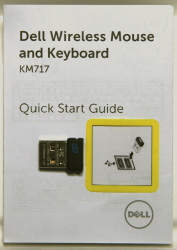
Figure 1: Wireless Receiver
Figure 2: Wireless Receiver Location in PackagingWhen you cannot locate your wireless receiver after you have unpacked the devices, some mouses and keyboards have a place to store the wireless receiver. Look under the mouse buttons where the batteries are or in the battery compartment on a keyboard, but they are not shipped in those locations.
- Ensure that the mouse is within 10 feet (3 meters) of the computer.
- Reseat the wireless USB receiver into the USB port.
- Reinsert the batteries or install fresh batteries. For more information about how to install the batteries and what kind of battery the mouse takes, see the document that came with the mouse or browse to the Dell Manual page for the manual.
- Ensure that the mouse is turned on. See Figure 3 for an example of what the power button may look like. For more information about where the power switch is, see the document that came with the wireless mouse or browse to the Keyboard and Mouse Manual page for the manual.
 Or
Or 
Figure 3: Power Button Examples - Your receiver and mouse may have a connect button; if so, press the connect button on the receiver and on the bottom of the mouse. See Figure 4 for an example.
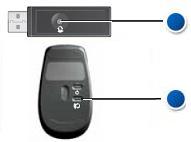
Figure 4: Wireless Mouse Connect Button Location - Try the wireless USB receiver in another USB port on the computer. A notice that drivers are being installed may appear, if so, wait until a message that the drivers were installed before you use the mouse.
NOTE: When using a wireless USB mouse with a connect button, ensure to press the connect button on the receiver and on the bottom of the mouse again.
- Try another wireless USB mouse and receiver if available. A notice that drivers are being installed may appear, if so, wait until a message that the drivers were installed before you use the mouse.
NOTE: When using a wireless USB mouse with a connect button, ensure to press the connect button on the receiver and on the bottom of the mouse again.
- Save any data, close any open programs, and restart the computer. When you do not have another mouse or touch screen, you may have to hold the power button down for at least 15 seconds to turn the computer off, and you lose any data that is not saved.
- When the mouse still does not work after following the preceding steps, see Dell Knowledge Base article Resolve Hardware Issues With Integrated and Online Diagnostics (SupportAssist ePSA, ePSA, or PSA Error Codes).
NOTE:
- The test determines if the wireless USB mouse receiver is detected at a hardware level below the Operating System. When it is detected, it means that the operating system or installed software is preventing the USB wireless mouse from working. You can use a restore point to return the operating system to a previous state when the mouse worked (in Windows 10, it is called refreshing the operating system). If that does not work, you must reinstall your operating system. For more information, see Dell Knowledge Base article Factory reset, restore, or reinstall Microsoft Windows on a Dell computer.
- When an error is reported during the test, write down the error and the validation code as seen. Then on another Internet device, browse to the Enhanced Preboot System Assessment page to submit the issue.
- Ensure that there is nothing preventing the mouse buttons from moving, most mouse buttons make a clicking noise when pressed down all the way.
- Reinsert the batteries or install fresh batteries. For more information about how to install the batteries and what kind of battery the mouse takes, see the document that came with the mouse or browse to the Dell Manual page for the manual.
- Ensure that the mouse is within 10 feet (3 meters) of the computer.
- Ensure that the mouse is turned on. See Figure 1 for an example of what the power button may look like. For more information about where the power switch is, see the document that came with the wireless mouse or browse to the Keyboard and Mouse Manual page for the manual.
 Or
Or 
Figure 1: Power Button Examples - Save any data, close any open programs, and restart the computer. When you do not have another mouse or touch screen, you may have to hold the power button down for at least 15 seconds to turn the computer off, and you lose any data that is not saved.
- Install the latest Bluetooth drivers for your computer. For more information, see the Dell Knowledge Base article How to Download and Install Dell Drivers.
NOTE: The driver is located in the Network category.
- Re-pair the mouse with the computer. For this information and more on Bluetooth mice and keyboards, see the Dell Knowledge Base article Bluetooth Troubleshooting and Usage Guide.
- Ensure the optical opening on the bottom of the mouse is clean. For more information, see the How to Clean Your Mouse section.
- Ensure the surface that you are using has enough of a pattern in it that the mouse can tell when it has been moved (a mouse pad is best, since the mouse judges movement by reflections, a uniform surface is harder for the mouse to tell when it has been moved).
- Change the mouse settings to adjust the pointer speed.
Click the tab that matches the Operating System that is installed on your computer and perform the steps within that section to change the settings.
- In the Search box, type main.cpl.
- Touch or click main.cpl in the list of programs.
- Touch or click the Pointer Options tab.
- Move the slider under Select a Pointer Speed to adjust the cursor speed to the wanted level.
- Touch or click OK.
- Press and hold the Windows (
 ) key, and then press the q key.
- In the Search box type, main.cpl.
- Click or touch main.cpl in the list of programs.
- Touch or click the Pointer Options tab.
- Move the slider under Select a Pointer Speed to adjust the cursor speed to the wanted level.
- Touch or click OK.
- Press the Windows (
 ) key.
- In the search box, type Mouse.
- Touch or click Mouse in the list of programs.
- Touch or click the Pointer Options tab.
- Move the slider under Select a Pointer Speed to adjust the cursor speed to the wanted level.
- Touch or click OK.
- In the Search box, type main.cpl.
- Turn off the computer.
- Unplug any devices, including the following:
- Speakers.
- Printers.
- Scanners.
- Other USB devices, including an external keyboard.
- USB flash drive or other external storage devices.
- Turn the computer back on and retest the cursor movement.
- When the cursor does work correctly, attach one device at a time, and test the cursor movement to see which one may have caused the issue.
- When the mouse still does not work after following the preceding steps, see Dell Knowledge Base article Resolve Hardware Issues With Integrated and Online Diagnostics (SupportAssist ePSA, ePSA, or PSA Error Codes).
NOTE:
- The test determines if the mouse is detected at a hardware level below the Operating System. When it is detected, it means that the operating system or installed software is preventing the mouse from working.
- When an error is reported during the test, write down the error and the validation code as seen. Then on another Internet device, browse to the SupportAssist Pre-Boot System Performance Check page to submit the issue.
- As mentioned before, the stop responding issue may be caused by software issues on your computer, for more information, see Dell Knowledge Base article How to Troubleshoot Slow Performance Issues.
- You can use a restore point to return the operating system to a previous state when the mouse worked (in Windows 10, it is called refreshing the operating system). If that does not work, you must reinstall your operating system. For more information, see Dell Knowledge Base article Factory reset, restore, or reinstall Microsoft Windows on a Dell computer.
To clean the lens, perform the following steps:
- Turn off the computer and unplug the mouse.
- Look at the lens on the bottom of the optical mouse.
- If you see any debris, try to blow it off with a can of compressed air.
- If not, take a cotton swab or terry cloth rag and dip it in isopropyl alcohol. It should be damp but not wet and lightly clean the lens.
To clean the scroll wheel, perform the following steps:
- Turn off the computer and unplug the mouse.
- Look at the scroll wheel.
- When you see any debris, try to blow it off with a can of compressed air.
- If not, take a cotton swab or terry cloth rag, dip it in isopropyl alcohol (it should be damp but not wet), and wipe the circumference of the wheel, cleaning away oily buildup and dirt.
To clean the lens, perform the following steps:
- Ensure that the mouse is turned off and remove the batteries. For more information about where the power switch is and how to remove the batteries, see the document that came with the wireless mouse or browse to the Keyboard and Mouse Manual page for the manual.
- Look at the lens on the bottom of the mouse.
- If you see any debris, try to blow it off with a can of compressed air.
- If not, take a cotton swab or terry cloth rag, dip it in isopropyl alcohol (it should be damp but not wet), and lightly clean the lens.
To clean the scroll wheel, perform the following steps:
- Ensure that the mouse is turned off and remove the batteries. For more information about where the power switch is and how to remove the batteries, see the document that came with the wireless mouse or browse to the Keyboard and Mouse Manual page for the manual.
- Look at the scroll wheel.
- When you see any debris, try to blow it off with a can of compressed air.
- If not, take a cotton swab or terry cloth rag, dip it in isopropyl alcohol (it should be damp but not wet), and wipe the circumference of the wheel, cleaning away oily buildup and dirt.
There may be times where the functions of the mouse buttons have accidentally been changed, or you want to change them.
NOTE: For information about configuring Alienware Keyboards and Mice, see Dell Knowledge Base Alienware Command Center Quick Guide.
Click the tab that matches the Operating System that is installed on your computer and perform the steps within that section to change the settings.
- In the search box, type Mouse.
- Touch or click Mouse & touchpad settings (System settings).
- Under Select your primary button, use the drop-down menu to select whether you want the Left or the Right button to be the primary button (the one that selects items).
- Press and hold the Windows (
 ) key, and then press the q key.
- In the search box, type Mouse.
- Touch or click Mouse & touchpad settings.
- Under Select your primary button, use the drop-down menu to select whether you want the Left or the Right button to be the primary button (the one that selects items).
- Press the Windows (
 ) key.
- In the search box, type Mouse.
- Touch or click Mouse in the list of programs.
- Touch or click the Buttons tab.
- Touch or click to check the box next to Switch primary and secondary buttons, this switches the function of the buttons.
Note: The normal setting is for the box to be cleared. When the function of the buttons is switched, and you do not want it that way, clear the box.
- Touch or click OK.
- Click Start.
- In the search box, type Mouse.
- Click Mouse.
- Click the Buttons tab.
- Click to check the box next to Switch primary and secondary buttons, this switches the function of the buttons.
NOTE: The normal setting is for the box to be cleared, if the function of the buttons is switched and you do not want it that way, clear the box.
- Click Save.
- Reseat the USB cable into the computer.
- Save any data, close any open programs, and restart the computer. When the mouse and keyboard do not respond at all, you may have to press and hold the power button down for at least 15 seconds to turn the computer off, and you lose any data that is not saved.
- Ensure that the BIOS is updated to the latest version. For more information, see Dell Knowledge Base article Dell BIOS Updates.
- Ensure that Windows has the latest updates. For more information, see Microsoft Knowledge Base article Windows Update: FAQ.
- Reseat the wireless USB receiver into the computer.
- Save any data, close any open programs, and restart the computer. When the mouse and keyboard do not respond at all, you may have to press and hold the power button down for at least 15 seconds to turn the computer off, and you lose any data that is not saved.
- Ensure that the BIOS is updated to the latest version. For more information, see Dell Knowledge Base article Dell BIOS Updates.
- Ensure that Windows has the latest updates. For more information, see Microsoft Knowledge Base article Windows Update: FAQ.
- Save any data, close any open programs, and restart the computer. When the mouse and keyboard do not respond at all, you may have to press and hold the power button down for at least 15 seconds to turn the computer off, and you lose any data that is not saved.
- Ensure that the BIOS is updated to the latest version. For more information, see Dell Knowledge Base article Dell BIOS Updates.
- Ensure that Windows has the latest updates. For more information, see Microsoft Knowledge Base article Windows Update: FAQ.
- Run the SupportAssist application.
- Press and hold the Windows (
 ) key, and then press the q key.
- In the Search box, type SupportAssist.
NOTE: When SupportAssist is not listed, go to the next step.
- Use the up or down arrows to select SupportAssist (App) in the list of programs, and then press the Enter key.
- Press the Tab key until Start now is highlighted.
NOTE: It may take as many as eleven times, pressing the tab key to select Start now.
- The application looks for updated drivers and scans your hardware and optimizes your computer. Follow the prompts.
NOTE: When the preceding steps have not resolved your issue, go to the next step. - Press and hold the Windows (
- Uninstall the mouse driver, and let Windows reinstall it.
- Press and hold the Windows (
 ) key, and then press the q key.
- In the Search box, type device manager.
- Use the up or down arrows to select Device Manager (Control panel) in the list of programs, and then press the Enter key.
- Press the Tab key.
- Use the down arrow to select Mice and other pointing devices, and then use the right arrow key to expand it.
- Use the down arrow to select the first listing for Dell Touchpad or HID-compliant mouse.
- Press and hold the Shift key, and then press the F10 key.
NOTE: On some laptops, you must press and hold the shift key and then press and hold the Fn key, and then press F10.
- Use the down arrow to select Uninstall device and then press the enter key.
- Ensure that Uninstall is highlighted and press the Enter key.
NOTE: See the next step on how to restart the computer. - Press and hold the Windows (
- Restart the computer.
- Press the Windows (
 ) key.
- Press the Tab key until the Expand icon
 is highlighted.
- Press the down arrow until the power icon
 is highlighted.
- Press the Enter key.
- Press the down arrow until Shut down is highlighted.
- Press the Enter key. The computer reboots.
- Press the Windows (
- How to use the Dell Universal Pairing - This article provides information about which keyboard and mouses are compatible with Dell Universal Pairing and how to connect them together.
- Dell Bluetooth Wireless Keyboard and Mouse, Lock Up or Stop Working After a Restart
- Bluetooth Troubleshooting and Usage Guide
- Guide For Pairing and Troubleshooting Dell Bluetooth Keyboards and Mouse
- Dell Multi-device Wireless Keyboard and Mouse Bluetooth Connection and Pairing to Personal Computer
- Keyboard Troubleshooting and Usage: The Definitive Guide
- Using the SupportAssist application provides automatic computer updates and detects issues that will be resolved for you. Let us take the effort out of maintaining your Dell Computer or Tablet. For more information about SupportAssist, browse to the SupportAssist for PCs and tablets page.
How to Fix Mouse Not Working
Duration: 02:34
When available, closed caption (subtitles) language settings can be chosen using the Settings or CC icon on this video player.
USB Devices Not Working Windows 10
Duration: 02:11
When available, closed caption (subtitles) language settings can be chosen using the Settings or CC icon on this video player.
How to Connect Bluetooth Device to your PC in Windows 11
Duration: 02:09
When available, closed caption (subtitles) language settings can be chosen using the Settings or CC icon on this video player.
How to Run the Bluetooth Troubleshooter
Duration: 0:33
When available, closed caption (subtitles) language settings can be chosen using the Settings or CC icon on this video player.
How to Connect Bluetooth in Dell Computer Windows 10
Duration: 01:31
When available, closed caption (subtitles) language settings can be chosen using the Settings or CC icon on this video player.
受影响的产品
Alienware Advanced Gaming Mouse – AW558, Alienware Elite Gaming Mouse – AW958, Alienware Wireless Gaming Mouse AW310M, Alienware RGB Gaming Mouse AW510M, Alienware Wired/Wireless Gaming Mouse AW610M, Alienware Elite Gaming Mouse - AW959, Chromebox
, Alienware, Dell All-in-One, Dell Pro All-in-One, Dell Pro Max Micro, Dell Pro Max Slim, Dell Pro Max Tower, Dell Pro Micro, Dell Pro Slim, Dell Pro Tower, Dell Slim, Dell Tower, Inspiron, Legacy Desktop Models, OptiPlex, OptiPlex Micro, Vostro, XPS, G Series, Chromebook, G Series, Alienware, Dell Plus, Dell Pro, Dell Pro Max, Dell Pro Plus, Dell Pro Premium, Inspiron, Latitude, Dell Pro Rugged, Vostro, XPS, Legacy Laptop Models, Fixed Workstations, Mobile Workstations, Alienware Pro Wireless Gaming Mouse, Dell Bluetooth Mouse WM615, Dell 14 Plus 2-in-1 DB04250, Dell 16 Plus 2-in-1 DB06250, Dell 14 Plus DB14250, Dell 16 Plus DB16250, Dell Tower Plus EBT2250, Dell Pro Compact Silent Keyboard and Mouse - KM555, Dell Wireless Keyboard & Mouse Bundle KM632, Dell Pro Wired Mouse MS3220, Dell Laser Mouse, Dell Pro Plus Compact Mouse MS5120W, Dell Mobile Wireless Mouse MS3320W, Dell Pro Plus Compact Keyboard and Mouse KM7120W, Dell Pro Plus Mouse MS5320W, Dell Pro Plus Keyboard and Mouse KM7321W, Dell Pro Premium Compact Mouse MS7421W, Dell Premier Wireless Keyboard and Mouse KM717, Dell Premier Wireless Mouse WM527, Dell Pro Max Micro XE FCM2250, Dell Pro Max Slim XE FCS1250, Dell Pro Max Tower T2 XE FCT2250, Dell Pro Max 16 XE MC16250, Dell Pro 13 Premium PA13250, Dell Pro 14 Premium PA14250, Dell Pro Micro Plus XE QBM1250, Dell Pro Slim Plus XE5 QBS1250, Dell Pro Tower Plus XE5 QBT1250, Dell Pro Keyboard and Mouse KM5221W, Dell Travel Mouse WM524, Dell Wireless Keyboard and Mouse - KM117, Dell Wireless Keyboard and Mouse- KM636 (black), Dell Wireless Keyboard & Mouse KM714, Dell Wireless Laser Mouse WM514, Dell Wireless Mouse WM324, Dell Wireless Touch Mouse WM713, Dell Wired Mouse MS116, Dell Mouse WM118, Dell Wireless Mouse WM126, Dell Wireless Mouse WM326, Precision 3460 XE Small Form Factor, OptiPlex 7000 XE Micro, Wired Mouse with Fingerprint Reader - MS819
...
文章属性
文章编号: 000124626
文章类型: How To
上次修改时间: 02 7月 2025
版本: 43
从其他戴尔用户那里查找问题的答案
支持服务
检查您的设备是否在支持服务涵盖的范围内。