PowerEdge: How to Replace a CMOS Battery
Summary: To replace a CMOS battery, remove the air shroud, disconnect and remove any expansion cards, locate the battery socket, and carefully pry out the CMOS battery. After installing a new CMOS battery, you must reinstall the expansion cards, install the air shroud, and restore the BIOS settings, ensuring the battery is operating properly and the correct data and time are set in the System Setup. ...
This article applies to
This article does not apply to
This article is not tied to any specific product.
Not all product versions are identified in this article.
Instructions
Process:
- Complete a BIOS settings backup - click here for backup information.
Note: If your CMOS battery has already failed, you must set the BIOS settings manually again or restore from a previous backup.
- Remove the air shroud
- Disconnect the power or data cables from the expansion card riser (if applicable)
- Remove the expansion card risers (if installed)
- Remove the PCIe expansion cards (if installed)
- Locate the battery socket
CAUTION: To avoid damage to the battery connector, you must firmly support the connector while installing or removing the battery.
- Use a plastic scribe to pry out the system battery
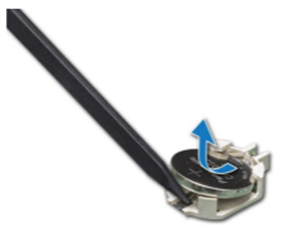
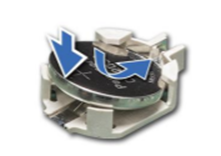
- To install a new system battery, hold the battery with the positive side facing and slide it under the securing tabs
- Press the battery into the connector until it snaps into place
Reassemble the system.
- Install the low-profile PCIe cards (if applicable)
- Install the expansion card riser and connect the power or data cables to the expansion card risers (if applicable)
- Install the air shroud
Verify the system.
- While booting, press F2 to enter the System setup
- Ensure that the battery is operating properly
- Enter the correct data and time in the System Setup Time and Date fields
- Restore the BIOS settings (if applicable)
- Exit the system setup
Example Video
How to remove or install a System battery on the PowerEdge R650.
Duration: 00:01:24 (hh:mm:ss)
When available, closed caption (subtitles) language settings can be chosen using the CC icon on this video play.
Affected Products
C Series, HS Series, Modular Infrastructure, Rack Servers, Tower Servers, XE Servers, XR Servers, OEM Server SolutionsArticle Properties
Article Number: 000234357
Article Type: How To
Last Modified: 02 سبتمبر 2026
Version: 13
Find answers to your questions from other Dell users
Support Services
Check if your device is covered by Support Services.