TPM Must Be Cleared Before Using A Deployment Task Sequence
Summary: How to Disable Trusted Platform Module Auto provisioning.
Αυτό το άρθρο ισχύει για
Αυτό το άρθρο δεν ισχύει για
Αυτό το άρθρο δεν συνδέεται με κάποιο συγκεκριμένο προϊόν.
Δεν προσδιορίζονται όλες οι εκδόσεις προϊόντων σε αυτό το άρθρο.
Symptoms
TPM for BitLocker
Deployment task sequences (such as Dell Client Configuration Toolkit (CCTK)) that attempt to prepare the TPM for BitLocker during deployment fails if the TPM ownership has already been taken. This is most often seen in systems that were previously deployed and are being reimaged to be sent out to new users.
Cause
The TPM must be cleared manually in the BIOS or in the Operating System (OS) before running the task sequence. If the TPM is cleared from within the OS and the system is running Windows 10, the TPM auto provisioning must be disabled or Windows will immediately take ownership again.
Resolution
The steps below can be followed to disable auto provisioning.
- Click Start and type PowerShell in the search box.
- Right-click PowerShell (x86) and select Run as admin.
- Type the following PowerShell command Disable-TpmAutoProvisioning and press Enter.
- Confirm the result AutoProvisioning: Disabled
AutoProvisioning: Disabled PowerShell setting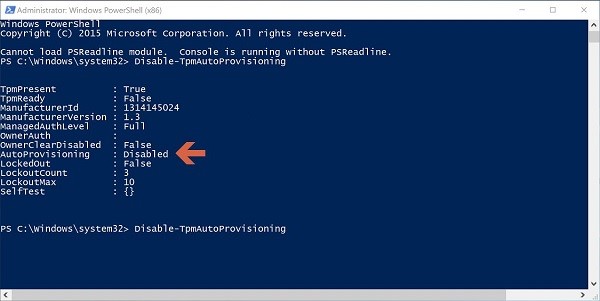
- Click Start and type tpm.msc in the search box, then press Enter.
- In the right-side Actions pane, select Clear TPM.
- Reboot and press F12 to proceed with clearing when prompted.
Ιδιότητες άρθρου
Article Number: 000143337
Article Type: Solution
Τελευταία τροποποίηση: 18 Αυγ 2025
Version: 4
Βρείτε απαντήσεις στις ερωτήσεις σας από άλλους χρήστες της Dell
Υπηρεσίες υποστήριξης
Ελέγξτε αν η συσκευή σας καλύπτεται από τις Υπηρεσίες υποστήριξης.