Dell Pair Pairing Prompt is Not Displayed After Installation
Summary: This article provides information and resolution about the Dell Pair software pairing prompt not being displayed after installation.
This article applies to
This article does not apply to
This article is not tied to any specific product.
Not all product versions are identified in this article.
Symptoms
Affected Platforms:
- Latitude 7320
- Latitude 7420
- Latitude 7520
- Latitude 7330
- Latitude 7430
- Latitude 7530
- Latitude 9330
- Latitude 9430
- Precision 5470
- Precision 5570
- Precision 5770
- Precision 7670
- Precision 7770
- XPS 9315
- XPS 9320
- XPS 9520
- XPS 17 9720
- Dell Pro 13 Premium
Affected Products
- Dell Pair
Affected Operating Systems:
- Windows 11
- Windows 10, Build v10.0.19041 and Later
Users might experience that the Dell Pair pairing prompt is not displayed when moving closer to a Dell laptop with a Bluetooth device, after installing Dell Pair without restarting the computer.
Background of Dell Pair
Dell Pair supports the following:
- Detect Dell devices (for example, mouse and keyboard) when they are within detection range to pair using Bluetooth.
- Automatically pair devices through Bluetooth.
Cause
When Dell Pair is installed, it is installing the filter driver which requires the Bluetooth controller to be reset. This step is required so Bluetooth can load the Dell Pair filter driver when it restarts so Dell Pair functionality starts working. If the Bluetooth driver is not handling the Bluetooth reset properly, Dell Pair functionality does not work unless the Bluetooth is turned off and back on.
Resolution
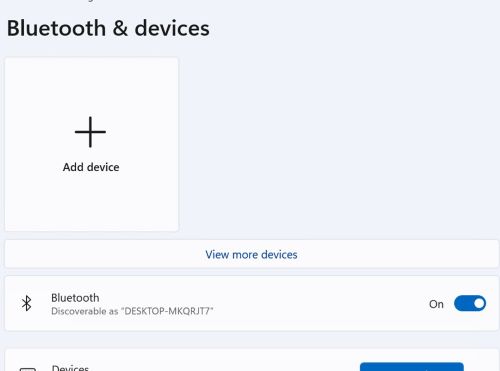
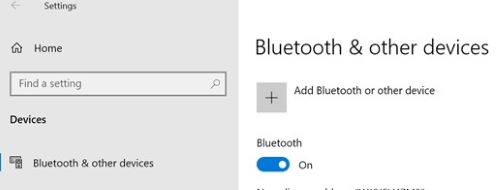
After Dell Pair installation, if user brings device closer to computer for Pairing and if there is no prompt for pairing, toggle (Turn off then turn on) switch of the Bluetooth setting from Windows settings using:
- Windows 11: Windows Settings > Bluetooth & devices
- Windows 10: Windows Settings > Bluetooth & other devices
Affected Products
Dell Pair, Dell Pro 13 Premium PA13250, Latitude 7320, Latitude 7330, Latitude 9330, Latitude 7420, Latitude 7430, Latitude 9430, Latitude 7520, Latitude 7530, Precision 5470, Precision 5570, Precision 7670, Precision 5770, Precision 7770
, XPS 13 9315, XPS 13 Plus 9320, XPS 15 9520, XPS 17 9720
...
Article Properties
Article Number: 000209916
Article Type: Solution
Last Modified: 17 Apr 2025
Version: 7
Find answers to your questions from other Dell users
Support Services
Check if your device is covered by Support Services.