NVP vProxy: VM Backups Fail with HTTP Status Code: 401
Summary: One or more VMware Virtual Machines (VM) fail to perform NetWorker VMware Protection (NVP) backups. The backup error returned is HTTP Status code 401 "failed to download config file"
This article applies to
This article does not apply to
This article is not tied to any specific product.
Not all product versions are identified in this article.
Symptoms
The VM backup session log includes the following error:
HTTP Get request failed to download config file '[DATASTORE-NAME] VM-NAME/VM-NAME.vmx' using URL 'https://VCENTER-NAME/folder/VM-NAME/VM-NAME.vmx?dcPath=DATACENTER+NAME&dsName=DATASTORE-NAME'. HTTP Status code: 401.
Or:
Failed to backup virtual disk "Hard disk 1". Failed to initialize Block Reader. Failed to open source VMDK '[DATASTORE] UUID/VM_NAME.vmdk': VDDK Error: 13: You do not have access rights to this file. Both errors suggest an access or permissions issue. The ProxyHC hotadd perm command reports:
Info: Checking for hotadd access
        Please provide DNS name of VM(as shown in vSphere): rhel-template.amer.lan
        Info: Looking for vProxy VM -------> Passed
        Info: Checking vCenter user permissions
        Info: Looking for user permissions to root object -------> Passed
        Info: Looking for privileges for role -------> Passed
        Info: Validating datacenter match -------> Passed
        Info: Looking for IDE disks -------> Passed
        Info: Checking virtual hardware version -------> Passed
        Info: Looking for independent disk -------> Passed
        Info: Checking datastore access -------> Passed
        Info: Checking entity names -------> Failed
NVP-vProxy: How to use health check tool ProxyHC on vProxy appliance
The
/tmp/proxy-hc.log reports that the Datastore is in a Custom Storage Folder:
INFO    Checking vCenter user permissions
INFO   -------> Using: vsphere.local\networker_user
INFO   -------> Found role ID: 643304355
INFO   -------> Successful
INFO   Validating datacenter match
INFO   -------> Checking datacenter: vSAN Datacenter
INFO            -------> Found client VM in this datacenter
INFO            -------> Found Proxy VM in this datacenter
INFO            -------> Datacenter match successful
INFO   Looking for IDE disks
INFO    ------->disk 2000 is on SCSI controller 0
INFO            -------> No IDE disks found
INFO   Checking virtual hardware version
INFO            -------> Found version: 21
INFO   Looking for independent disk
INFO            -------> No independent disks found
INFO   Checking datastore access from host esx01.amer.lan
INFO    ------->Checking access for DS: NSR-NFS-Datastore for Hard disk 1
INFO            -------> Valid
INFO            -------> Passed
INFO   Checking entity names
INFO    ------->Checking name for Datastore "NSR-NFS-Datastore" for "Hard disk 1"
ERROR           -------> Datastore is in a custom storage folder "MyStorageFolder", skipping since not supported by script.
ERROR           -------> Failed
The vCenter is added to NetWorker using an account other than the
href="mailto:administrator@vsphere.local" account.
Cause
The VM disks are configured in a VMware Datastore that belongs to a Custom Storage Folder in VMware. The VMware user account used to add the vCenter to NetWorker does not have sufficient permissions on the Custom Storage Folder. Even if appropriate role privileges are assigned on the vCenter root object, a stricter role set on the Storage Folder or its Datastores is applied in the backup. ProxyHC only checks that the role is assigned on the vCenter object and that it has the required privileges. It does not report a permissions issue on lower-level vCenter objects.
The specific errors returned vary depending on a combination of factors:
- Where in the vCenter inventory the user role is missing privileges
- The specific role set on the vCenter user account
- What specific permissions are assigned to the role
Resolution
The vCenter user account is defined in the NetWorker Hypervisor resource:
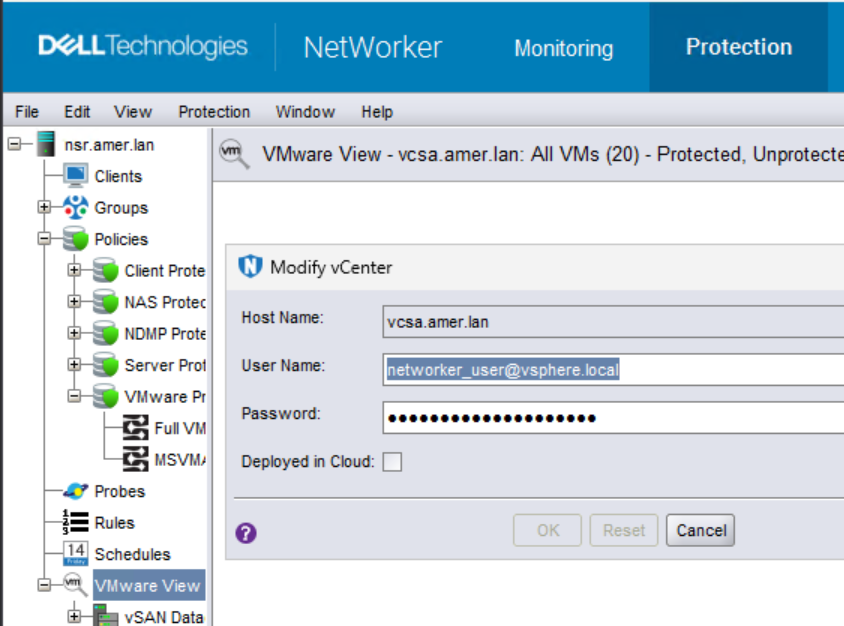
The VMware vCenter Administrator must review the VMware configuration.
- Confirm which VMware groups the vCenter user account belongs to (if any): vSphere > Administration > Single Sign-On > Users and Groups
- Confirm if a VMware role exists for the vCenter user account used by NetWorker: vSphere > Administration > Access Control > Roles
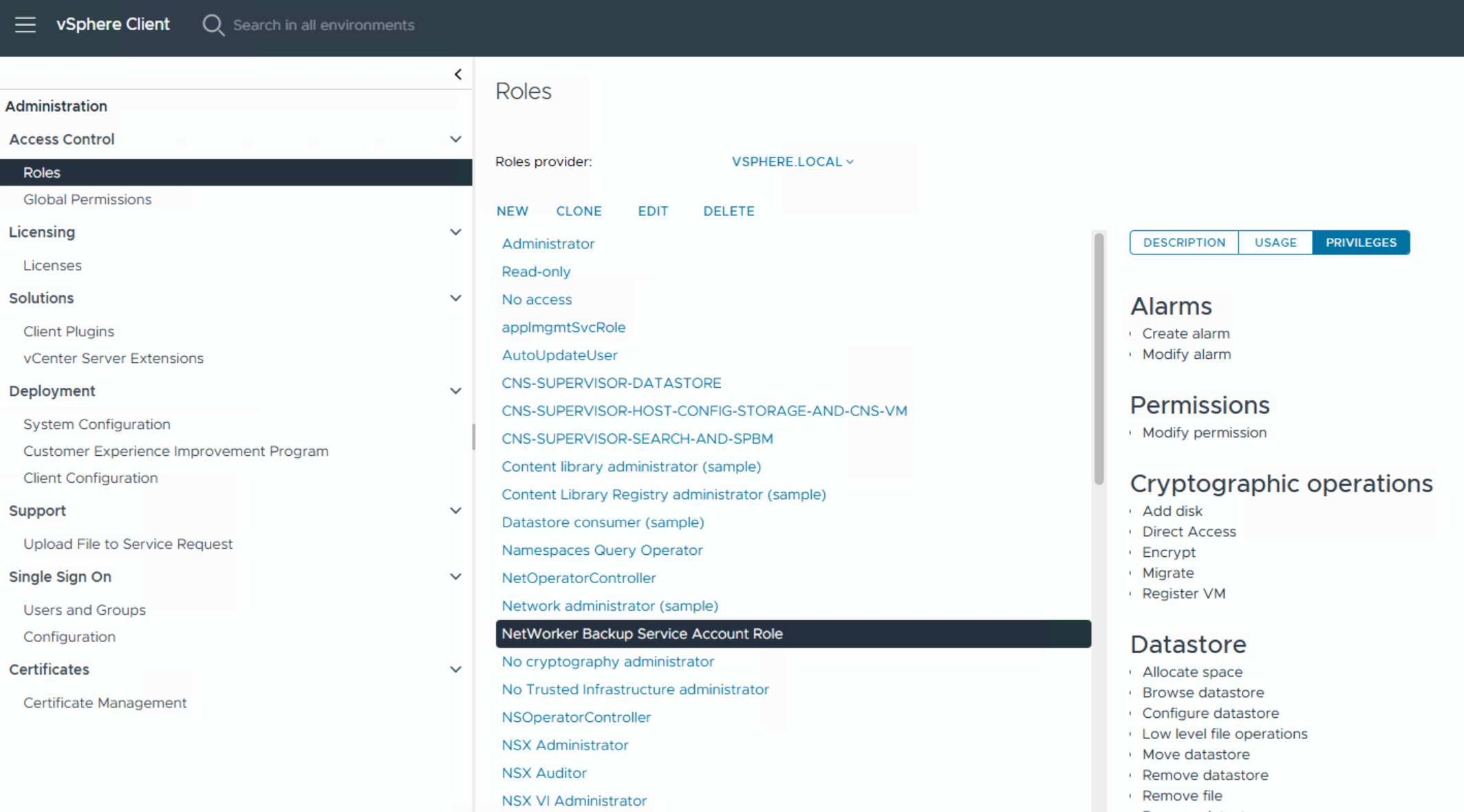
NOTE: The name of the role is user-defined and varies depending on the name provided when configured. The required privileges are detailed in the Minimum required vCenter user account privileges table in the NetWorker VMware Integration Guide available on Dell Support.
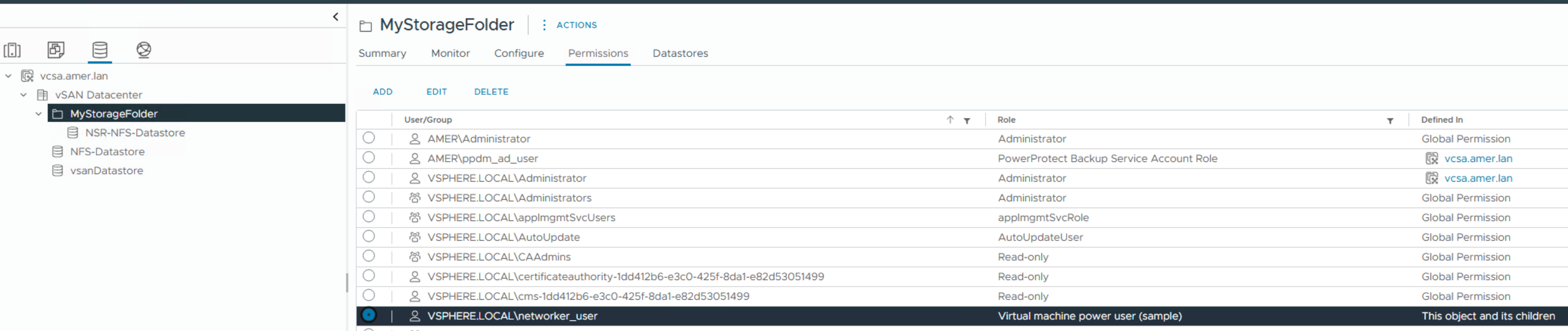
- Check the Custom Storage folder and datastore permissions
- Under Inventory > Datastores > DataCenter_Name > StorageFolder_Name > Permissions check the permissions of the Folder:
-
- Under Inventory > Datastores > DataCenter_Name > StorageFolder_Name > Permissions, check the permissions of each Datastore:

NOTE: If the vCenter user role on the storage folder or datastore lacks required privileges, backups fail due to permissions or access errors. This occurs even if the vCenter account has the required privileges higher up in the vCenter hierarchy. The permissions or access issues are specific to VM data residing in locations lacking the required privileges. The vCenter user account must be defined on the root vCenter object with the required privileges propagated throughout the vCenter objects.
If the role is not correct, change it to the role configured for NetWorker VMware Protection.

NOTE: Check the storage folder's datastores and ensure that the user role is defined properly, even if "propagate to children" was set. If the role is not defined correctly on the Datastores, change it accordingly.
Once the storage folder and datastores contain the correct user roles, VM backups complete successfully. If similar backup failures persist, ensure that the vCenter user does not belong to a group that is defined without the required privileges on the Storage Folder or Datastores. This causes a conflict, and the stricter role is applied. Also, check other VMware objects to ensure the vCenter user account role has the required privileges and is correctly defined on those objects.
Additional Information
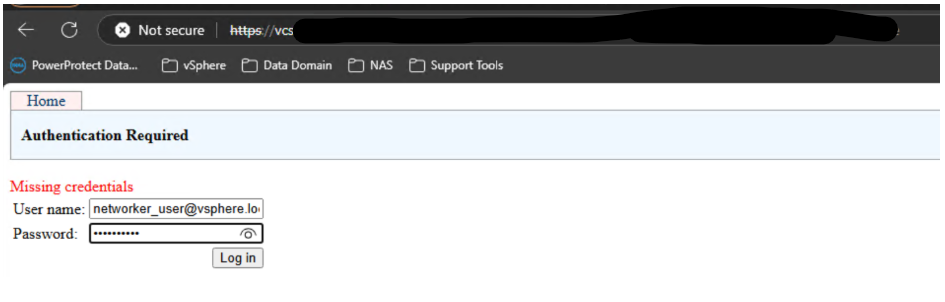
The HTTP URL provided in the backup session is not accessible from a web browser when using the NetWorker vCenter user account:

The error returned is Missing Required Privilege:
The errors shown in this article are general access or permissions errors. If the symptoms and cause outlined are not applicable, see: NVP vProxy: Troubleshooting VM backups fail with "VDDK Error 13: You do not have access rights to this file"
Affected Products
NetWorker FamilyProducts
NetWorkerArticle Properties
Article Number: 000316053
Article Type: Solution
Last Modified: 05 Jun 2025
Version: 2
Find answers to your questions from other Dell users
Support Services
Check if your device is covered by Support Services.