Connectrix MDS: OnPrem Network Sync Fails "Error Checking for Token Expiration-400 Bad Request"
Summary: OnPrem Network sync fails with "Error When Checking for Token Expiration-400 Bad Request"
Symptoms
SSM OnPrem server version: 9-202507
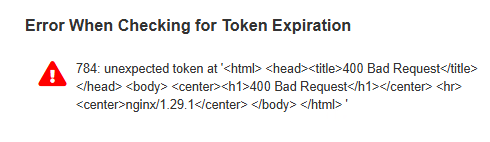
OnPrem Network or Scheduled sync is failing with error:
"Error When Checking for Token Expiration 784: unexpected token at '<html> <head><title>400 Bad Request<title><head> <body> <center>
400 Bad Request
<center> <hr><center>nginx/1.29.1<center> <body> <html> '"
Cause
This is due to migration of Identity Provider (IDP) from Ping to Okta.
Since the existing tokens are issues by IDP Ping, these tokens are not valid in the Okta service causing sync to fail. If any OnPrem accounts are created after this migration, Okta issues the tokens and this issue is not seen.
This is not an issue on the OnPrem. This migration to Okta affects all OnPrem servers.
Resolution
Conditions:
OnPrem sync performed with Network or Scheduled and the database has Access Tokens prior to the Ping to Okta Migration.
Cisco Issue ID: CSCwr45134
Workaround 1:
- Create a new OnPrem Account
Create a new OnPrem account, and approve the request by providing your credentials. This action generates a new token with Okta (our new IDP), enabling continued functionality. Once the account creation is complete, perform a full network sync on the failing accounts.
- Manual Synchronization:
- Not consistent but awaiting token expiration is another option
Workaround 2:
Apply the script for clearing up tokens (attached to the article).
- Take a VM snapshot and backup
onprem-console database_backupbefore applying the workaround. - Transfer the attached files under
var/files/patchesby using WinSCP - Run the below command:
Upgrade patches: sync_issue_token_cleanup.sh
- Run a network sync with CCO admin credentials.
Additional Information
Related Cisco Issue ID: https://bst.cloudapps.cisco.com/bugsearch/bug/CSCwr45134
