PowerProtect Data Protection Appliance: IDPA: Procedure To Upgrade Search Component
Summary: Procedure to independently upgrade Search Component. This procedure can be used to upgrade Search component to version 19.6.6.5331 on IDPA running version 2.7.8.
Instructions
Procedure to upgrade Search to 19.6.6.
This procedure is to be followed only for IDPA that is already on version 2.7.8 or later. Do not use this procedure to upgrade Search on IDPA to or from any other version as it may break the compatibility.
If the IDPA is on a lower version than 2.7.8, upgrade IDPA before continuing.
Procedure
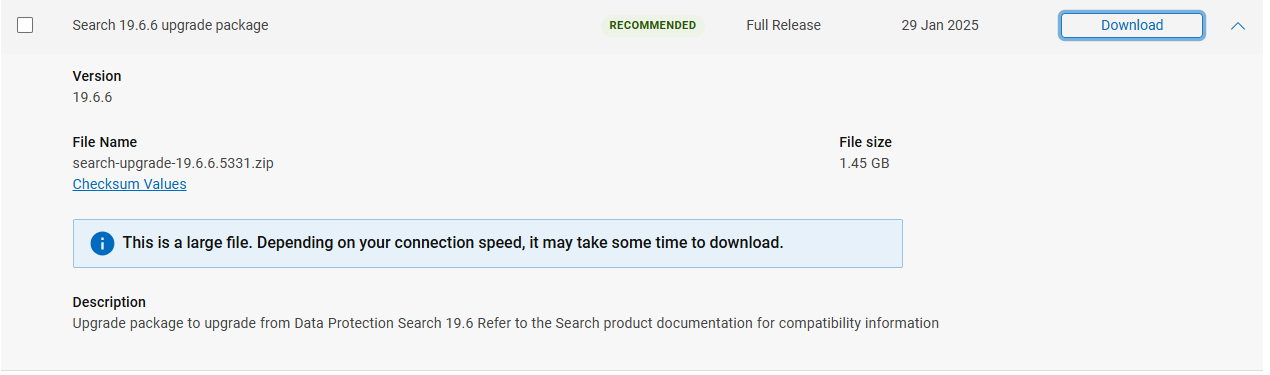
- Download the Search 19.6.6 upgrade file from the below link:
NOTE: Log in to the Dell Support portal before downloading the file is required.
On the Search Control Index node:
NOTE: IDPA 8X00 series has three Index nodes, run Search upgrade from the
Control Index Node
- As root, copy the upgrade file
search-upgrade-19.6.6.5331.zipto/tmpon theSearch Master Indexnode using your SCP software. - SSH to the Search Control Index Node and run the following commands to reset the lockbox:
ruby /usr/local/search/cis/Tools/update_passphrase.rb /home/search/passphrase

LD_LIBRARY_PATH=/usr/local/search/cis/CST/lib ruby usr/local/search/cis/Tools/reset_lockbox.rb- If the model is DP8x00, then SSH to the second and third Search Index Nodes and also run the command:
LD_LIBRARY_PATH=/usr/local/search/cis/CST/lib ruby /usr/local/search/cis/Tools/reset_lockbox.rb-
On the Search Control Index Node (all models), run the following commands:
service puppetmaster stop
service puppet stop
rm -rf /etc/puppet/status/*-
Move the upgrade binary to
/etc/puppet/repository/, give proper permissions, and start puppet services.
mv /tmp/search-upgrade-19.6.6.5331.zip /etc/puppet/repository/
chmod 777 /etc/puppet/repository/search-upgrade-19.6.6.5331.zip
service puppetmaster start
service puppet start
- Give it some time and the upgrade should start, it could be 5 minutes or more.
To verify if the upgrade has started, confirm the file search-upgrade-19.6.6.5331.zip-running exists in the /etc/puppet/status folder.
- Should
/etc/puppet/status/search-upgrade-19.6.6.5331.zip-runningnot appear after 15 minutes, check the following log for more information about why it is not running:/etc/puppet/log/puppet_agent.log - Let it run, Search nodes reboot multiple times during the upgrade workflow.
NOTE: On an Integrated Data Protection Appliance 8X00 series, it does the Search Control Index Node first, and reboots it. Then move to the first Index Node, reboots, and then concludes with the Second Index Node.
- The upgrade is completed when these files appear in
/etc/puppet/statusfolder.
search-upgrade-19.6.6.5331.zip-allcompleted
search-upgrade-19.6.6.5331.zip-completed
If the status changes to:
search-upgrade-19.6.6.5331.zip-failed
It means that the upgrade has failed, contact Dell Support providing /etc/puppet/log/puppet_agent.log.
- If
.zip-failedfile does not show, validate that the upgrade is successful by running this command:
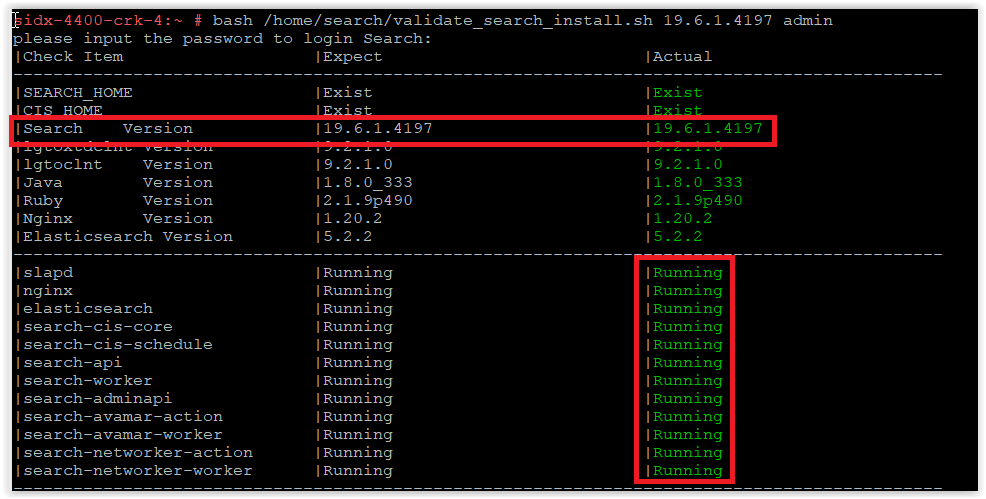
bash /home/search/validate_search_install.sh 19.6.6.5331 admin
Confirm that Search is upgraded to 19.6.6.5331 as in this screenshot:
search-cis-core service is not running, run the following two commands:
ruby /usr/local/search/cis/Tools/update_passphrase.rb /home/search/passphrase
LD_LIBRARY_PATH=/usr/local/search/cis/CST/lib ruby /usr/local/search/cis/Tools/reset_lockbox.rb
If IDPA is the DP8x00 model, then SSH to the second and third Search Index Nodes and run the following command:
LD_LIBRARY_PATH=/usr/local/search/cis/CST/lib ruby /usr/local/search/cis/Tools/reset_lockbox.rb
service search-cis-core start
bash /home/search/validate_search_install.sh 19.6.6.5331 admin
search-cis-core still does not run, engage Dell Support.
- Once confirmed that the upgrade is successful, remove the upgrade package:
rm /etc/puppet/repository/search-upgrade-19.6.6.5331.zip
- This concludes the Upgrade of Search component within PowerProtect Data Protection Series Appliances and IDPA.