NMC: AD/LDAP login fails "You do not have privileges to use NetWorker Management Console"
Summary: External authentication (AD or LDAP) is integrated with NetWorker. Logging in to the NetWorker Management Console (NMC) as an external account returns the error "You do not have privileges to use NetWorker Management Console." ...
This article applies to
This article does not apply to
This article is not tied to any specific product.
Not all product versions are identified in this article.
Symptoms
- External authentication (Microsoft Active Directory (AD) or LDAP (OpenLDAP) has been successfully added to the NetWorker server's authentication server service.
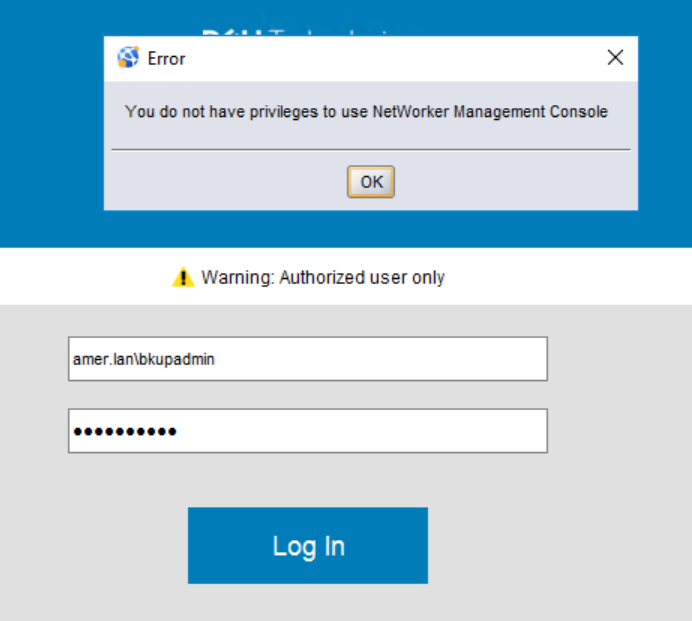
- When attempting to log In to the NetWorker Management Console (NMC) with an AD or LDAP account, an error box appears stating "You do not have privileges to use NetWorker Management Console"
Cause
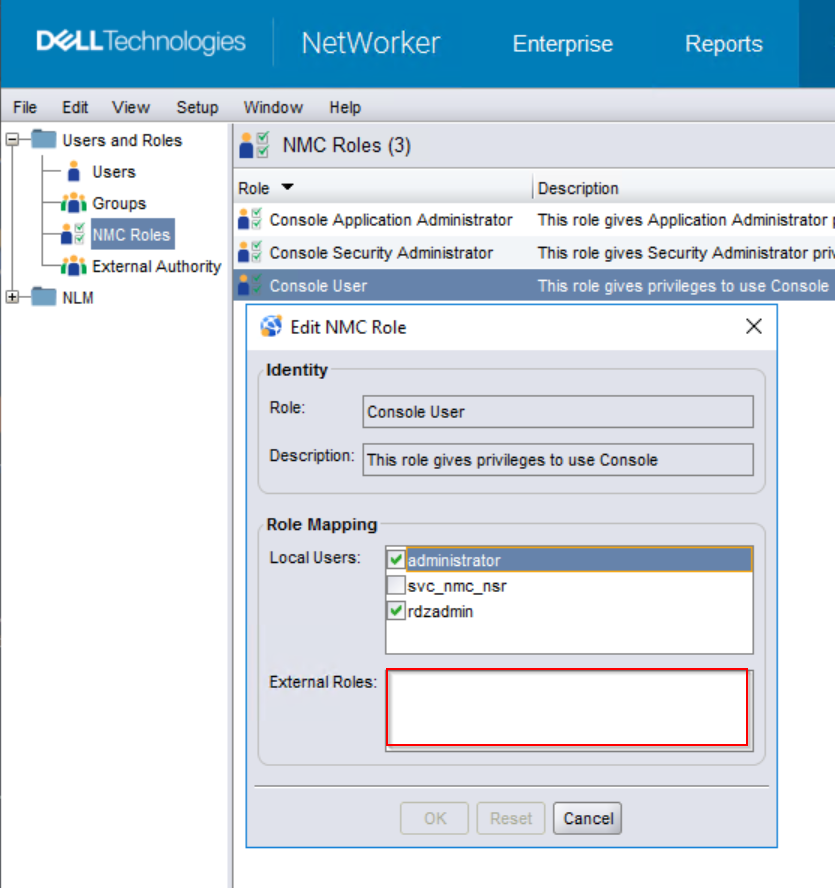
NetWorker's AUTHC service recognizes the user in AD/LDAP, but they lack privileges to access the NMC. External accounts are typically given access privileges to the NMC by using NMC Roles. These roles are found when logging in to the NMC as the default NetWorker Administrator account. Under Setup->Users and Groups->NMC Roles. There are three default roles:

- Console Application Administrators: Gives the user/group access to log in to the NMC and run NMC Reports. Users or groups with Application Administrators privileges access can change the NMC Enterprise configuration.
- Console Security Administrators: Gives the user/group access to change user settings and groups in the NMC Enterprise configuration.
- Console Users: Gives the user/group access to log in to the NMC and run NMC Reports; however, the user cannot change the NMC Enterprise settings or access security information.
The symptom in this KB appears when:
- The AD/LDAP user or group Distinguished-Name (DN) was not specified in the external roles field of either Console Application Administrators or Console Users groups.
- The AD/LDAP user does not belong to an AD/LDAP group which is defined in the external roles field of either the Console Application Administrators or Console Users groups.
Resolution
1. Determine which host is the NetWorker Authentication (AUTHC) server.
NOTE: In environments with a single NetWorker server, the NetWorker server is typically the AUTHC server. In rare instances, the AUTHC service on a standalone console server may be used. In environments managing multiple NetWorker servers from a single console, only one NetWorker server is the AUTHC server.
- On the NetWorker Management Console (NMC) server, open the
gstd.conffile.
Linux: /opt/lgtonmc/etc/gstd.conf
Windows (Default): C:\Program Files\EMC NetWorker\Management\GST\etc\gstd.conf
- The gstd.conf file contains a authsvc_hostname string, which defines the hostname and port used for processing login requests in the NMC:
string authsvc_hostname = "lnx-nwserv.amer.lan";
    int authsvc_port = 9090;
2. Open an elevated prompt on the AUTHC server, determine which AD group the user belongs to:
The following methods can be used:
NetWorker Method:
This method determines what AD groups the user belongs to. It also confirms if NetWorker can see the user or group. If search paths are set in NetWorker’s external authority, AUTHC may not find users/groups outside the defined criteria.
Use the following
authc_mgmt command to query which AD groups a user belongs to:
authc_mgmt -u Administrator -p 'NMC_ADMIN_PASS' -e query-ldap-groups-for-user -D query-tenant=TENANT_NAME -D query-domain=DOMAIN_NAME -D user-name=AD_USERNAME
- You can get the tenant name with:
authc_config -u Administrator -p 'NMC_ADMIN_PASS' -e find-all-tenants
- You can get the domain name with:
authc_config -u Administrator -p 'NMC_ADMIN_PASS' -e find-all-configs
authc_config -u Administrator -p 'NMC_ADMIN_PASS' -e find-config -D config-id=CONFIG_ID
Example:
[root@lnx-nwserv]:~# authc_config -u Administrator -p '!Password1' -e find-all-tenants
The query returns 1 records.
Tenant Id Tenant Name
1         default

[root@lnx-nwserv]:~# authc_config -u Administrator -p '!Password1' -e find-all-configs
The query returns 1 records.
Config Id Config Name
1         amer_ad

[root@lnx-nwserv]:~# authc_config -u Administrator -p '!Password1' -e find-config -D config-id=1
Config Id                    : 1
Config Tenant Id             : 1
Config Name                  : amer_ad
Config Domain                : amer.lan
Config Server Address        : ldaps://dc.amer.lan:636/dc=amer,dc=lan
Config User DN               : CN=Administrator,CN=Users,dc=amer,dc=lan
Config User Group Attribute  :
Config User ID Attribute     : sAMAccountName
Config User Object Class     : person
Config User Search Filter    :
Config User Search Path      :
Config Group Member Attribute: member
Config Group Name Attribute  : cn
Config Group Object Class    : group
Config Group Search Filter   :
Config Group Search Path     :
Config Object Class          : objectclass
Is Active Directory          : true
Config Search Subtree        : true

[root@lnx-nwserv]:~# authc_mgmt -u Administrator -p '!Password1' -e query-ldap-groups-for-user -D query-tenant=default -D query-domain=amer.lan -D user-name=bkupadmin
The query returns 1 records.
Group Name   Full Dn Name
NetWorker_Admins CN=NetWorker_Admins,DC=amer,DC=lan
Use the Full Dn Name to assign permissions in step 2.
Active Directory Method:
This method shows a user's AD group but does not confirm visibility to AUTHC if search filters in NetWorker’s external authority limit access.
Open an Admin PowerShell prompt on the Domain server and run the following command:
Get-ADPrincipalGroupMembership AD_USERNAME
Example:
PS C:\Users\Administrator> Get-ADPrincipalGroupMembership bkupadmin

distinguishedName : CN=NetWorker_Admins,DC=amer,DC=lan
GroupCategory     : Security
GroupScope        : Global
name              : NetWorker_Admins
objectClass       : group
objectGUID        : c5c1bb45-88b4-4baa-afc3-9f1c28605d4a
SamAccountName    : NetWorker_Admins
SID               : S-1-5-21-3150365795-1515931945-3124253046-9611

distinguishedName : CN=Domain Users,CN=Users,DC=amer,DC=lan
GroupCategory     : Security
GroupScope        : Global
name              : Domain Users
objectClass       : group
objectGUID        : 5c648708-a9ee-483c-b92d-bc37e93280f4
SamAccountName    : Domain Users
SID               : S-1-5-21-3150365795-1515931945-3124253046-513
Use the distinguishedName to assign permissions in step 2.
3. Log in to the NMC as the default NetWorker Administrator account.
a. Go to Setup->Users and Roles->NMC Roles.
b. Open the NMC Users role and specify the AD groups distinguished name in the External Roles field:
b. Open the NMC Users role and specify the AD groups distinguished name in the External Roles field:
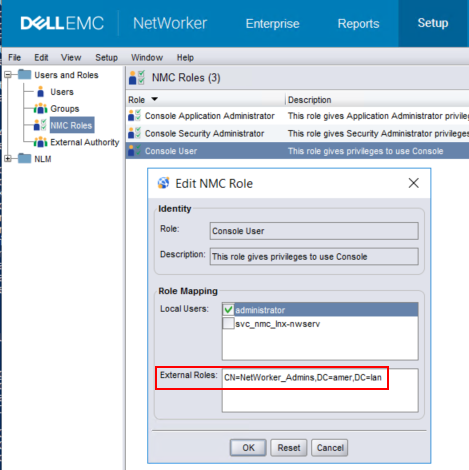
NOTE: This permission is sufficient for NMC access; however, the user cannot perform any Administrative tasks in the NMC enterprise screen. To match NetWorker Administrator permissions, set the AD group DN in External Roles for both Console Application and Console Security Administrator roles. The Application Administrators and Security Administrators groups contain a default external role
"cn=Administrators,cn=Groups,dc=NETWORKER_SERVER_HOSTNAME,dc=DOMAIN_COMPONENT1,dc=DOMAIN_COMPONENT2." Do not remove these.
4. Before disconnecting from the NMC, also confirm if the AD group has been defined in a NetWorker server User Group. If the user lacks NetWorker server permissions, they can log in to NMC but will not see jobs or resources after connecting to the server.
a. While still logged in to the NMC as the default NetWorker Administrator, connect to the NetWorker server.
b. Got to Server->Users and Groups.
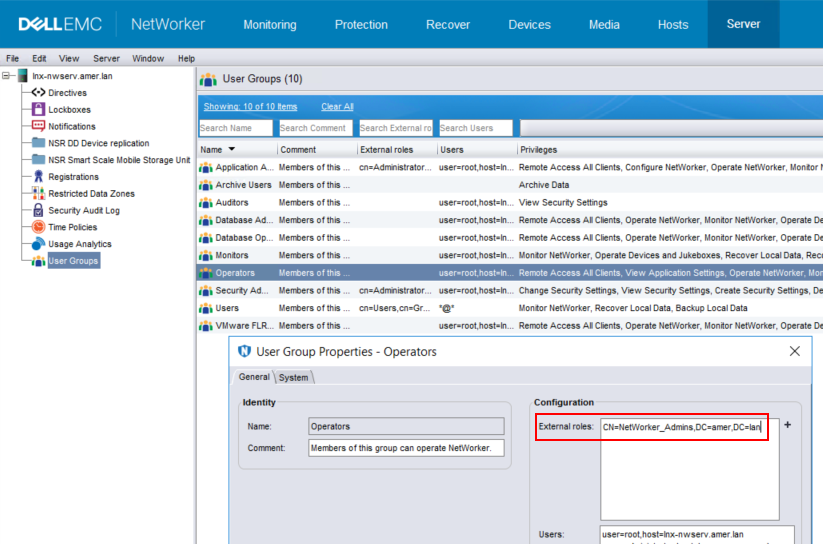
c. Open the User Group which has the permissions you want applied to the AD group.
d. In the External Roles field, append the AD group's distinguished name:
5. Attempt to log in to the NMC using the AD/LDAP user account:

(Optional) If you want an AD/LDAP group to be able to manage External Authorities you must perform the following on the NetWorker server to grant the AD user or group FULL_CONTROL permissions.
a. Open an administrative/root command prompt.
b. Using the AD group DN you want to grant
b. Using the AD group DN you want to grant
FULL_CONTROL permission to run:
authc_config -u Administrator -p 'NMC_ADMIN_PASS' -e add-permission -D permission-name=FULL_CONTROL -D permission-group-dn="AD_GROUP_DN"
Example:
[root@lnx-nwserv]:~# authc_config -u Administrator -p '!Password1' -e add-permission -D permission-name=FULL_CONTROL -D permission-group-dn="CN=NetWorker_Admins,DC=amer,DC=lan"
Permission FULL_CONTROL is created successfully.

[root@lnx-nwserv]:~# authc_config -u Administrator -p '!Password1' -e find-all-permissions
The query returns 2 records.
Permission Id Permission Name Group DN Pattern                Group DN
1             FULL_CONTROL    ^cn=Administrators,cn=Groups.*$
2             FULL_CONTROL                                    CN=NetWorker_Admins,dc=amer,dc=lan
Additional Information
Affected Products
NetWorkerProducts
NetWorker, NetWorker Management ConsoleArticle Properties
Article Number: 000031431
Article Type: Solution
Last Modified: 27 Oct 2025
Version: 5
Find answers to your questions from other Dell users
Support Services
Check if your device is covered by Support Services.