How to Retrieve an Image from Wyse Management Suite Cloud on a Windows 11 IoT Device
Summary: This guide provides a step-by-step overview for retrieving an image from a Windows 11 IoT device using Wyse Management Suite (WMS) Cloud in a Remote Repository.
This article applies to
This article does not apply to
This article is not tied to any specific product.
Not all product versions are identified in this article.
Instructions
Affected Platforms:
- Latitude 3440
- Latitude 5440
- OptiPlex 3000 Thin Client
- OptiPlex All-in-One 7410
- OptiPlex All-in-One 7420
- OptiPlex Micro Plus 7010
- OptiPlex Micro Plus 7020
- Dell Pro 14 PC14250
- Dell Pro 24 All-in-One QC24251
Affected Operating Systems:
- Windows 11 IoT
These steps enable you to retrieve an image from a Windows 11 IoT device in WMS Cloud to your remote repository.
Steps to download an image:
- From the WMS cloud portal, select the Devices tab
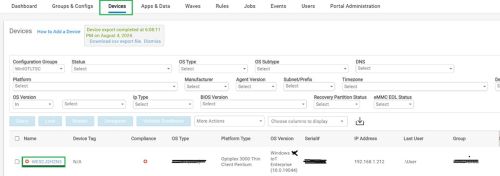
- Click the device that you want to pull an image from the device list
- On the device, go to More Actions and select Pull an image.
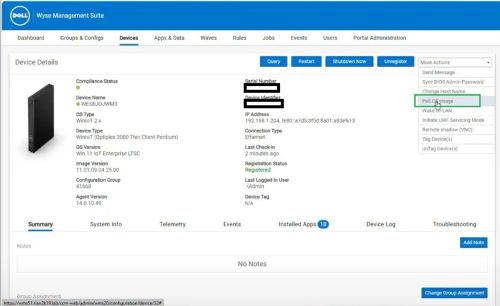
- Select the File repository
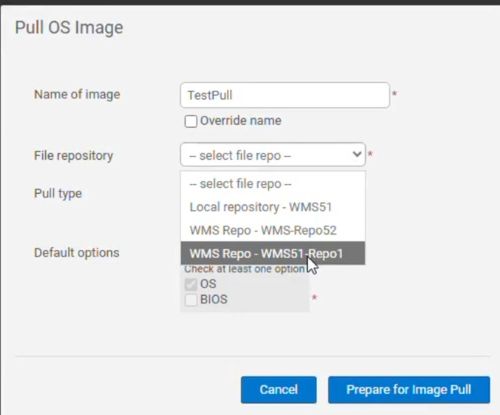
- Select Pull image
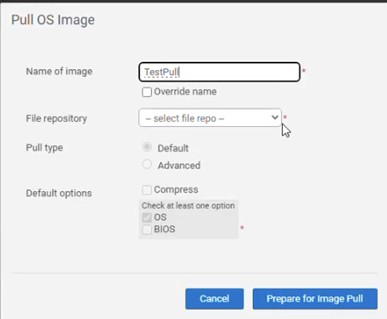
On the Windows 11 IoT device:
- Select the relevant task to pull the image when prompted.
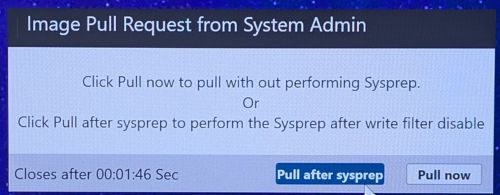
- Select Pull after sysprep, adjust the password or domain settings if needed, then click Capture image.
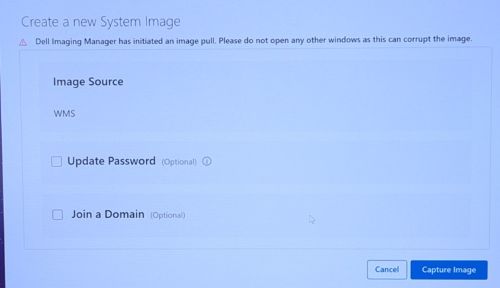 Note: Dell Imaging Manager Prompt is displayed.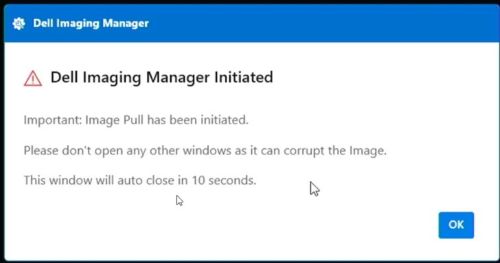
- Click OK (the task begins)

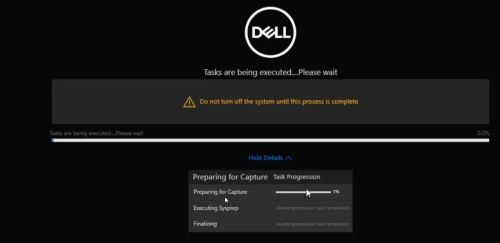
- Upon completion of the tasks, the device automatically restarts.
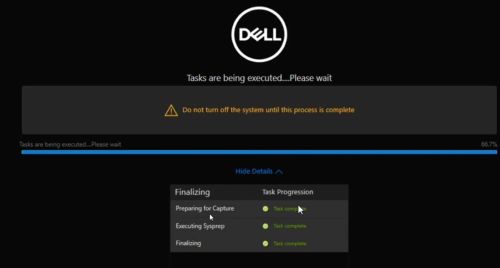
- The Windows 11 IoT device automatically logs in as a local user to perform these tasks:
- Create a partition on the local drive.
- Capture the device image and store it in the newly created partition.
- The device automatically reboots to finalize the process.
- There are several reboots that occur during the process.
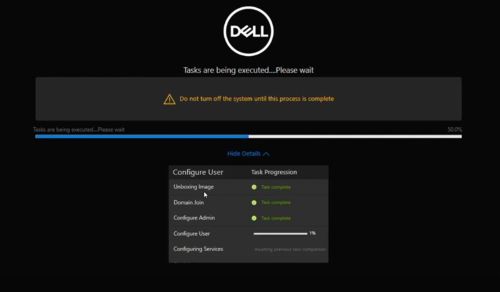
- The device is now uploading the image to the remote repository.
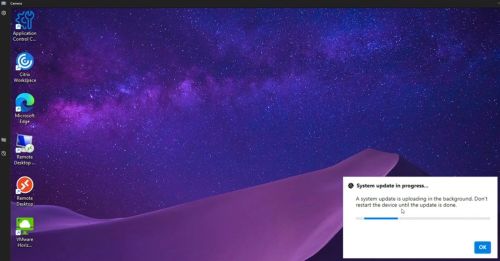
- Upon completion of the tasks, the device automatically restarts.
- To verify the uploaded image:
- Log in to the WMS remote repository server
- Go to
C:\WMS\RemoteRepo\repository\imagePull.- The image appears in the staging folder, typically within five minutes.
Affected Products
Dell Pro 14 PC14250, Dell Pro 24 All-in-One QC24251, Latitude 3440, Latitude 5440, OptiPlex 3000 Thin Client, OptiPlex Micro Plus 7010, OptiPlex Micro Plus 7020, OptiPlex All-In-One 7410, OptiPlex All-in-One 7420Article Properties
Article Number: 000350783
Article Type: How To
Last Modified: 28 Jul 2025
Version: 1
Find answers to your questions from other Dell users
Support Services
Check if your device is covered by Support Services.