NetWorker: Configuring the NetWorker Server Mail Home and Secure Connect Gateway (SCG)
Summary: This article provides information for configuring NetWorker server Mail Home and Secure Connect Gateway (SCG)
This article applies to
This article does not apply to
This article is not tied to any specific product.
Not all product versions are identified in this article.
Instructions
NOTE:
EMC Secure Remote Services (Secure Remote Services) is deprecated starting NetWorker 19.9. NetWorker versions prior to NetWorker 19.9 have passed End of Support Life (EOSL). Secure Remote Services was replaced with Secure Connect Gateway (SCG). The information outlined in this article is available in the NetWorker Administration Guide, available through: Support for NetWorker | Manuals & Documents
Configuring Mail Home
Perform the following steps to configure MainHome:
- In the NetWorker Management Console (NMC) click Server, and then select NSR SCG.
- In the Usage Analytics area, select the Telemetry option as Mail Home:
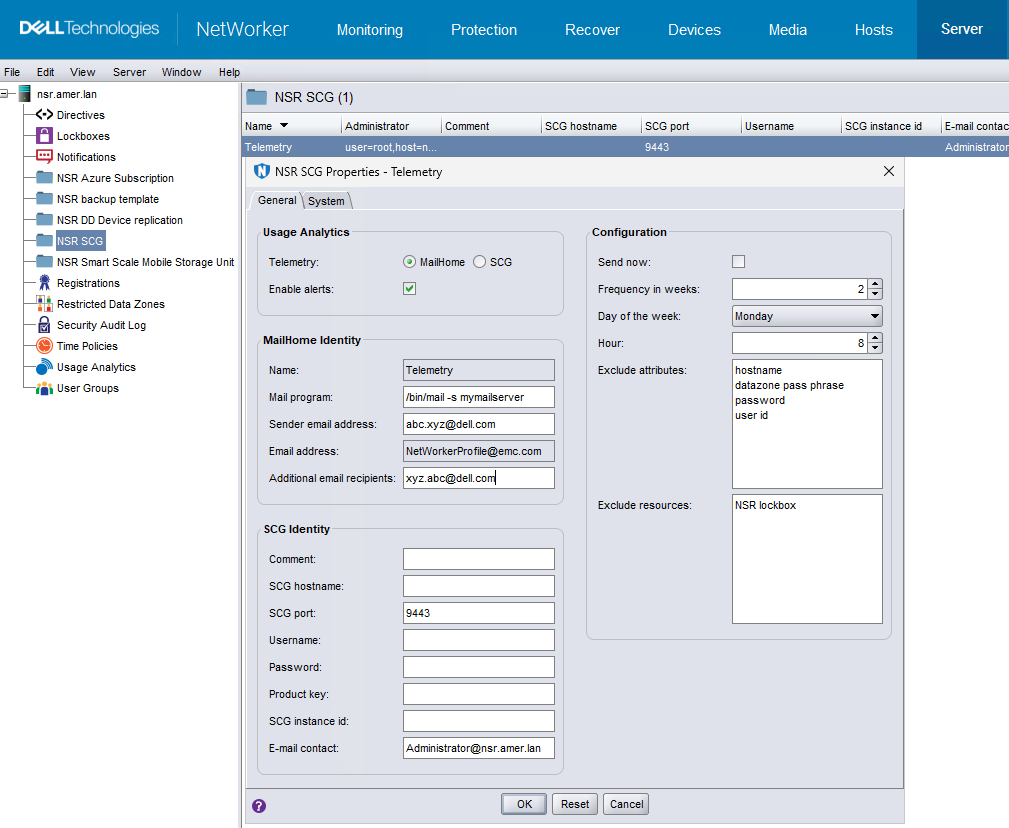
- 'Clear Enable alerts to remove all the alerts pertaining to NSR SCG. This option is enabled by default.
- In the Mail Home Identity area, type information for the fields in the following table.
| Field | Description |
| Name | Identifier for the Mail Home resource. This field is autopopulated. |
| Mail program |
The mail program for Mail Home. The default for:
For Linux NetWorker server, perform the following one-time configuration.
NOTE: Ensure that you provide the correct mail server hostname.
|
| Sender email address | The email address of the sender for Mail Home. |
| Email address | The email address to which the reports are sent. The default value is NetWorkerProfile@dell.com and it is noneditable. |
| Additional email recipients | The list of additional email addresses to receive reports from Mail Home. In the case of multiple values, use space as a separator. |
- (Optional) In the Configuration area you can change the defaults.
| Field | Description |
| Send now. | To send the database immediately, select the checkbox. Once the database is sent, NetWorker by default clears the checkbox. Review daemon.raw for errors:
|
| Frequency in weeks | Select the frequency in weeks that the local database is sent. The default frequency is set to 2. |
| Day of the week | Select the day of the week that the local database is sent. The default day is set to Monday. |
| Hours | Select the hour of the day that the local database is sent. The default hour is set to 8 for 8 AM. |
| Exclude attributes. | To prevent nsrdump from reporting certain attributes through Mail Home, type the list of comma-separated attributes. Excluded attribute names apply to all resources across the database. The default attributes are hostname, datazone pass phrase, password, and user id. |
| Exclude resources. | To prevent nsrdump from reporting certain resources through Mail Home, type the list of comma-separated resources. The default-excluded resource is set to NSR lockbox. |
- Once the details are updated, click OK to accept the SCG-related changes. If you want to cancel the changes you entered click Reset.
Configuring Secure Connect Gateway (SCG):
You must install the Secure Connect Gateway (SCG) virtual edition 5.12 or later from Support for Secure Connect Gateway - Virtual Edition | Drivers & Downloads and configure NetWorker to communicate with the SCG appliance. See the SCG Deployment Guide on the Dell support page for details about how to deploy the SCG virtual edition.
- Install and deploy the SCG appliance v5.12 or later. You can access SCG documentation and downloads from the SCG product page.
- Ensure that NetWorker can reach the host port 5700 and 9443.
- In the NetWorker Management Console (NMC) click Server, and then select NSR SCG.
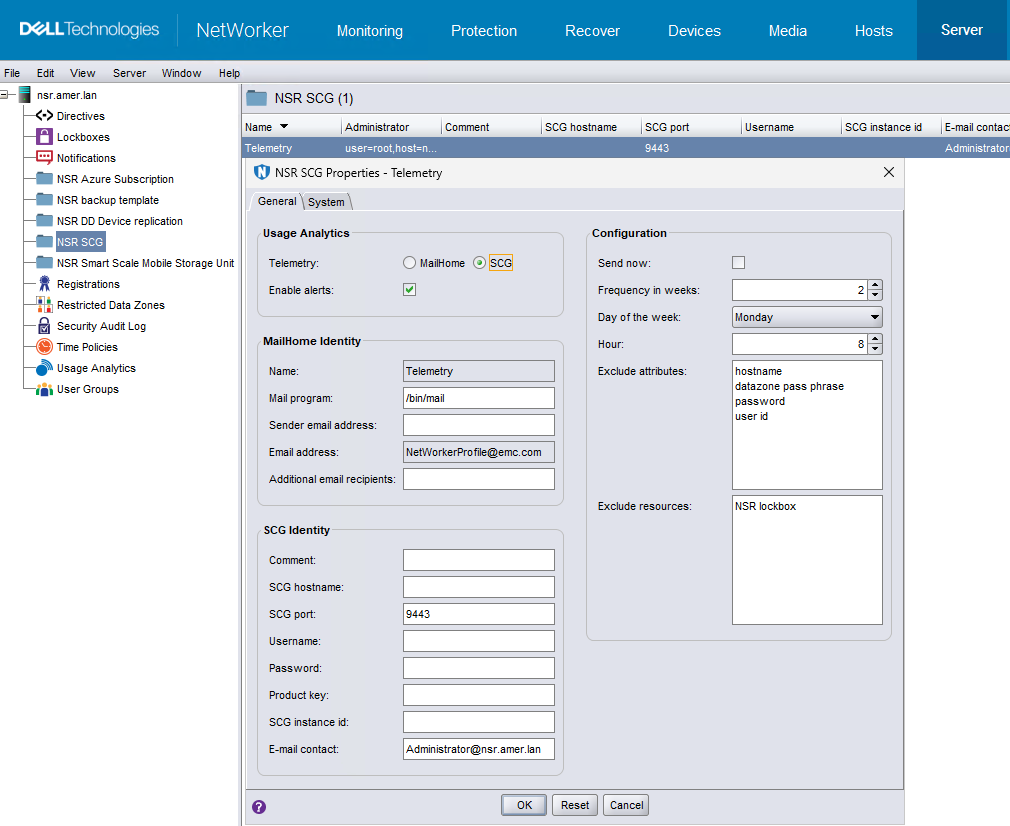
- Clear Enable alerts to remove all the alerts pertaining to NSR SCG. This option is enabled by default.
- In the SCG Identity section, enter required information for the fields as mentioned in the following table.
| Field | Description |
| SCG hostname | Hostname or IP of the SCG. |
| SCG port | TCP port number for the SCG service. The default port is 9443. |
| Username | Username is your online support account email. Go to the Support website at https://support.dell.com to check your account. For more details on the Support website, see How to Register for Access to Dell Technologies Online Support or Upgrade an Existing Account |
| Password | Password is your online support account password. |
| Comment | (Optional) Description of this resource or other explanatory remarks. |
| Email contact | Administrator's email address. The default is Administrator@NetWorker_SERVER_NAME |
NOTE: During the SCG Provisioning process, after you use your online support credentials to authenticate, you select your particular site ID from a list of site IDs associated with your login.
The following fields are filled by NetWorker.
| Field | Description |
| Name | Identifier for the SCG resource. |
| Product key | After a successful registration, SCG returns the product key. This key is used for authentication with the SCG service. (Hidden Attribute) The key automatically gets updated after the SCG host is successfully registered with the NetWorker Server. |
| SCG instance id | The value that is returned from the SCG host to identify this NetWorker Server instance. The id automatically gets updated after the SCG host is successfully registered with the NetWorker Server. |
| Email contact | Administrator's email address. |
- (Optional) In the Configuration area you can change the defaults.
| Field | Description |
| Send now. | To send the database immediately, select the checkbox. Once the database is sent, NetWorker by default clears the checkbox. Review daemon.raw for errors:
|
| Frequency in weeks | Select the frequency in weeks that the local database is sent. The default frequency is set to 2. |
| Day of the week | Select the day of the week that the local database is sent. The default day is set to Monday. |
| Hours | Select the hour of the day that the local database is sent. The default hour is set to 8 for 8 AM. |
| Exclude attributes. | To prevent nsrdump from reporting certain attributes through Mail Home, type the list of comma-separated attributes. Excluded attribute names apply to all resources across the database. The default attributes are hostname, datazone pass phrase, password, and user id. |
| Exclude resources. | To prevent nsrdump from reporting certain resources through Mail Home, type the list of comma-separated resources. The default-excluded resource is set to NSR lockbox. |
- Once the details are updated, click OK to accept the SCG-related changes. If you want to cancel the changes, you entered click Reset.
Additional Information
Troubleshooting Mail Home
If the NetWorker server is not sending email alerts, confirm that you can send emails from the NetWorker server command-line. For more information, see:
Troubleshooting SCG
Secure Connect Gateway (SCG) registration fails.
Issue
The registration could fail due to:
- Incorrect SCG hostname, IP, or port
- Incorrect SCG username or password
- A firewall blocks access to the SCG port.
Fix
Use the correct connection information and open the SCG port on the firewall. See:
- NetWorker: Name Resolution Troubleshooting Best Practices
- For an incorrect SCG username or password issue, go to the support site at https://support.dell.com to check your online support account and verify that you have access to the NetWorker asset. For more information, see: How to Register for Access to Dell Technologies Online Support or Upgrade an Existing Account
- NetWorker Processes and Ports
Secure Connect Gateway (SCG) keepalive, or file transfer fails.
Issue
The failure could be due to invalid credentials:
- SCG is not configured and registered.
- SCG instance id is edited manually.
- SCG product key is modified.
Fix
Configure SCG and verify that the registration call obtained an SCG instance id:
- Undo modification of SCG instance id and the product key.
- Alternatively, force the SCG re-registration by deleting the contents of the SCG instance id in the NSR SCG resource.
Affected Products
Secure Connect Gateway, NetWorkerProducts
NetWorker Family, Secure Connect Gateway - Virtual EditionArticle Properties
Article Number: 000019355
Article Type: How To
Last Modified: 12 Feb 2026
Version: 5
Find answers to your questions from other Dell users
Support Services
Check if your device is covered by Support Services.