XtremIO: How to find the serial number of an XtremIO array
Summary: The purpose of this article to help locating the PSTN - Serial Number of the XtremIO array
This article applies to
This article does not apply to
This article is not tied to any specific product.
Not all product versions are identified in this article.
Symptoms
Unable to locate the PSNT - serial number of the XtremIO array.
Cause
Unable to locate the PSNT - serial number of the XtremIO array.
Resolution
METHOD 1 (XtremIO GUI):
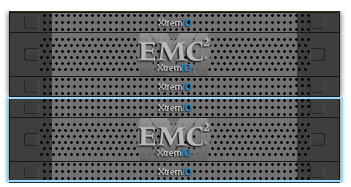
Version 3.x (or earlier)


PSNT Serial Number: APM00123456789
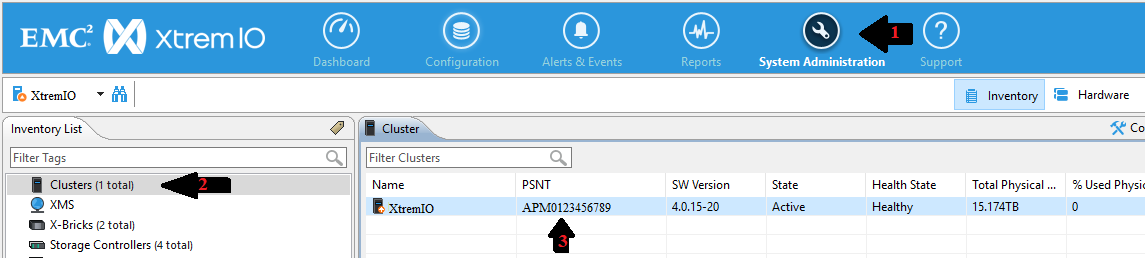
XMS Version 4.x
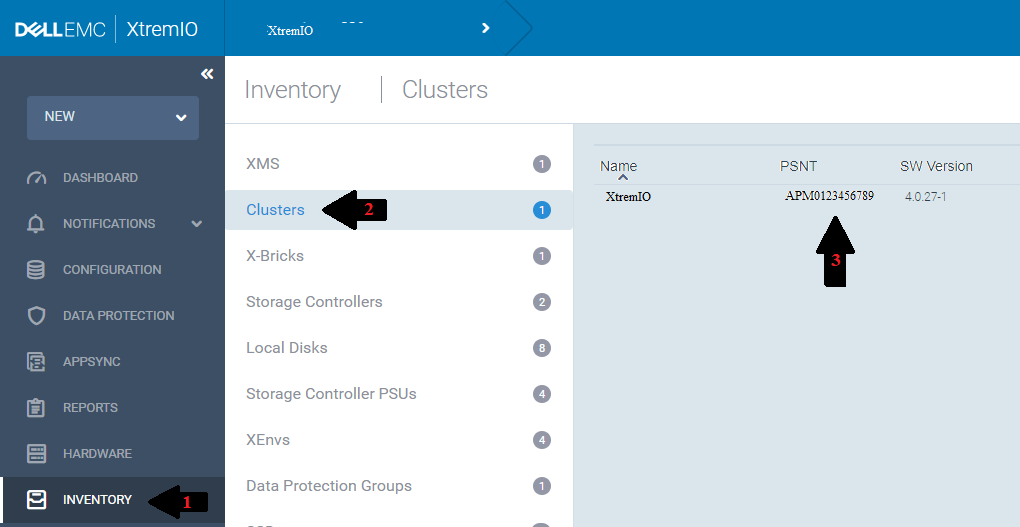
XMS Version 6.x
METHOD 2 (XMCLI from GUI):
(Note: For sample CLI output, see the Notes section)
Version 3.x (or earlier)

XMS Version 4.x

XMS Version 6.x
There is no access to CLI using the GUI in version 6.x. See Method 3 below for an alternative method to access CLI.
METHOD 3 (XMCLI from an SSH client):
All versions:
Version 3.x (or earlier)
- From the Dashboard home page, click the Hardware tab.
- The PSNT - Serial Number is listed under the X-Brick Icon.
Sample Output:
PSNT Serial Number: APM00123456789
XMS Version 4.x
- In the GUI, click the System Administration tab in the upper menu.
- Click Clusters in the left-hand menu (may already be selected).
- The cluster serial numbers are listed in the PSNT column.
Sample Output:
XMS Version 6.x
- Click the Inventory button on the left menu.
- Click the Clusters button in the main panel.
- The cluster serial numbers are listed in the PSNT column.
Sample Output:
METHOD 2 (XMCLI from GUI):
(Note: For sample CLI output, see the Notes section)
Version 3.x (or earlier)
- Click the Administration icon at the top of the page.
- Select the CLI (Command Line Interface) tab.
- Log in to the XMCLI
- Run the XMCLI Command: show-clusters-info
- The serial number is in the PSNT column.
Sample Output:
XMS Version 4.x
- Follow the procedure for 3.x above, but positioning of the buttons is slightly different.
Sample Output:
XMS Version 6.x
There is no access to CLI using the GUI in version 6.x. See Method 3 below for an alternative method to access CLI.
METHOD 3 (XMCLI from an SSH client):
All versions:
- From the SSH client, enter either the IP address or hostname of the XMS using port 22
- When a prompt appears with "login as:", enter xmsadmin and then enter the password when prompted for it
- The CLI then prompts for "Username:." Either enter admin or a similar username with administrator access, and enter the password when prompted
- Run the XMCLI Command: show-clusters-info
- The serial number is in the PSNT column. For an XMS managing multiple clusters, there will be is a list of clusters in this output.
Additional Information
Sample XMCLI output:
Username: admin
Password: xxxxxxxxxx
Connect to XMS on 10.x.x.x:443: version 3.x.x build xx
xmcli (admin) show-clusters-info
Cluster-Name Index State Conn-State Activation-Time Start-Time SW-Version PSNT Encryption-Mode Encryption-Supported Mode-Switch-Status Compression-Mode SSH-Firewall-Mode
XtremIO 1 active connected Thu May 14 16:14:40 2015 Thu May 14 16:14:40 2015 3.x.x-xx APM00123456789 disabled No none enabled unlocked
Password: xxxxxxxxxx
Connect to XMS on 10.x.x.x:443: version 3.x.x build xx
xmcli (admin) show-clusters-info
Cluster-Name Index State Conn-State Activation-Time Start-Time SW-Version PSNT Encryption-Mode Encryption-Supported Mode-Switch-Status Compression-Mode SSH-Firewall-Mode
XtremIO 1 active connected Thu May 14 16:14:40 2015 Thu May 14 16:14:40 2015 3.x.x-xx APM00123456789 disabled No none enabled unlocked
Affected Products
XtremIO FamilyProducts
XtremIO Family, XtremIO HW Gen2 400GB Encrypt Capbl, XtremIO HW Gen2 400GB Encrypt Disable, XtremIO HW Gen2 400GB Exp Encrypt Disable, XtremIO HW Gen2 400GB Expandable, XtremIO HW Gen2 800GB Encrypt Capbl, XtremIO HW Gen2 800GB Encrypt Disable
, XtremIO HW Gen3 40TB, XtremIO HW Gen3 40TB Encrypt Disable, XtremIO HW X2-R, XtremIO HW X2-S, XtremIO HW X2-S Encrypt Disable, XtremIO HW X2-T, XtremIO HW X2-T Encrypt Disable, XtremIO X2
...
Article Properties
Article Number: 000078393
Article Type: Solution
Last Modified: 05 Sep 2025
Version: 4
Find answers to your questions from other Dell users
Support Services
Check if your device is covered by Support Services.