Dell Nutanix - How to check the Nutanix Guest Tool(NGT) version
Summary: This article introduces how to check the version of the Nutanix Guest Tool (NGT).
This article applies to
This article does not apply to
This article is not tied to any specific product.
Not all product versions are identified in this article.
Instructions
Article Summary
This article provides how to check the version of the Nutanix Guest Tool (NGT).
You can install NGT in a guest virtual machine (Microsoft Windows or Linux) to enable the advanced VM management features provided by Nutanix. See the Nutanix Portal manual for details.
https://portal.nutanix.com/page/documents/details?targetId=Web-Console-Guide-Prism-v5_20:man-nutanix-guest-tool-c.html
How to Confirm Versions
- Log in to any CVM of the cluster with SSH as nutanix user.
- Run this command on the CVM.
$ ncli ngt list vm-names="xxx"
Note: Enter the target virtual machine name in "xxx" of the command.
- Check the VM_UUID of the virtual machine from the "VM Id", and confirm that "NGT Enabled" is True.
Note: The character string after :: of "VM Id" is the VM_UUID.

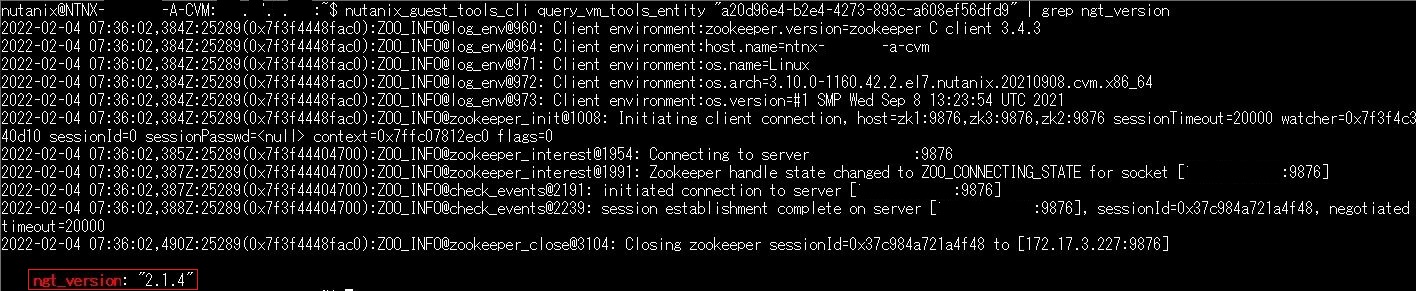
- Run this command on the CVM, and check the value of "ngt_version".
$ nutanix_guest_tools_cli query_vm_tools_entity "yyy" | grep ngt_version
Note: Enter the VM_UUID checked in step 3 in "yyy" of the command.
Affected Products
XC Core Systems, XC Series AppliancesArticle Properties
Article Number: 000122125
Article Type: How To
Last Modified: 30 Jul 2025
Version: 5
Find answers to your questions from other Dell users
Support Services
Check if your device is covered by Support Services.