Dell AW310H Alienware Gaming Headset Usage and Troubleshooting Guide
Summary: The Alienware Wireless Gaming Headset AW310H has many features and options, see each section to learn about the features of the Alienware Gaming Headset AW310H and how to use them.
This article applies to
This article does not apply to
This article is not tied to any specific product.
Not all product versions are identified in this article.
Symptoms
Table of Contents
- What is in the Alienware Gaming Headset AW310H box
- About the headset
- About the audio cable
- Setting up your headset
- Configuring the headset
- Using the headset
- Frequently Asked Questions
- Troubleshooting
- Additional Information
What is in the Alienware Gaming Headset AW310H box
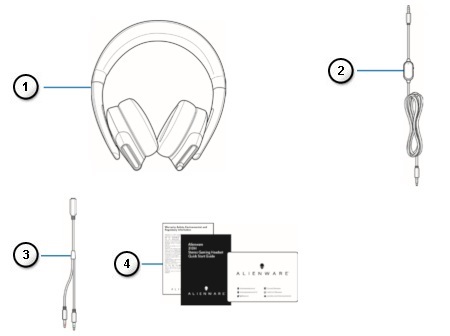 |
Figure 1: Alienware Gaming Headset AW310H Box Contents
| Numbers reference image above: | |
|---|---|
 |
Alienware Gaming Headset - AW310H |
 |
Audio cable (with microphone mute and volume control) |
 |
Y-cable with audio and microphone connectors (0.15 m) |
 |
Documents |
About the headset
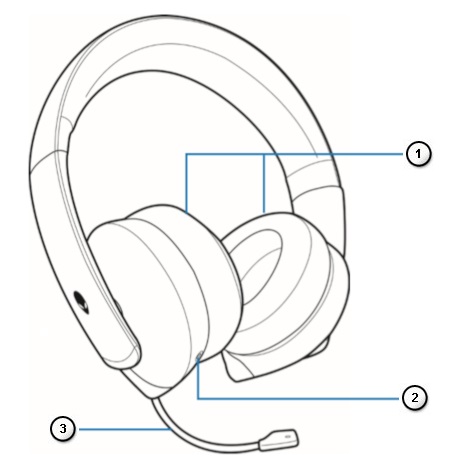 |
Figure 2: Alienware Gaming Headset AW310H Features
| Numbers reference image above: | |
|---|---|
 |
Ear cups |
 |
3.5 mm audio port |
 |
Retractable boom microphone |
About the audio cable
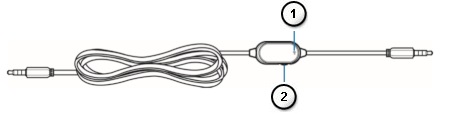 |
Figure 3: Alienware Gaming Headset AW310H Audio Cable Features
| Numbers reference image above: | |
|---|---|
 |
Microphone mute switch |
 |
Volume control wheel |
Setting up your headset
- Connecting the headset to your computer using the audio cable and Y-cable
- Connecting the headset to your mobile device
- Configuring the headset
Connecting the headset to your computer using the audio cable and Y-cable
To connect the headset to your computer using the audio cable, you have to attach it with a Y-cable. The Y-cable has two 3.5 mm plugs.
- Connect one end of the audio cable to the 3.5 mm audio port on your headset, and connect the other end to the female jack on the Y-cable (Figure 4).
- Connect the green end of the Y-cable to the headphone port on your computer (Figure 4).
- Connect the red end of the Y-cable to the microphone port on your computer (Figure 4).
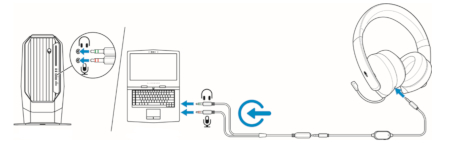
Figure 4: Wiring Connections
Connecting the headset to your mobile device
Connect one end of the audio cable to the 3.5 mm audio port on your headset, and connect the other end to the headset port on your mobile device.
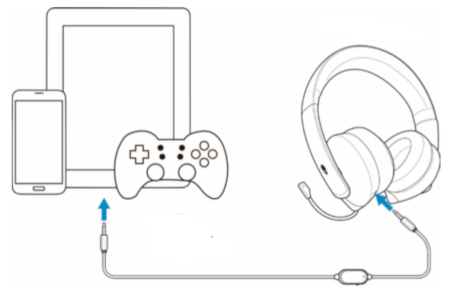
Figure 5: Connecting the Headset and a Mobile Device
NOTE: USB-C to 3.5 mm converter not included.
Connect the headset to your computer using the audio cable using the Y-cable. Once the headset is detected, it is ready to use.
Using the headset
Adjust the headband to find an optimal fit for your head. When using the retractable microphone, position it approximately two centimeters away from your mouth.
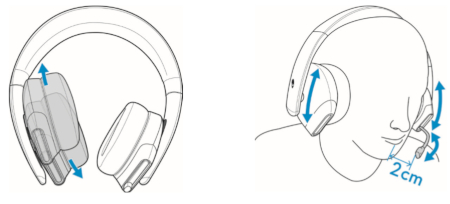
Figure 6: Adjusting the Headband
The ear cups can be rotated to wear the headset around the neck comfortably, or for easier storage.
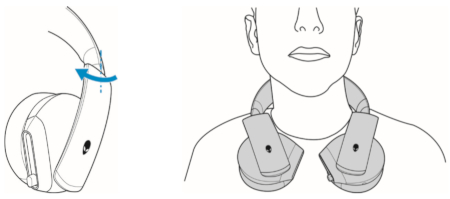
Figure 7: Adjusting the Ear cups
Use the volume control wheel on the audio cable to adjust the speaker volume. Scroll the volume control wheel up to increase the volume, or down to decrease the volume.
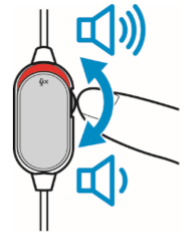
Figure 8: Adjusting the Volume
Muting/Un-muting the Microphone
Slide the microphone mute switch on the audio cable down to mute the microphone. To unmute the microphone, slide the microphone mute switch up.
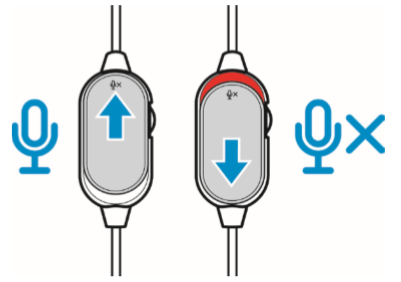
Figure 9: Muting and Unmuting
Frequently Asked Questions
| Question | Answer |
|---|---|
| Will this headset work with Xbox One, PS4, and Nintendo Switch? | This headset works on all consoles (including the PlayStation 4, Xbox One™ and Nintendo Switch) that allows for connectivity using the 3.5mm audio cable through the controller, or directly into the console in the case of the Nintendo Switch (not compatible with Nintendo Switch Lite).
NOTE: Xbox One may require Xbox One headset adapter (sold separately).
Setup on Xbox One™
Setup on PlayStation 4
|
| Will this headset work with my mobile device? | The AW310H works with most mobile devices using the 3.5 mm headset jack. USB-C or Lightning to 3.5 mm adapters are sold separately. |
| How do I clean my Headset? | The headset requires minimum maintenance to keep it in optimum condition. We recommend that you disconnect the device from the computer once a month and clean it using a soft cloth or cotton swab with a bit of warm water to prevent dirt buildup. Do not use soap or hard cleaning agents. Do not use any liquid to clean the ear pads and speakers, as the liquids may damage your headset. |
| Why is my microphone not working? | If the microphone on your headset is not working, you can perform one of the following:
|
| Why can I not see my headset on AWCC? | Alienware Command Center (AWCC) does not support Alienware Stereo Gaming Headset AW310H. |
Troubleshooting
| Problems | Possible solutions |
|---|---|
| Headset has no sound. | Ensure that the headset is connected to the computer using an audio cable with the Y-cable or the smartphone or tablet using an audio cable. |
| Try using the headset on another computer, smartphone, or tablet. | |
Ensure that the audio player is playing music and that the computer volume and media player volume are on and not muted.
|
|
| Sound is not configured to use this connection on the computer as the Audio Output/Input. | |
| The person on the other end cannot hear me. | Ensure that the microphone is positioned close to the mouth. |
| Ensure that the microphone is not muted. | |
| When using the Y-cable, make sure it is connected to the correct ports. | |
| When using the native Audio cable, make sure it is connected to the correct port. | |
| Make sure the 3.5mm port is fully inserted into the headset. | |
| Abnormal sound is coming out of the headset. | Adjust the volume level up and down, and check if the abnormal sound changes. |
| Ensure the 3.5mm jack is inserted fully into the headset port and the USB port on your computer. | |
| Ensure that the audio cable is fully inserted into the audio port of the mobile device (if connected through the audio cable). | |
| Unbalanced sound in the headset. | Check that the computer Volume Balance is set correctly.
|
| Microphone picks up too much background noise. | Ensure that the microphone is positioned close to the mouth. |
| Remove any direct airflow (such as a fan or air conditioner) to the microphone. | |
| Microphone mute is not working when connected with an audio cable. | Ensure that the microphone Mic mute switch on the audio cable is set to MUTE OFF. |
| Microphone works intermittently or cannot be heard by the other party. | Increase the microphone volume. |
| Set the microphone noise reduction level in the chat application to a lower level. |
How to Troubleshoot Audio or Sound Recording Issues
Use the information within and the Audio Recording Troubleshooter to resolve microphone issues.
How to Troubleshoot No Sound on Computer or Audio Playback Issues
Having issues with audio or sound on your Dell personal computer? If you notice symptoms like no sound or no audio, stuttering, jarring, crackling, or choppy audio, intermittent audio, or distorted audio, follow the troubleshooting steps.
Additional Information
For the Alienware 310H Stereo Gaming Headset Quick Start Guide, browse to the Alienware 310H Stereo Gaming Headset Online Manual Page. Using the drop-down menu, select the wanted language, and then touch or click View PDF to the right of the Alienware 310H Stereo Gaming Headset Quick Start Guide.
The Quick Start Guide provides information about the hardware in the box and the controls on the headset.
For the Alienware Wireless Gaming Headset AW988 User Guide, browse to the Alienware 310H Stereo Gaming Headset Online Manual Page. Using the drop-down menu, select the wanted language, and then touch or click View PDF to the right of the Alienware 310H Stereo Gaming Headset User's Guide.
The User Guide provides information such as Setting up your headset on your computer and troubleshooting.
Cause
No Cause information is available.
Resolution
No Resolution information is available.
Affected Products
Alienware Stereo Gaming Headset | AW310HArticle Properties
Article Number: 000125962
Article Type: Solution
Last Modified: 10 Jul 2025
Version: 8
Find answers to your questions from other Dell users
Support Services
Check if your device is covered by Support Services.