How to Uninstall CrowdStrike Falcon Sensor
Summary: Learn about how to uninstall CrowdStrike Falcon Sensor by following these instructions for Windows, Mac, and Linux.
This article applies to
This article does not apply to
This article is not tied to any specific product.
Not all product versions are identified in this article.
Instructions
This article covers the uninstall process for CrowdStrike Falcon Sensor.
Affected Products:
- CrowdStrike Falcon Sensor
Affected Operating Systems:
- Windows
- Mac
- Linux
Instructions to uninstall CrowdStrike Falcon Sensor differ depending on whether Windows, Mac, or Linux is in use. Click the appropriate operating system for the uninstall process.
Windows
CrowdStrike Falcon Sensor can be removed on Windows through the:
Click the appropriate method for more information.
UI
The steps to uninstall CrowdStrike Falcon Sensor using Windows UI differs between versions v5.10.9106 and Later, v4.24.8702 to 4.26.8904, and v4.23.8603 and Earlier. Select the appropriate version for more information. For how to identify the version of CrowdStrike Falcon Sensor, refer to How to Identify the CrowdStrike Falcon Sensor Version.
v5.10.9106 and Later
- Right-click the Windows Start menu and then select Apps and Features.
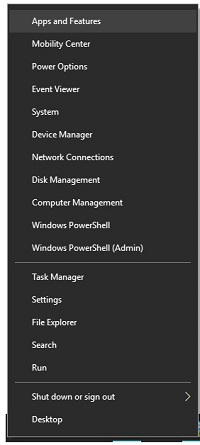 Note: The Apps and Features tool is called Add or Remove Programs on Windows 7.
 - Select CrowdStrike Windows Sensor and then click Uninstall.
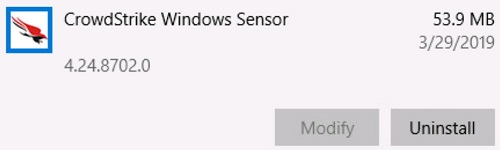 Note: The version in the example may differ from your environment.
 - Click Uninstall.

- If User Account Control (UAC) is enabled, click Yes. Otherwise go to Step 5.
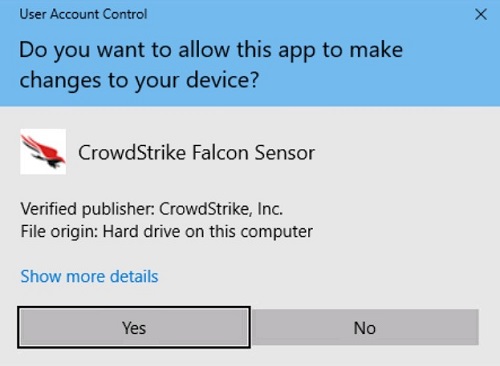
- If using a maintenance token, go to Step 6. Otherwise go to Step 7.
- Populate the Falcon maintenance token and then click Uninstall.
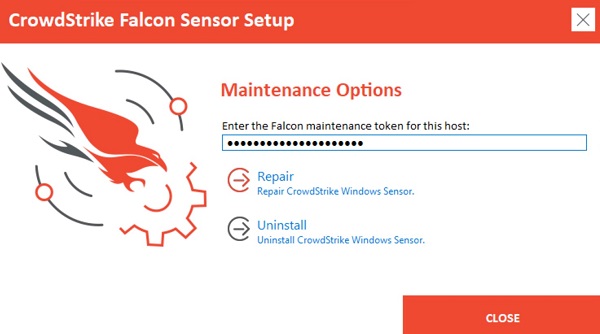 Note: For more information, reference How to Manage the CrowdStrike Falcon Sensor Maintenance Token.
 - Click Uninstall.
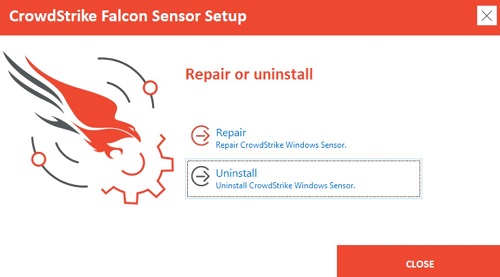
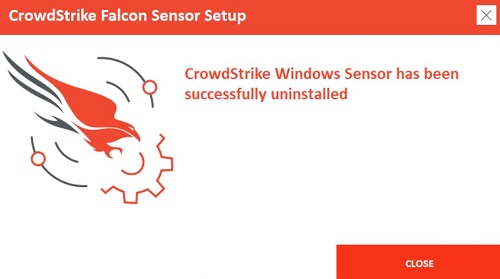
- On uninstall, click Close.
v4.24.8702 to 4.26.8904
- Right-click the Windows Start menu and then select Apps and Features.
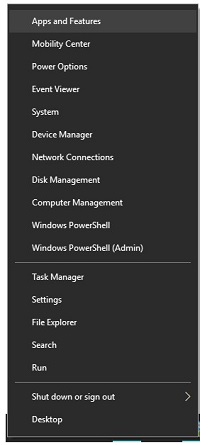 Note: The Apps and Features tool is called Add or Remove Programs on Windows 7.
 - Select CrowdStrike Windows Sensor and then click Uninstall.
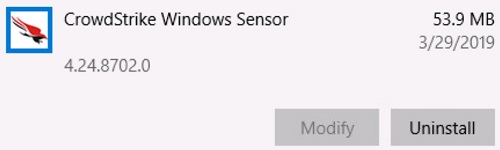 Note: The version in the example may differ from your environment.
 - Click Uninstall.

- If User Account Control (UAC) is enabled, click Yes. Otherwise go to Step 5.
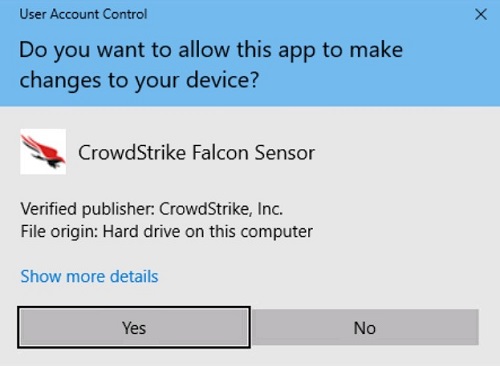
- For password-protected installations, go to Step 6. For regular installations, go to Step 7.
- Enter your Falcon installation password, click Uninstall, and then go to Step 8.
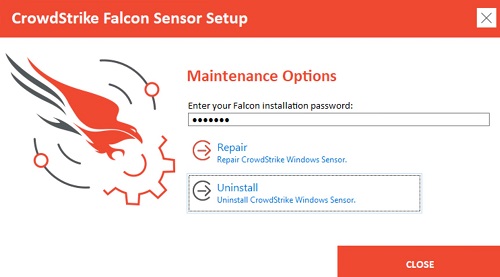 Caution: Forgotten passwords can only be reset by opening a ticket with Dell support. For more information, reference Dell Data Security International Support Phone Numbers.
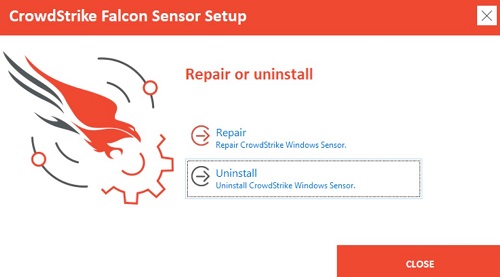
 - Click Uninstall.
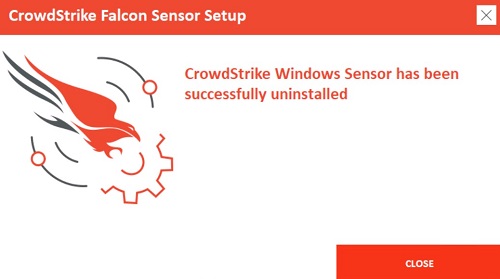
- On uninstall, click Close.
v4.23.8603 and Earlier
- Right-click the Windows Start menu and then select Apps and Features.
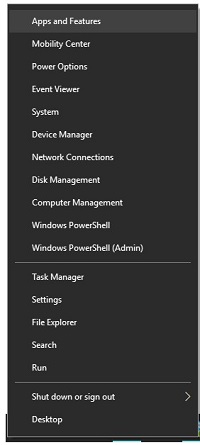 Note: The Apps and Features tool is called Add or Remove Programs on Windows 7.
 - Select CrowdStrike Windows Sensor and then click Uninstall.
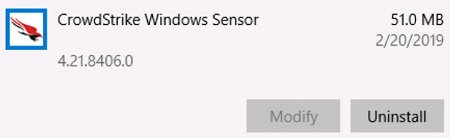 Note: The version in the example may differ from your environment.
 - Click Uninstall.

- If User Account Control (UAC) is enabled, click Yes. Otherwise go to Step 5.
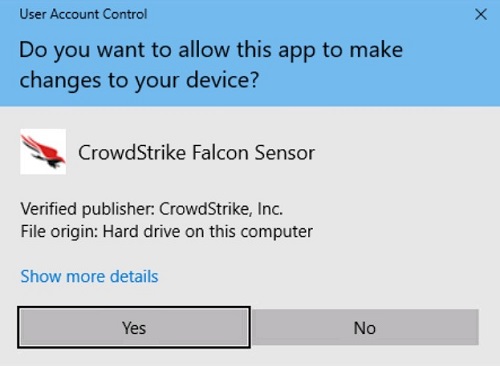
- Click Uninstall.
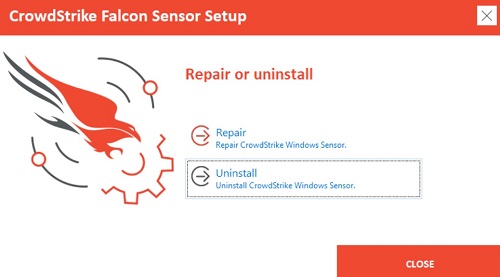
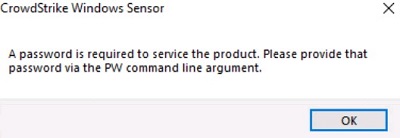
- If CrowdStrike Falcon Sensor is password-protected, click OK and go to the CLI uninstall section. Otherwise, go to Step 7.
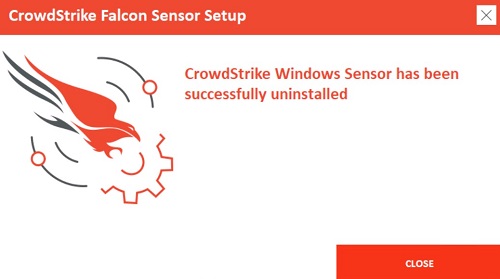
- On uninstall, click Close.
CLI
The steps to uninstall CrowdStrike Falcon Sensor using Windows CLI differs between versions v5.10.9106 and Later or v4.26.8904 and Earlier. Select the appropriate version for more information. For how to identify the version of CrowdStrike Falcon Sensor, refer to How to Identify the CrowdStrike Falcon Sensor Version.
v5.10.9106 and Later
Note:
- Switches are not case-sensitive.
- If User Access Control (UAC) is enabled, administrator rights should be used to perform uninstall.
| Switch | Required | Purpose |
|---|---|---|
/passive |
No | Installer shows a minimal UI with no prompts |
/quiet |
No | Suppresses UI and prompts |
/log |
No | Changes the default installation log directory from %Temp% to a new location
The new location must be contained in quotation marks ("") |
Note: Parameters are case-sensitive.
| Switch | Value | Required | Purpose |
|---|---|---|---|
MAINTENANCE_TOKEN |
See examples | No | Prevents uninstall without maintenance password |
Note:
- For more information, reference How to Manage the CrowdStrike Falcon Sensor Maintenance Token.
- For information about obtaining the uninstall tool, reference How to Download the CrowdStrike Falcon Sensor Windows Uninstall Tool.
CLI Installation Examples:
Example #1
CsUninstallTool.exe MAINTENANCE_TOKEN=a0c76aa097218dc446082 /quiet
Example #1 contains:
- Installer =
CsUninstallTool.exe - Silent install = Yes
- End-user installation prompts = No
- Maintenance token = Yes
Note: The example maintenance token will differ in your environment.
- Installation log directory =
%TEMP%Note: The default value is used since a value is not defined.
Example #2
CsUninstallTool.exe /passive /log "C:\Logs"
Example #2 contains:
- Installer =
CsUninstallTool.exe - Silent install = No
Note: The default value is used since a value is not defined.
- End-user installation prompts = No
- Password Protected = No
Note: The default value is used since a value is not defined.
- Installation log directory =
C:\Logs
v4.26.8904 and Earlier
Note:
- Switches are not case-sensitive.
- If User Access Control (UAC) is enabled, administrator rights should be used to perform uninstall.
| Switch | Required | Purpose |
|---|---|---|
/passive |
No | Installer shows a minimal UI with no prompts |
/quiet |
No | Suppresses UI and prompts |
/log |
No | Changes the default installation log directory from %Temp% to a new location
The new location must be contained in quotation marks ("") |
Note: Parameters are case-sensitive.
| Switch | Value | Required | Purpose |
|---|---|---|---|
PW= |
See examples | No | Prevents uninstall without password
Password must be contained in quotation marks ("") Parameter must go directly after the file |
Note: For information about obtaining the uninstall tool, reference How to Download the CrowdStrike Falcon Sensor Windows Uninstall Tool.
CLI Installation Examples:
Example #1
CsUninstallTool.exe PW="Ex@mpl3" /quiet
Example #1 contains:
- Installer =
CsUninstallTool.exe - Silent install = Yes
- End-user installation prompts = No
- Password Protected = Yes
- Installation log directory =
%TEMP%Note: The default value is used since a value is not defined.
Caution: Forgotten passwords can only be reset by opening a ticket with Dell support. For more information, reference Dell Data Security International Support Phone Numbers.
Example #2
CsUninstallTool.exe /passive /log "C:\Logs"
Example #2 contains:
- Installer =
CsUninstallTool.exe - Silent install = No
Note: The default value is used since a value is not defined.
- End-user installation prompts = No
- Password Protected = No
Note: The default value is used since a value is not defined.
- Installation log directory =
C:\Logs
Mac
The steps to uninstall CrowdStrike Falcon Sensor using Mac differs between versions v5.10.9003 and Later or v4.28.8907 and Earlier. Select the appropriate version for more information. For how to identify the version of CrowdStrike Falcon Sensor, refer to How to Identify the CrowdStrike Falcon Sensor Version.
v5.10.9003 and Later
CrowdStrike Falcon Sensor can be removed either in Normal or Protected (maintenance token) mode. Protected mode prevents the unauthorized unload, uninstall, repair, or manual upgrade of the sensor. Click the appropriate mode for more information.
Normal
- In the Apple menu, click Go and then select Utilities.
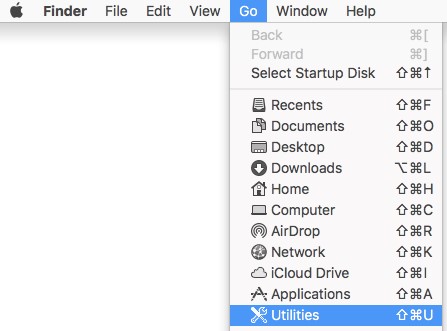
- In the Utilities folder, double-click Terminal.

- In Terminal, type
sudo /Library/CS/falconctl uninstalland then press Enter. - Populate the password for
sudoand then press Enter.
 Caution: CrowdStrike Falcon Sensors that are deployed with a maintenance token fail on uninstall. Go to the Protected section for uninstall steps.
 - Once uninstallation is complete, type
exitand then press Enter to close Terminal.
Protected
- In the Apple menu, click Go and then select Utilities.
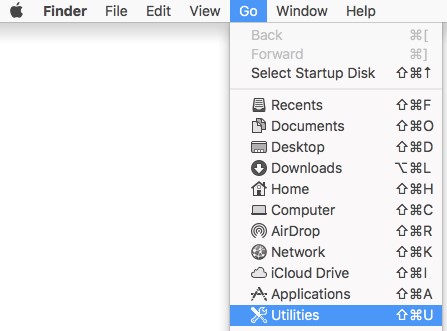
- In the Utilities folder, double-click Terminal.

- In Terminal, type
sudo /Library/CS/falconctl uninstall ––maintenance-tokenand then press Enter.Note: Two hyphens ("––") must be used beforemaintenance-token. - Populate the password for
sudoand then press Enter.

- Populate a Falcon Maintenance Token and then press Enter.
 Note: For more information, reference How to Manage the CrowdStrike Falcon Sensor Maintenance Token.
 - Once uninstallation is complete, type
exitand then press Enter to close Terminal.
v4.28.8907 and Earlier
CrowdStrike Falcon Sensor can be removed either in Normal or Protected (maintenance token) mode. Protected mode prevents the unauthorized unload, uninstall, repair, or manual upgrade of the sensor. Click the appropriate mode for more information.
Normal
- In the Apple menu, click Go and then select Utilities.
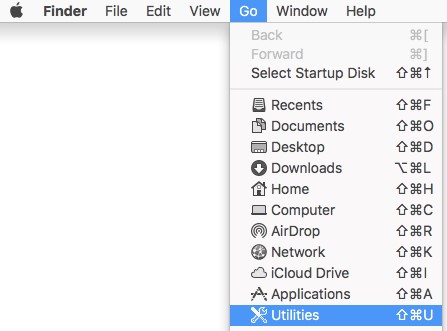
- In the Utilities folder, double-click Terminal.

- In Terminal, type
sudo /Library/CS/falconctl uninstalland then press Enter. - Populate the password for
sudoand then press Enter.
 Caution: Password-protected installs of CrowdStrike Falcon Sensor fail to uninstall. Go to the Protected section for uninstall steps.
 - Once uninstallation is complete, type
exitand then press Enter to close Terminal.
Protected
- In the Apple menu, click Go and then select Utilities.
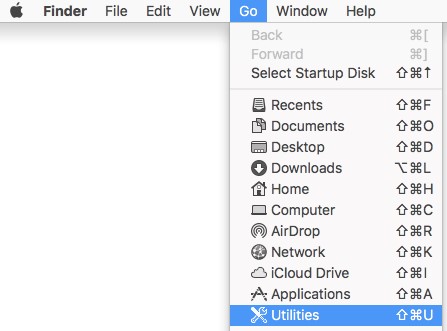
- In the Utilities folder, double-click Terminal.

- In Terminal, type
sudo /Library/CS/falconctl uninstall –passwordand then press Enter. - Populate the password for
sudoand then press Enter.

- Populate a Password and then press Enter.
 Caution: Forgotten passwords can only be reset by opening a ticket with Dell support. For more information, reference Dell Data Security International Support Phone Numbers.
 - Once uninstallation is complete, type
exitand then press Enter to close Terminal.
Linux
Based on your Linux distribution, run the appropriate command to uninstall the CrowdStrike Falcon Sensor from your host.
Note: Uninstalling the CrowdStrike Falcon Sensor requires
sudo privileges.
Red Hat Enterprise Linux, CentOS, Amazon Linux
From Terminal, type sudo yum remove falcon-sensor and then press Enter.

SUSE Linux Enterprise Server (SLES)
From Terminal, type sudo zypper remove falcon-sensor and then press Enter.

Ubuntu
From Terminal, type sudo apt-get purge falcon-sensor and then press Enter.

Affected Products
CrowdStrikeArticle Properties
Article Number: 000126135
Article Type: How To
Last Modified: 05 Aug 2026
Version: 17
Find answers to your questions from other Dell users
Support Services
Check if your device is covered by Support Services.