PowerStore: Health Check shows all green when there are warnings
Summary: Health Check shows all green when there are warnings.
This article applies to
This article does not apply to
This article is not tied to any specific product.
Not all product versions are identified in this article.
Symptoms
In all current versions of PowerStoreOS, upgrades and health checks are not always clear as seen from PowerStore Manager (UI).
When you run a pre-upgrade health check (PUHC) or an upgrade on a PowerStore, the process checks the health of the system. While the PUHC works, it does not always report problems in a way that is easy to notice.
Here is a view of the Settings > Upgrades screen. The % Complete / Status column shows a green checkmark, which seems to indicate everything is fine.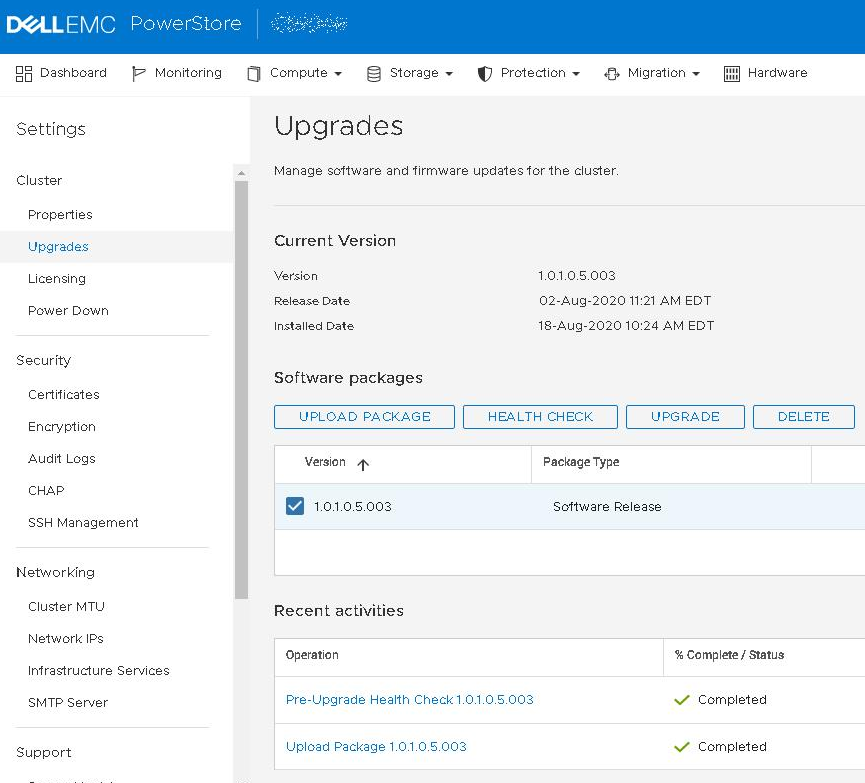
Example from the Job Details:
You can see all the steps taken by the health check and everything displays a green check.
To see the full details, highlight one of the steps, for example Health check - node A:
Now you can see that the system has two warnings.
Any warnings should be addressed before continuing with the upgrade.
In this example, there is a cyc_net error and a Host IO load error.
- One error is simple. We should wait for a lower I/O (or maintenance window) before performing the upgrade.
- The second error requires troubleshooting.
PUHC check from the Service Console
Example from the same PUHC as seen from the command line:
Jun 16 18:18:47 xxxxxxx-A cyc_puhc[62722]: Checking Active Imports..................................... OK
Jun 16 18:18:47 xxxxxxx-A cyc_puhc[62722]: Check : Checking network connection configuration
Jun 16 18:18:47 xxxxxxx-A cyc_puhc[62722]: Warning : Appliance nodes are not connected to the same switches (247390384816168)
Jun 16 18:18:47 xxxxxxx-A cyc_puhc[62722]: Action : Please make sure the nodes in the appliance are connected to the same ToR switches
Jun 16 18:18:47 xxxxxxx-A cyc_puhc[62722]: Check : Checking network connection configuration
Jun 16 18:18:47 xxxxxxx-A cyc_puhc[62722]: Warning : Appliance nodes are not connected to the same switches (247390384816168)
Jun 16 18:18:47 xxxxxxx-A cyc_puhc[62722]: Action : Please make sure the nodes in the appliance are connected to the same ToR switches
Jun 16 18:18:47 xxxxxxx-A cyc_puhc[62722]: Check : Checking if system cpu usage is normal
Jun 16 18:18:47 xxxxxxx-A cyc_puhc[62722]: Warning : CPU utilization level too high (247390385274892)
Jun 16 18:18:47 xxxxxxx-A cyc_puhc[62722]: Action : Reduce system load prior to NDU
Jun 16 18:18:47 xxxxxxx-A cyc_puhc[62722]: Check : Checking for Mapper status
Jun 16 18:18:47 xxxxxxx-A cyc_puhc[62722]: Warning : Host IO load on Node A is higher than recommended for running an upgrade (247390384816199)
Jun 16 18:18:47 xxxxxxx-A cyc_puhc[62722]: Action : Reduce host IO load and retry
Unlike the UI, the warnings and network errors show up in detail at the command line.
The system allows the user to upgrade with warning level errors (but not error or critical level messages), whether these warnings are seen or not.
Cause
The green checkmark is used to indicate that the step itself completed running. This was found to be confusing and will be fixed in a future release.
Resolution
Fix
The fix for this issue will be in a future version of PowerStoreOS.
Workarounds
Method 1
Ensure that you click all the way down to Health check - node A and Health check - node B on all appliances in the cluster. Take this step before performing any upgrades.
Method 2
Observe the PUHC from the command line.
The following command allows you to watch the health check live for any problems. Anything that is observed should be addressed.
svc_journalctl -t cyc_puhc -f
Choose one of the following commands to look at the last PUHC performed.
svc_journalctl -t cyc_puhc -r
-- or --
svc_journalctl -t cyc_puhc -rg "Warning"
Note: The version of the command with "Warning" as a search term creates a much shorter CLI output but has the potential of missing an "information" level message.
The CLI also shows that more details about any errors encountered.
- If no warnings are observed, then you can proceed.
- If warnings are observed, address them before proceeding.
Affected Products
PowerStore, PowerStore Employee and PartnerArticle Properties
Article Number: 000130130
Article Type: Solution
Last Modified: 10 Oct 2025
Version: 7
Find answers to your questions from other Dell users
Support Services
Check if your device is covered by Support Services.