MyAccount: How to obtain iDRAC licenses from MyAccount
Summary: This article provides information about how to obtain iDRAC licenses from MyAccount (Formerly Dell Digital Locker).
This article applies to
This article does not apply to
This article is not tied to any specific product.
Not all product versions are identified in this article.
Instructions
Table of Contents
- What is My Account?
- My Account Introduction Email
- My Account Registration
- Product Registration
- Get the iDRAC License Key.
- How to Manage Dell Account Settings on the Dell Website
1. What is My Account (Formerly DDL)?
"My Account", formerly Dell Digital Locker (DDL), is a support tool that is used to manage purchased software products. My Account can be used to confirm the Partner Activation Code (PAC) of the VMware product. For other products, "My Account" can be used to obtain the license, manage subscriptions, download software, and so on.
2. My Account (Formerly DDL) Introduction Email
The introduction email is sent to the address registered at the time of product purchase.
Follow the steps in the email, log in to My Account and register.
3. My Account (Formerly DDL) Registration
Follow these instructions to register for My Account:
- Access "My Account" here: My Account
- If you have the My Account with the email address that is registered at the time of purchase, click Sign In.
- If you do not have the My Account, click Create Dell Account and create the account with the email address that received the introduction email.
- If the Dell Software License Agreement is displayed after signing in, read the terms and click Yes, I agree.
Note: If the email address is unknown, Dell Customer Care support can change it. Prepare and inform them of the order number that is related to the license.
Now you can use My Account.
4. Product Registration
For some products purchased through a partner, it may be necessary to register the product before using My Account.
Follow the steps below to register your product.
- The product registration email is sent from digital_fulfillment_alert@Dell.com.
- Log in to My Account with the email address that is used at the time of purchase or used for assigning software licenses.
- Click Software Licenses and then Order Registration to access the registration page.
- Enter the registration code that is described in the registration email and click Submit.
- Enter the required information to the software registration form (owner registration).
- After registration, confirm that the registered product is displayed on the Products screen.
It may take time for the owner’s registration to show in the Dell system. After registration, if your product is not displayed on the Products screen, wait for a while and check again.
See How to register your product for more details.
5. Get the iDRAC License Key
- Once registered, go back to the Dell Digital Locker home page and you can find the order information in the historical order history, click the corresponding order number, and go to the Order Details page.
- Select the iDRAC License to download from the order details to enter the product details.
- Check that the Service Tag is correct from the product details and click "Download Key."
- Select the required authorization file acquisition method and click Submit.
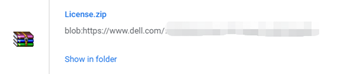
- Once you have the authorization file compression package, extract the iDRAC XML authorization file to be found in the directory.

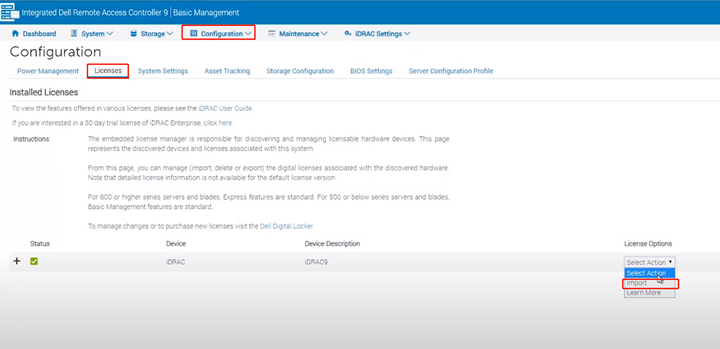
- Log in to the iDRAC Web interface, choose Licenses from the Configuration options, and click Import.
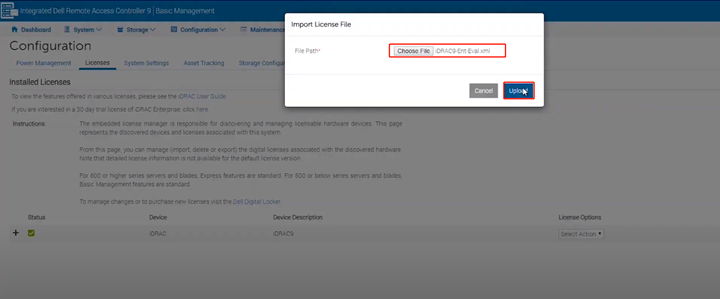
- Click Choose File to find the iDRAC XML authorization file you downloaded, click Upload, and prompt the import is successful.
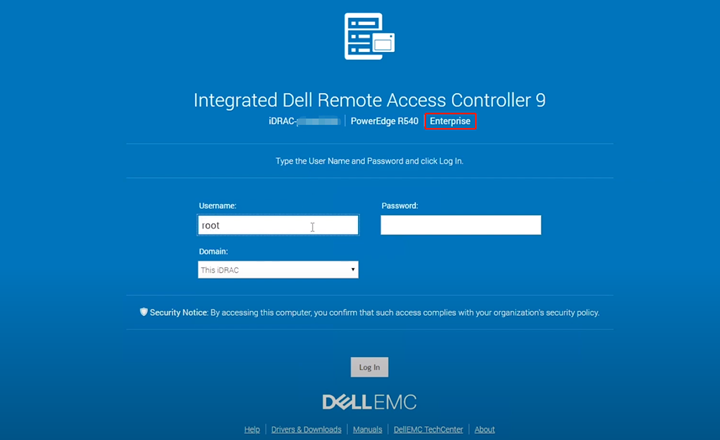
- Close the iDRAC Web and log in again to the iDRAC Web to see the license authorization take effect.
How to Manage Dell Account Settings on the Dell Website
How to Manage Dell Account Settings on the Dell Website article will give you more information
Affected Products
C Series, HS Series, Modular Infrastructure, Rack Servers, Tower Servers, XE Servers, XR Servers, iDRAC8, iDRAC9, Dell EMC OpenManage EnterpriseArticle Properties
Article Number: 000130349
Article Type: How To
Last Modified: 27 Oct 2025
Version: 10
Find answers to your questions from other Dell users
Support Services
Check if your device is covered by Support Services.