How to Troubleshoot Dell Digital Delivery
Summary: The following article discusses how to troubleshoot missing software in Dell Digital Delivery.
This article applies to
This article does not apply to
This article is not tied to any specific product.
Not all product versions are identified in this article.
Instructions
Affected Products:
- Dell Digital Delivery
Affected Versions:
- v3.0 and Later
Dell Digital Delivery enables access to software purchased with a commercial or consumer Dell computer running Windows.
Note:
- Microsoft Office that was purchased with a Dell computer is available directly on the factory image and not through Dell Digital Delivery. For more information, reference How to Find and Activate Microsoft Office 2019, 2021, or 365 on Your Dell Computer.
- Software that was purchased separately through https://www.dell.com/ is available at Dell Digital Locker.
- If Dell Digital Delivery is not installed, reference How to Download and Install Dell Digital Delivery.
If Dell Digital Delivery does not display the purchased software, it is necessary to troubleshoot the Application before collecting Application Logs. Click the appropriate section for more information.
Table of Contents
Application
Version 5.x and Later
- Go to https://www.microsoft.com/
.
- Failure indicates either an unstable or no internet connection.
- On success, go to next step.
- On success, verify firewall connectivity by going to https://cloud.dell.com/ClientServices/Client.svc/v1/Client/Config?r=en
- On success, the user gets a request to enter their credentials. This indicates that the computer can successfully communicate to the Dell cloud software service. Go to the Application section for additional troubleshooting.
- Failure indicates that a firewall or proxy settings are blocking the URL.

- Launch the Dell Digital Delivery application.
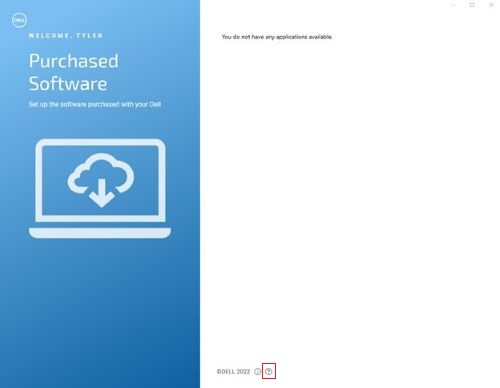
- In the bottom menu, click
 .
.
- Click REFRESH. This rebuilds the Dell Digital Delivery local software database cache.
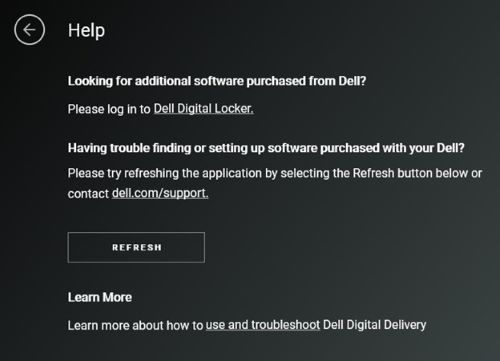
- Close the Dell Digital Delivery application.
- After 1 minute, launch the Dell Digital Delivery application.
- If the issue persists, go to Application Logs to collect the appropriate information before contacting technical support.
Version 4.x and Earlier
- Go to https://www.microsoft.com/
- Failure indicates either an unstable or no internet connection.
- On success, go to next step.
- On success, verify firewall connectivity by going to https://cloud.dell.com/ClientServices/Client.svc/v1/Client/Config?r=en
- On success, the user gets a request to enter their credentials. This indicates that the computer can successfully communicate to the Dell cloud software service. Go to the Application section for additional troubleshooting.
- Failure indicates that a firewall or proxy settings are blocking the URL.
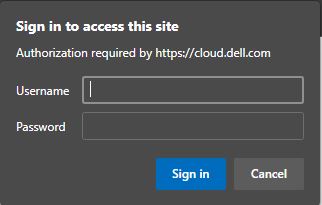
- Launch the Dell Digital Delivery application.
- In the bottom menu, click Help.

- Click RESET NOW. This rebuilds the Dell Digital Delivery local software database cache.
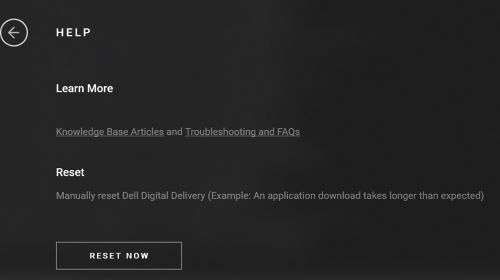
- Close the Dell Digital Delivery application.
- After 1 minute, launch the Dell Digital Delivery application.
- If the issue persists, go to Application Logs to collect the appropriate information before contacting technical support.
Application Logs
Version 4.0.92 and Later
- To assist with further troubleshooting, reference the instructions below for how to collect the following logs:
- Service Logs: C:\ProgramData\dell\D3\Resources\SQLite
- Database Logs: C:\ProgramData\dell\D3\Resources\Logs\serilog
- UWP Logs: C:\users\<username>\appdata\local\packages\dellinc.DellDigitalDelivery_<x.x.xx.x>_x64__htrsf667h5kn2\LocalState\serilog
- Where <username> = username; Example: John_Doe
- Where <x.x.xx.x> = version or rev; Example: v4.0.92.0 (previous) or v5.0.49.0 (latest)
- To collect Service logs:
- Go to Windows Search and type C:\ProgramData\Dell\D3\Resources\Logs\serilog.
- Select the file explorer folder that is shown in the screenshot below.
- Collect these logs and provide them to the support agent for further assistance.
 Note:
Note:- If these directories do not exist, verify that the computer has Dell Digital Delivery v4.0.0 or later.
- For more information, reference:
- If these directories do not exist, verify that the computer has Dell Digital Delivery v4.0.0 or later.
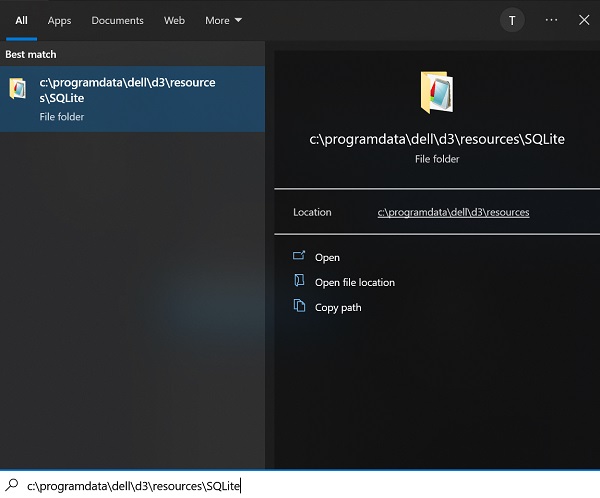
- To collect DDD Database Logs:
- Go to Windows Search bar type C:\programdata\dell\d3\resources\SQLite.
- Select the folder that is shown in the screenshot below.
- Collect the logs and provide them to a support agent for further assistance.
- To collect Dell Digital Delivery UWP logs:
- Right-click the windows icon that is in the task and click Run as shown by the screenshot below.

- In the Run user interface type %LOCALAPPDATA% and select OK in the bottom left as shown by screenshot below.
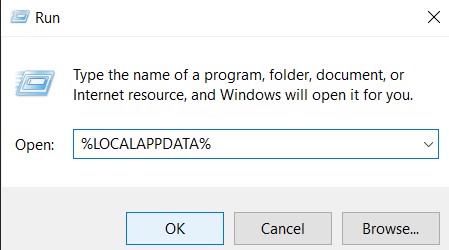
- A file explorer is displayed with several folders.
- Locate and click the Packages folder.
- Once in the Packages folder, go to the search bar in the upper right corner and search DellDigitalDelivery.
- Click the folder as shown by the screenshot below.
Note: Folder name may vary based on the Dell Digital Delivery application version.

- Go to and click the Local State folder then go to click seriallog folder. Collect the logs and provide them to a support agent for further assistance.
- Right-click the windows icon that is in the task and click Run as shown by the screenshot below.
Article Properties
Article Number: 000131238
Article Type: How To
Last Modified: 17 Sep 2025
Version: 31
Find answers to your questions from other Dell users
Support Services
Check if your device is covered by Support Services.