Manually Configuring Virtual Memory For Systems With Large Memory Modules and Small Hard Drives
Summary: This article describes the configuration of Virtual Memory in Windows based systems and is intended to address systems with large amounts of physical memory that may not require a sizable page file allocation. ...
This article applies to
This article does not apply to
This article is not tied to any specific product.
Not all product versions are identified in this article.
Symptoms
Virtual Memory is a hardware/software scheme designed to extend system memory space by allocating additional memory space on a physical storage device in the event that system memory runs out of address space while running applications. Windows normally manages the Virtual Memory (aka a Page File) and allocates space on a hard drive to act as a sort of buffer for system memory. The size of the allocated memory space is based largely on the amount of system memory installed in the system. The more memory installed, the more space reserved on the hard drive.
Modern Workstations have the ability to utilize a very large amount of system memory, yet may incorporate relatively small capacity, but high throughput hard drives. In situations like this, a large page file is unnecessary as the system memory exceeds the needs of running applications and hinders overall performance by consuming unnecessary space in the hard drives.
Cause
No cause information
Resolution
Manually Configuring Virtual Memory Allocation
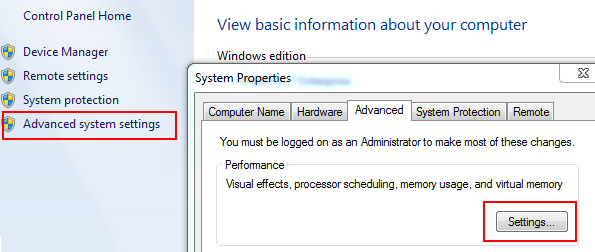
- Open Advanced System Settings
- Advanced System Settings can be found in Control Panel, or by searching "Advanced System Settings"
- In the System Properties dialog box, select the Advanced tab
- In the Advanced tab, in the Performance category, select Settings
The Microsoft Technet article, Learn Best Practices for Optimizing the Virtual Memory Configuration  , provides additional details and recommendations for configuring Virtual Memory.
- In the Virtual Memory dialog box, deselect "Automatically manage paging file size for all drives"
- Select the Customer Size radio button and specify an amount that better suits the available space in the hard drives.
- A range of 1024MB minimum and 2048MB maximum suits most systems

Affected Products
WorkstationsArticle Properties
Article Number: 000146481
Article Type: Solution
Last Modified: 19 Apr 2025
Version: 6
Find answers to your questions from other Dell users
Support Services
Check if your device is covered by Support Services.