How to Uninstall the Secureworks Red Cloak Endpoint Agent
Summary: Learn step-by-step instructions to uninstall the Secureworks Red Cloak Endpoint agent on either Windows or Linux.
This article applies to
This article does not apply to
This article is not tied to any specific product.
Not all product versions are identified in this article.
Instructions
The Secureworks Red Cloak Endpoint agent may require uninstallation to:
- Troubleshoot the product
- Address operating system incompatibilities
This article covers the steps to uninstall the product.
Affected Product:
- Secureworks Red Cloak Endpoint
Affected Operating Systems:
- Windows
- Linux
Click Windows or Linux for the steps to uninstall the Secureworks Red Cloak Endpoint agent.
Windows
An administrator must first uninstall the Secureworks Red Cloak Endpoint agent on Windows. The Secureworks Red Cloak Endpoint agent on Windows can be uninstalled using the user interface (UI) or the command-line interface (CLI). Then an administrator may run Registry and File System Cleanup. Click the appropriate process for more information.
UI
- As an administrator, right-click the Windows start menu and then click Run.
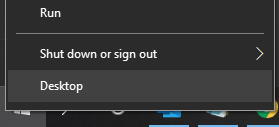
- In the Run UI, type
appwiz.cpland then click OK.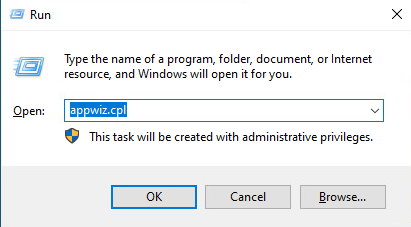
- In Programs and Features, select Dell SecureWorks Ignition and then click Uninstall.
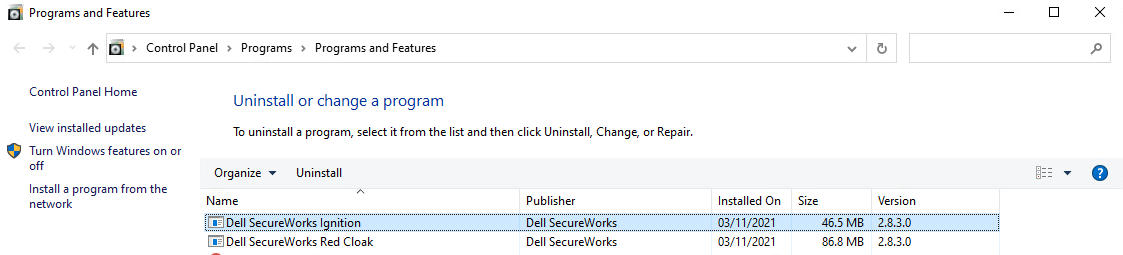 Note: This removes the application but leaves the registry and file system intact.
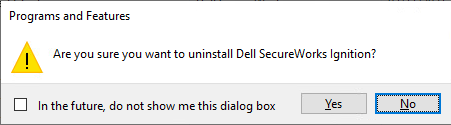
 - When prompted, select Yes to confirm the removal.
- In Programs and Features, select Dell SecureWorks Red Cloak and then click Uninstall.
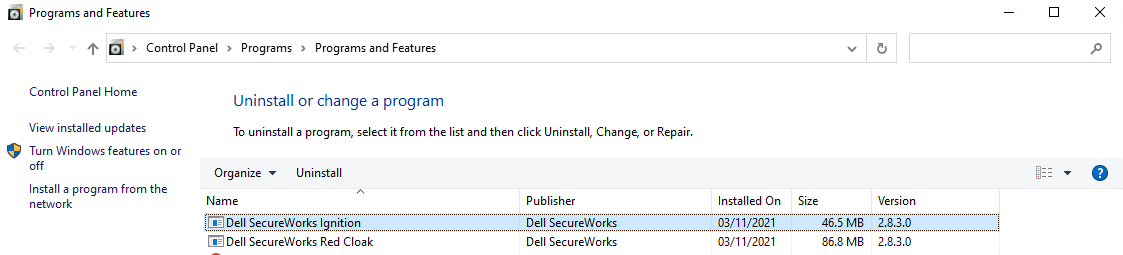 Note: This removes the application but leaves the registry and file system intact.
 - When prompted, select Yes to confirm the removal.
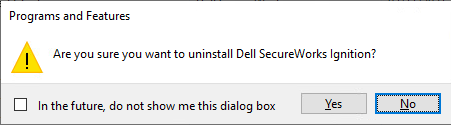
- To clean up the endpoint, follow the steps in Registry and File System Cleanup.
CLI
- As an administrator, right-click the Windows start menu and then click Run.
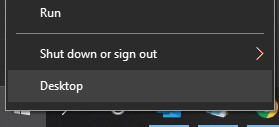
- In the Run UI, type
cmdand then click OK.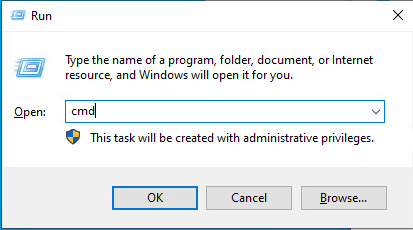 Note: The commands to uninstall Secureworks Red Cloak Threat Detection & Response on Windows using CLI vary between versions. For versioning information, reference How to Identify the Secureworks Red Cloak Endpoint Agent Version.
 - Run the uninstall command or commands.
- If using version 2.1.4.0 and later:
- Type
wmic product where name="Dell SecureWorks Red Cloak" call uninstall /nointeractiveand then press Enter. - Type
wmic product where name="Dell SecureWorks Ignition" call uninstall /nointeractiveand then press Enter.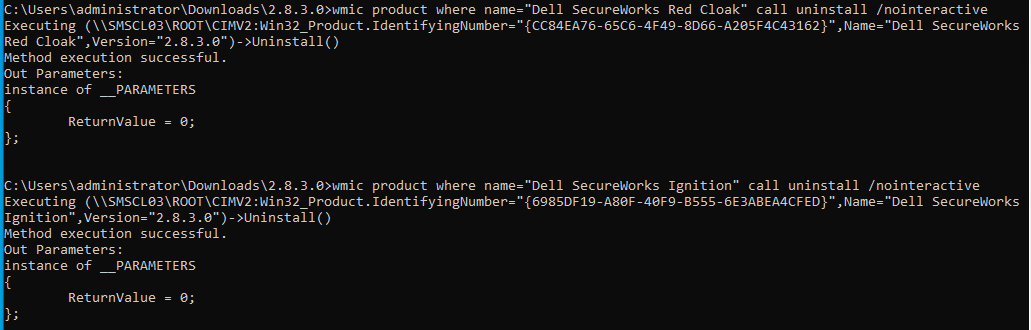
- Go to Step 4.
- Type
- If using version 2.0.7.10 and earlier:
- Type
msiexec.exe /x <PATH>\redcloak.msiand then press Enter.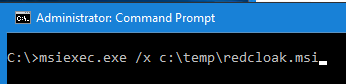 Note:
Note:<PATH>= Variable file path whereredcloak.msiresides - Go to Step 4.
- Type
- If using version 2.1.4.0 and later:
- Wait for the commands to run and then close Command Prompt.
Registry and File System Cleanup
- As an administrator, right-click the Windows start menu and the click Run.
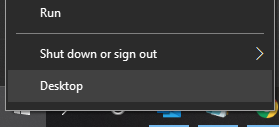
- In the Run UI, type
appwiz.cpland then click OK.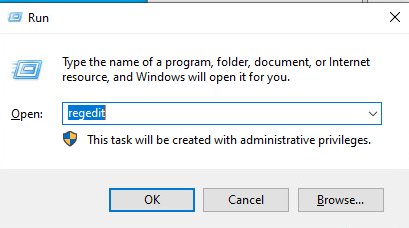
- Press CTRL + F.
- From the Find dialog box, type
red cloakand then click Find Next.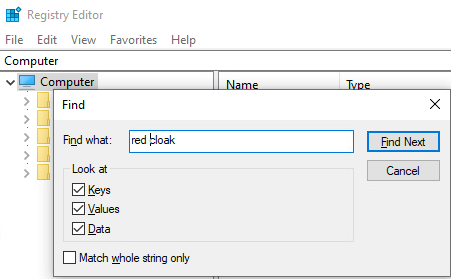
- Right-click the returned result and then select Delete.
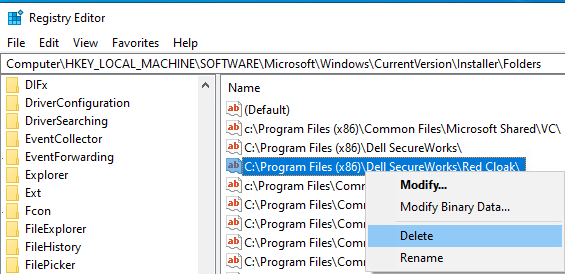
- Repeat Steps 3, 4, and 5 until no further results are returned.
- Open File Explorer, go to
C:\Program Files (x86), locate theDell SecureWorksfolder, and then delete it.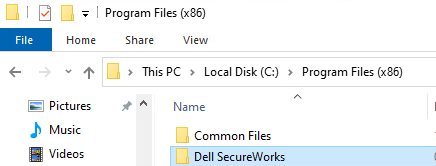
Linux
The process to uninstall Secureworks Red Cloak Endpoint Agent differs between CentOS, Red Hat Linux, Oracle Linux, Amazon Linux 2, and Ubuntu. Click the appropriate operating system for the steps to uninstall the Secureworks Red Cloak Endpoint agent.
CentOS, Red Hat Linux, Oracle Linux, Amazon Linux 2
- Log in to the endpoint.
- Click Activities in the upper left.
- Click System Tools.

- Click Terminal.
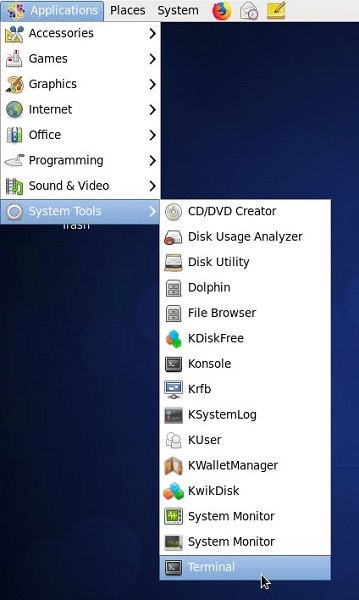
- In Terminal, type
yum remove redcloakand then press Enter.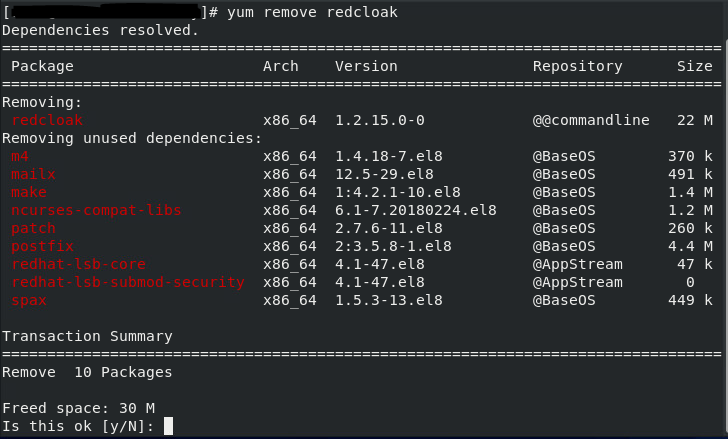
- Type
Yand then press Enter to confirm the uninstall.
Ubuntu
- Log in to the endpoint.
- Click Show Applications from the lower left.

- Click Terminal.
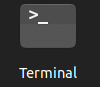
- In Terminal, type
apt-get remove redcloakand then press Enter.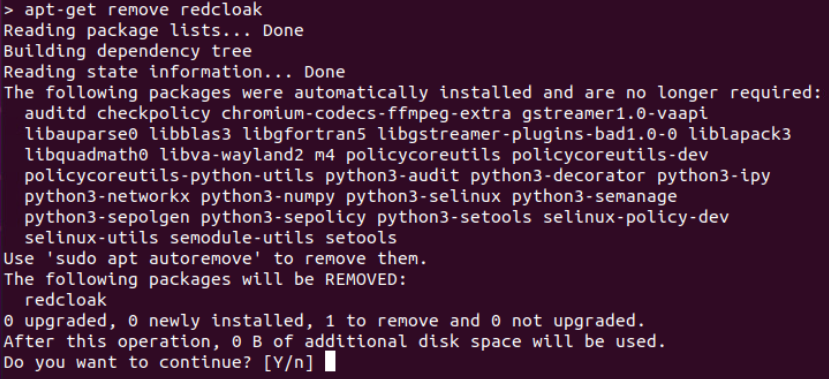
- Type
Yand then press Enter to confirm the uninstall.
To contact support, reference Dell Data Security International Support Phone Numbers.
Go to TechDirect to generate a technical support request online.
For additional insights and resources, join the Dell Security Community Forum.
Affected Products
SecureworksArticle Properties
Article Number: 000201844
Article Type: How To
Last Modified: 11 Aug 2025
Version: 5
Find answers to your questions from other Dell users
Support Services
Check if your device is covered by Support Services.