Dell Update Tool non riesce ad aggiornare il BIOS sui computer in cui è configurata la password amministratore del BIOS
Summary: Questo articolo fornisce informazioni su come abilitare l'aggiornamento del BIOS tramite lo strumento Dell Update (DU).
This article applies to
This article does not apply to
This article is not tied to any specific product.
Not all product versions are identified in this article.
Symptoms
Nei computer client Dell in cui il BIOS è configurato con la password amministratore, lo strumento DU non è in grado di aggiornare il BIOS sul computer.
La non disponibilità dei dati visualizza il messaggio "Installazione completata: X (numero di aggiornamenti) aggiornamenti non riusciti" in cui il BIOS è stato selezionato per l'installazione e l'operazione non è riuscita.
Si tratta di un errore che si verifica sia nel BIOS che nel sistema operativo (Figura 1).
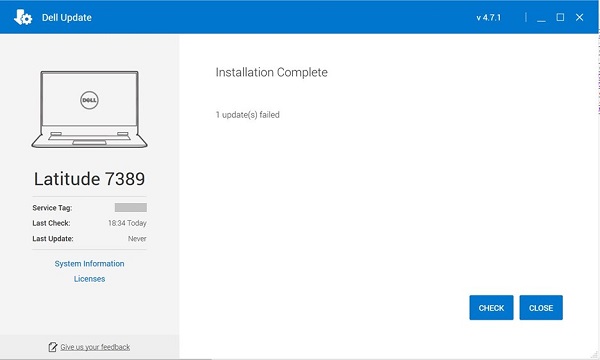
Figura 1. Lo strumento DU non riesce ad aggiornare il BIOS.
Prodotti interessati:
| Nome del prodotto | Nome del modello |
| Notebook per il gaming Dell | Dell G5 5505 |
| Notebook per il gaming Dell | Dell G15 5515 |
| Desktop Inspiron | Inspiron 5415 |
| Desktop Inspiron | Inspiron 3671 |
| Desktop Inspiron | Inspiron 3471 |
| Desktop Inspiron | Inspiron 22-3275 |
| Desktop Inspiron | Inspiron 3280 |
| Desktop Inspiron | Inspiron 24-3475 |
| Notebook Inspiron | Inspiron 7425 |
| Notebook Inspiron | Inspiron 5485 2 in 1 |
| Notebook Inspiron | Inspiron 5485 |
| Notebook Inspiron | Inspiron 5585 |
| Notebook Inspiron | Inspiron 3505 |
| Notebook Inspiron | Inspiron 3502 |
| Notebook Inspiron | Inspiron 5415 |
| Notebook Inspiron | Inspiron 5515 |
| Notebook Inspiron | Inspiron 7405 2 in 1 |
| Notebook Inspiron | Inspiron 3195 2 in 1 |
| Notebook Inspiron | Inspiron 5570 |
| Notebook Inspiron | Inspiron 5770 |
| Notebook Inspiron | Inspiron 3482 |
| Notebook Inspiron | Inspiron 3481 |
| Notebook Inspiron | Inspiron 3585 |
| Notebook Inspiron | Inspiron 3582 |
| Notebook Inspiron | Inspiron 3581 |
| Notebook Inspiron | Inspiron 3584 |
| Notebook Inspiron | Inspiron 3595 |
| Notebook Inspiron | Inspiron 3785 |
| Notebook Inspiron | Inspiron 3782 |
| Notebook Inspiron | Inspiron 3781 |
| Notebook Inspiron | Dell G3 3579 |
| Notebook Inspiron | Dell G3 3779 |
| Notebook Inspiron | Inspiron 3480 |
| Notebook Inspiron | Inspiron 3580 |
| Notebook Inspiron | Inspiron 3583 |
| Notebook Inspiron | Inspiron 3780 |
| Notebook Inspiron | Inspiron 5505 |
| Notebook Inspiron | Inspiron 5405 |
| Notebook Inspiron | Inspiron 5425 |
| Notebook Inspiron | Inspiron 3525 |
| Notebook Inspiron | Inspiron 3521 |
| Notebook Inspiron | Inspiron 3515 |
| Notebook Inspiron | Inspiron 3510 |
| Notebook Inspiron | Inspiron 7415 |
| Desktop Vostro | Vostro 3471 |
| Desktop Vostro | Vostro 3671 |
| Desktop Vostro | Vostro 3669 |
| Desktop Vostro | Vostro 3668 |
| Desktop Vostro | Vostro 3667 |
| Desktop Vostro | Vostro 3268 |
Cause
La funzione per configurare la password amministratore del BIOS non è disponibile in DU.
Resolution
Per abilitare gli aggiornamenti del BIOS tramite Dell Update, effettuare una delle seguenti soluzioni:
- Rimuovere la password del BIOS configurata sul computer.
- Aggiornare manualmente il BIOS:
Attenzione: prima di aggiornare il BIOS, Dell Technologies consiglia di scollegare dispositivi come dischi rigidi esterni, stampanti, scanner e così via.
Attenzione: i notebook Dell devono avere una batteria installata e carica almeno al 10% prima di avviare l'aggiornamento del BIOS. Dell Technologies consiglia di collegare il notebook all'alimentazione CA prima di procedere all'aggiornamento.
Nota: Per ulteriori informazioni sull'aggiornamento del BIOS su un computer Dell, consultare l'articolo Dell Guida all'aggiornamento del BIOS.
Nota: per installare il BIOS, l'account utente deve disporre dei privilegi di amministratore.
- Come scaricare e installare la versione BIOS più recente:
- Accedere alla pagina Driver e download di Dell.
- Identificare il computer Dell in uso.
- Cliccare su Scarica e installa SupportAssist per rilevare automaticamente il computer Dell. Per installare Dell SupportAssist, attenersi alle istruzioni visualizzate. Per ulteriori informazioni, consultare l'articolo Dell SupportAssist (in precedenza Dell System Detect): panoramica e domande frequenti
- Inserire il codice di matricola del notebook e cliccare su Cerca.
- In alternativa, cliccare su Visualizza tutti i prodotti per selezionare il computer Dell dal catalogo.
- Selezionare il sistema operativo installato sul computer Dell.
- In Categoria, selezionare BIOS.
- Individuare il BIOS di sistema più recente.
- Cliccare su Scarica e salvare il file sul computer.
- Aprire Esplora file e selezionare la posizione in cui è stato salvato il file scaricato.
- Cliccare due volte sul file di installazione del BIOS e seguire le istruzioni visualizzate per completare il processo di installazione.
Affected Products
Dell Update, Dell G3 3579, Dell G5 SE 5505, Dell G15 5515 Ryzen Edition, Dell G3 3779, Inspiron 3195 2-in-1, Inspiron 3480, Inspiron 3481, Inspiron 3482, Inspiron 5405, Inspiron 5415, Inspiron 14 5425, Inspiron 14 5485 2-in-1, Inspiron 14 5485
, Inspiron 7405 2-in-1, Inspiron 7415 2-in-1, Inspiron 14 7425 2-in-1, Inspiron 3502, Inspiron 3505, Inspiron 15 3510, Inspiron 15 3515, Inspiron 15 3521, Inspiron 15 3525, Inspiron 3580, Inspiron 3581, Inspiron 3582, Inspiron 3583, Inspiron 3585, Inspiron 3595, Inspiron 5505, Inspiron 5515, Inspiron 5570, Inspiron 15 5585, Inspiron 3780, Inspiron 3781, Inspiron 3782, Inspiron 3785, Inspiron 5770, Inspiron 3275, Inspiron 3280 AIO, Inspiron 3475, Inspiron 3471, Inspiron 3671, Vostro 3268, Vostro 3471, Vostro 3667, Vostro 3668, Vostro 3669, Vostro 3671
...
Products
Inspiron 3195 2-in-1, Inspiron 3480, Inspiron 3481, Inspiron 3482, Inspiron 5405, Inspiron 5415, Inspiron 7405 2-in-1, Inspiron 7415 2-in-1, Inspiron 3502, Inspiron 3505, Inspiron 15 3515, Inspiron 15 3521, Inspiron 15 3525, Inspiron 3580
, Inspiron 3581, Inspiron 3582, Inspiron 3583, Inspiron 3585, Inspiron 3595, Inspiron 5505, Inspiron 5515, Inspiron 5570, Inspiron 15 5585, Inspiron 3780, Inspiron 3781, Inspiron 3782, Inspiron 3785, Inspiron 5770, Inspiron 3275, Inspiron 3280 AIO, Inspiron 3475, Inspiron 3471, Inspiron 3671, Vostro 3268, Vostro 3471, Vostro 3667, Vostro 3668, Vostro 3669, Vostro 3671
...
Article Properties
Article Number: 000206452
Article Type: Solution
Last Modified: 26 Nov 2025
Version: 8
Find answers to your questions from other Dell users
Support Services
Check if your device is covered by Support Services.