Dell Update Tool Fails to Upgrade BIOS on Computers Having BIOS Admin Password Configured
Summary: This article provides information about how to enable BIOS Upgrade through Dell Update (DU) tool.
This article applies to
This article does not apply to
This article is not tied to any specific product.
Not all product versions are identified in this article.
Symptoms
On Dell Client computers where the BIOS is configured with Admin password, the DU tool is not able to upgrade the BIOS on the computer.
DU displays "Installation Complete: X (number of updates) updates failed" where the BIOS was selected to be installed and failed.
This is an error that is seen in both the BIOS and the operating system (Figure 1).
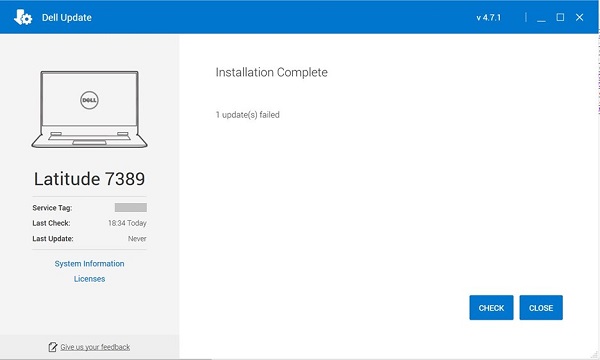
Figure 1: DU tool fail to upgrade BIOS.
Impacted Products:
| Product Name | Model Name |
| Dell Gaming Laptop | Dell G5 5505 |
| Dell Gaming Laptop | Dell G15 5515 |
| Inspiron Desktop | Inspiron 5415 |
| Inspiron Desktop | Inspiron 3671 |
| Inspiron Desktop | Inspiron 3471 |
| Inspiron Desktop | Inspiron 22-3275 |
| Inspiron Desktop | Inspiron 3280 |
| Inspiron Desktop | Inspiron 24-3475 |
| Inspiron Laptop | Inspiron 7425 |
| Inspiron Laptop | Inspiron 5485 2 in 1 |
| Inspiron Laptop | Inspiron 5485 |
| Inspiron Laptop | Inspiron 5585 |
| Inspiron Laptop | Inspiron 3505 |
| Inspiron Laptop | Inspiron 3502 |
| Inspiron Laptop | Inspiron 5415 |
| Inspiron Laptop | Inspiron 5515 |
| Inspiron Laptop | Inspiron 7405 2 in 1 |
| Inspiron Laptop | Inspiron 3195 2 in 1 |
| Inspiron Laptop | Inspiron 5570 |
| Inspiron Laptop | Inspiron 5770 |
| Inspiron Laptop | Inspiron 3482 |
| Inspiron Laptop | Inspiron 3481 |
| Inspiron Laptop | Inspiron 3585 |
| Inspiron Laptop | Inspiron 3582 |
| Inspiron Laptop | Inspiron 3581 |
| Inspiron Laptop | Inspiron 3584 |
| Inspiron Laptop | Inspiron 3595 |
| Inspiron Laptop | Inspiron 3785 |
| Inspiron Laptop | Inspiron 3782 |
| Inspiron Laptop | Inspiron 3781 |
| Inspiron Laptop | Dell G3 3579 |
| Inspiron Laptop | Dell G3 3779 |
| Inspiron Laptop | Inspiron 3480 |
| Inspiron Laptop | Inspiron 3580 |
| Inspiron Laptop | Inspiron 3583 |
| Inspiron Laptop | Inspiron 3780 |
| Inspiron Laptop | Inspiron 5505 |
| Inspiron Laptop | Inspiron 5405 |
| Inspiron Laptop | Inspiron 5425 |
| Inspiron Laptop | Inspiron 3525 |
| Inspiron Laptop | Inspiron 3521 |
| Inspiron Laptop | Inspiron 3515 |
| Inspiron Laptop | Inspiron 3510 |
| Inspiron Laptop | Inspiron 7415 |
| Vostro Desktop | Vostro 3471 |
| Vostro Desktop | Vostro 3671 |
| Vostro Desktop | Vostro 3669 |
| Vostro Desktop | Vostro 3668 |
| Vostro Desktop | Vostro 3667 |
| Vostro Desktop | Vostro 3268 |
Cause
The feature to configure BIOS Admin Password is not provided on DU.
Resolution
To enable BIOS Upgrades through Dell Update, perform one of the following solutions:
- Remove the configured BIOS Password on the computer.
- Manually upgrade the BIOS:
Caution: Dell Technologies recommends disconnecting devices such as external hard drives, printers, scanners, and so on, before updating the BIOS.
Caution: Dell laptops must have the battery that is installed and charged to at least 10% before you begin the BIOS update. Dell Technologies recommends connecting the laptop to AC power before proceeding with the update process.
Note: To learn more about updating the BIOS on a Dell computer, see Dell article BIOS Update Guide.
Note: To install the BIOS, your user account must have administrator privileges.
- How to download and install the latest BIOS:
- Browse to Dell Drivers & Downloads.
- Identify your Dell computer.
- Click Download and Install SupportAssist to auto-detect your Dell computer. Follow the on-screen instructions to install Dell SupportAssist. For more information, see Dell article Dell SupportAssist (formerly Dell System Detect): Overview and Common Questions
- Enter the Service Tag of the laptop and click Search.
- Or, click Browse all products and select your Dell computer from the catalog.
- Select the Operating System that is installed on the Dell computer.
- Under Category, select BIOS.
- Locate the latest System BIOS.
- Click Download and save the file to your computer.
- Open File Explorer and browse to the location where the downloaded file is saved.
- Double-click the BIOS setup file and follow the on-screen instructions to complete the installation process.
Affected Products
Dell Update, Dell G3 3579, Dell G5 SE 5505, Dell G15 5515 Ryzen Edition, Dell G3 3779, Inspiron 3195 2-in-1, Inspiron 3480, Inspiron 3481, Inspiron 3482, Inspiron 5405, Inspiron 5415, Inspiron 14 5425, Inspiron 14 5485 2-in-1, Inspiron 14 5485
, Inspiron 7405 2-in-1, Inspiron 7415 2-in-1, Inspiron 14 7425 2-in-1, Inspiron 3502, Inspiron 3505, Inspiron 15 3510, Inspiron 15 3515, Inspiron 15 3521, Inspiron 15 3525, Inspiron 3580, Inspiron 3581, Inspiron 3582, Inspiron 3583, Inspiron 3585, Inspiron 3595, Inspiron 5505, Inspiron 5515, Inspiron 5570, Inspiron 15 5585, Inspiron 3780, Inspiron 3781, Inspiron 3782, Inspiron 3785, Inspiron 5770, Inspiron 3275, Inspiron 3280 AIO, Inspiron 3475, Inspiron 3471, Inspiron 3671, Vostro 3268, Vostro 3471, Vostro 3667, Vostro 3668, Vostro 3669, Vostro 3671
...
Article Properties
Article Number: 000206452
Article Type: Solution
Last Modified: 26 Nov 2025
Version: 8
Find answers to your questions from other Dell users
Support Services
Check if your device is covered by Support Services.