PowerEdge:在 iDRAC 工具中使用 racadm,從 GuestOS-CentOS、RHEL、ESXi,與 iDRAC 互動
Summary: 在無法使用網頁瀏覽器連線至 iDRAC 時,使用 iDRAC 工具與 iDRAC 互動。在 iDRAC 韌體升級後,iDRAC 可能無法連線,但 GuestOS 可以連線。在這種情況下,請使用 iDRAC 工具來進行故障診斷,並使其重新連線。
This article applies to
This article does not apply to
This article is not tied to any specific product.
Not all product versions are identified in this article.
Instructions
症狀:
iDRAC 未執行 ping,或 iDRAC 網頁未載入。
使:
將 iDRAC 重設為預設值或升級 iDRAC 韌體可能會導致此問題。
主意:
-
使用以下連結下載 iDRAC 工具以適用個別作業系統。
- ESXi 6.5.x:適用於 VMware ESXi (R) 的 Dell iDRAC 工具,v9.3.1 |驅動程式詳細資訊 |Dell US
- ESXi 6.7.x:適用於 VMware ESXi 6.7 U3(R) 的 Dell iDRAC 工具,v10.1.0.0 |驅動程式詳細資訊 |Dell US
- ESXi 7.0.x、ESXi 8.0.x:適用於 ESXi 的 Dell iDRAC 工具,v11.0.0.0 |驅動程式詳細資訊 |Dell US
- CentOS,RHEL:適用於 Linux 的 Dell iDRAC 工具,v9.4.0 |驅動程式詳細資訊 |Dell US
- 若為 ESXi 作業系統,會下載.zip檔案。請按照以下步驟複製並安裝下載的 iDRAC 工具。
- 解壓縮 .zip檔案,然後前往 <解壓縮的資料夾名稱
>\vib20。 - 使用 WinSCP 工具或任何其他類似工具,將 racadm 資料夾複製到 ESXi 主機
/tmp資料夾。 - 執行 下列命令,以確認是否已安裝 iDRAC 工具 (racadm)。如果沒有顯示輸出,則表示未安裝輸出。
- 解壓縮 .zip檔案,然後前往 <解壓縮的資料夾名稱
esxcli software vib list | grep -i racadm
- 執行 下列命令以安裝 iDRAC 工具 (racadm)。輸出會列出是否需要重新開機。
esxcli software vib install -v /tmp/racadm/<file_name.vib>

- 安裝完成後,請使用 racadm 命令進行進一步的故障診斷。
- 針對 CentOS、RHEL 作業系統,會下載 .tar.gz 檔案。請按照以下步驟複製並安裝下載的 iDRAC 工具。
- 使用 WinSCP 工具或任何其他類似工具.tar.gz檔案複製到 CentOS/RHEL 節點
/tmp資料夾 - 在節點上執行下列命令,將 iDRAC 工具套件解壓縮至
get.rpm檔案
- 使用 WinSCP 工具或任何其他類似工具.tar.gz檔案複製到 CentOS/RHEL 節點
cd /tmp/
tar -zxvf <filename>.tar.gz

- 所有這些檔案都解壓縮在名為
iDRACTools。使用ls -l命令來驗證這一點。

- 若要確認節點上是否已安裝 iDRAC 工具 (racadm),請執行
rpm -qa | grep -i racadm.如果沒有顯示輸出,則表示未安裝輸出。 - 現在轉到
iDRACTools/racadm資料夾並執行install_racadm.sh檔案,使用以下命令。
cd /tmp/iDRACTools/racadm
./Install_racadm.sh

- 安裝此工具後,請開啟新的 SSH 工作階段或登出 SSH 工作階段,然後重新登入 racadm 命令以進行進一步故障診斷。若要檢查伺服器是否需要重新開機,請執行命令
needs-restarting -r; echo $?

- 若要確認 racadm 套裝是否已成功安裝,請執行
rpm -qa | grep -i racadm。如果列出套件,則表示已成功安裝。
- 若要使用 racadm 工具驗證 iDRAC 目前的網路設定,請執行命令
racadm getniccfg。在這裡,驗證IP位址詳細資訊是否正確,以及DHCP是否設置為禁用。請參閱下面的螢幕截圖作為範例。
注意: racadm 命令語法維持不變,不論 GuestOS 為何。

- 如果您發現未正確指派 IP 詳細資料,或是 DHCP 已啟用,請使用以下命令指派 IP 位址並停用 DHCP:
- 若要設定 IPv4 位址:
racadm set iDRAC.IPv4Address <ip_address> - 若要設定 IPv4 網路遮罩:
racadm set iDRAC.IPv4Netmask <subnet_mask> - 若要設定 IPv4 閘道:
racadm set iDRAC.IPv4Gateway <gateway_ip> - 若要停用 DHCP:
racadm set iDRAC.IPv4DHCPEnable 0
- 如果您必須從 GuestOS 重設 iDRAC,請使用以下命令:
- 執行 iDRAC 的軟重設:
racadm racreset soft - 執行 iDRAC 的強制重設:
racadm racreset hard - 強制軟重設 iDRAC:
racadm racreset soft -f - 強制強制重設 iDRAC:
racadm racreset hard -f
- 如需更多 racadm 命令,請執行
racadm help或若要檢查特定命令,請執行racadm <command> help - 請記得從 GuestOS (ESXi、RHEL、CentOS) 移除 iDRACTools (racadm),特別是如果您有 PowerFlex、VxRail 等 HCI 解決方案,建議您移除 iDRACTools (racadm) 工具,否則可能會導致節點升級失敗,並出現自動化程序。
- 若 為 ESXi 作業系統:
- 若要查看是否已安裝 iDRACTools (racadm),請執行:
esxcli software vib list | grep -i racadm
- 若要移除 iDRACTools (racadm),請執行:
esxcli software vib remove -n racadm

- 若為 RHEL,CentOS 作業系統:
- 若要確認 iDRACTools (racadm) 是否已安裝在節點上,請執行
rpm -qa | grep -i racadm.。如果沒有顯示輸出,則表示未安裝輸出。 - 若要從節點移除 iDRACTools (racadm),請執行
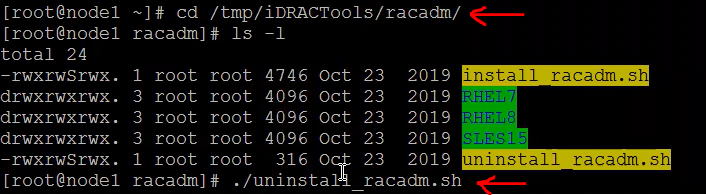
uninstall_racadm.sh隨 iDRACTools tar.gz套件一起使用的指令檔。 - 要執行
uninstall_racadm.sh指令檔,移至 iDRACTools 資料夾,然後執行./uninstall_racadm.sh
- 如果問題仍然存在,請聯絡 Dell 支援以 取得進一步協助。
Affected Products
iDRAC9, Red Hat Enterprise Linux Version 9, Red Hat Enterprise Linux Version 8, VMware ESXi 7.x, VMware ESXi 8.xProducts
PowerFlex rack, C Series, HS Series, Modular Infrastructure, Rack Servers, Tower Servers, XE Servers, XR Servers, ScaleIOArticle Properties
Article Number: 000206945
Article Type: How To
Last Modified: 24 Sep 2025
Version: 6
Find answers to your questions from other Dell users
Support Services
Check if your device is covered by Support Services.