OMIMSWAC: OpenManage Integration with Microsoft Windows Admin Center Version 3.0 Fails to Update or Return Compliance
Summary: When Dell OpenManage Integration with Microsoft Windows Admin Center (OMISWAC) 3.0 fails to update or return compliance, then collect logs and report back to Dell Support.
This article applies to
This article does not apply to
This article is not tied to any specific product.
Not all product versions are identified in this article.
Instructions
OMIMSWAC 3.0 fails to update or return compliance.
Collect the logs and engage Dell Support. Dell Support is most successful troubleshooting the issue with a full set of logs.
- Collect logs - WAC server)
Targetnodename
C:\Windows\ServiceProfiles\NetworkService\AppData\Local\Temp
- Collect and send the Servermanagementexperience event log
- Collect logs from nodes
\\Targetnodename\c$\Windows\ServiceProfiles\NetworkService\AppData\Local\Temp
\\Targetnodename\c$\temp

\\Targetnodename\c$\ProgramData\DellEMC

\\Targetnodename\c$\Users\%username%\AppData\Local\Temp\CAU
- Cache areas
C:\Users\louis.reeves-a\AppData\Local\Microsoft\Edge\User Data
%temp%
- Collect HAR file with the failure captured
Click the three dots "…" in the upper right corner > More Tools > Dev tools > Upper menu, choose Network > Control R starts recording > Right click in the window and select SAVE all as HAR with content.
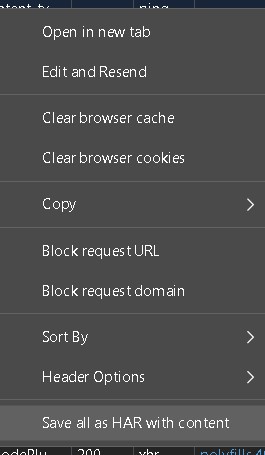
Figure 1: Screenshot of Menu HAR File
- The most important log that exists in OMISWAC in 3.0 is the \\AZHCIHOST\c$\Windows\Temp\OMIMSWAC
This location has CAU logs and any operational logs for run time failure. This exists on every server. You can .zip it from all servers and send it to Dell Support or analyze it personally.
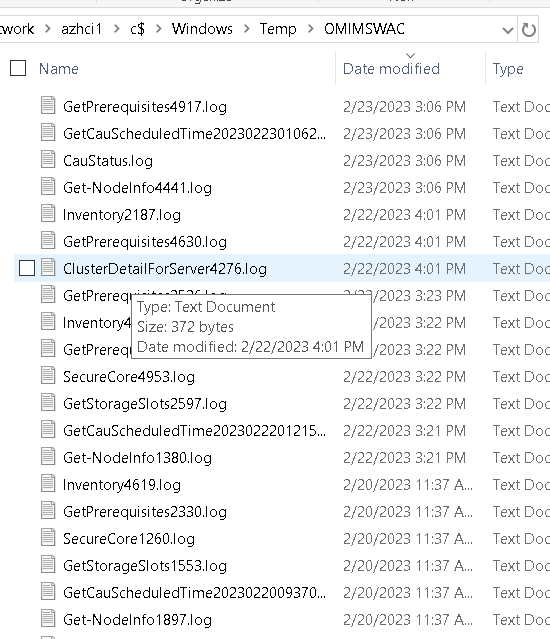
Figure 2: Screenshot of \\AZHCIHOST\c$\Windows\Temp\OMIMSWAC Log File Location.
- Collect a Technical Support Report (TSR) File from at least one node if the subject includes a cluster
https://www.dell.com/support/kbdoc/en-us/000126308
- Run an SDDC log Collection Bundle from one of the cluster nodes - If applicable
Look for the Log Collector PowerShell Command in this GitHub called GSE Tools
The SDDC is option number 1 from this PowerShell Command run from the node owning Get-Clustergroup Azure*
[Net.ServicePointManager]::SecurityProtocol = [Net.SecurityProtocolType]::Tls12;Invoke-Expression('$module="LogCollector";$repo="PowershellScripts"'+(new-object System.net.webclient).DownloadString('http'+'s://raw.githubusercontent.com/DellProSupportGse/Tools/main/LogCollector.ps1'));Invoke-LogCollectorAdditional Information
Supplemental Log information:

Figure 3: Clean-up Log Location
- Logs from target nodes
<Windows Directory>\Temp\OMIMSWAC
- Logs Gateway system:
<Windows Directory>\ServiceProfiles\NetworkService\AppData\Local\Temp\generated\logs
- Logs Windows 10 gateway system:
<Windows installed drive>\Users\<user_name>\AppData\Local\Temp\generated\logs
- When an online catalog source is selected, and if DSU and IC are not configured in advance in the settings, OMIMSWAC downloads the catalog, DSU, and IC utilities in the following path:
- Gateway system:
<Windows Directory>\ServiceProfiles\NetworkService\AppData\Local\Temp\generated\Share\temp\<server/cluster_name>
- Windows 10 gateway system:
<Windows installed drive>\Users\<user_name>\AppData\Local\Temp\generated\Share\temp\<server/cluster_name>
- Logs for pre-update scripts running on HCI clusters to put storage into maintenance mode are available at:
<Windows Directory>\Temp\precau.log #on each node.
- Logs for post update scripts running on HCI clusters to restore storage from maintenance mode are available at:
<Windows Directory>\Temp\postcau.log #on each node.
- Capture a browser trace for troubleshooting
See Microsoft article Capture a browser trace for troubleshooting 
- Go to View > Developer > Developers Tools or press F12
- In the Developer Tools pane, choose the Network tab.
- Check the Preserve Log checkbox to record all interactions.
- Go to the page and complete the steps that trigger the issue.
- Choose the Network tab.
- Click the down arrow to export the HAR file.
- Save the HAR file.
- Event log: Microsoft-ServerManagementExperience
This log is on the server/win10 that you ran WAC from.
Event Viewer > Application and Services Logs > Microsoft-ServerManagementExperience
- Logs for the target node are recorded in the folder:
C:\Windows\Temp\OMIMSWAC\
C:\Windows\ServiceProfiles\NetworkService\Appdata\Local\Temp\generated\logs
- Compliance log (Compliance [timestamp].log) is generated when a compliance or update task is performed. Logs for the update compliance tasks are recorded in the following folder on the gateway server:
C:/Windows/Temp/OMIMSWAC/
- Update logs
C:/Users/administrator/appdata/roaming/update/log
All log files created in this folder are copied to the cleanup log once the update task is completed.
Figure 3: Clean-up Log Location
C:\Users\jim.gandy-a\AppData\Roaming\Update\dups
Affected Products
Microsoft Windows Server 2016, Microsoft Windows Server 2019, Microsoft Windows Server 2022, OpenManage Integration with Microsoft Windows Admin CenterProducts
C Series, Modular Infrastructure, PowerEdge R240, PowerEdge R250, PowerEdge R340, PowerEdge R350, PowerEdge R440, PowerEdge R450, PowerEdge R540, PowerEdge R550, PowerEdge R640, PowerEdge R6415, PowerEdge R650, PowerEdge R650xs, PowerEdge R6515
, PowerEdge R6525, PowerEdge R740, PowerEdge R740XD, PowerEdge R740XD2, PowerEdge R7415, PowerEdge R7425, PowerEdge R750, PowerEdge R750XA, PowerEdge R750xs, PowerEdge R7515, PowerEdge R7525, PowerEdge R840, PowerEdge R940, PowerEdge R940xa, PowerEdge T140, PowerEdge T150, PowerEdge T340, PowerEdge T350, PowerEdge T440, PowerEdge T550, PowerEdge T640, PowerEdge XE2420, PowerEdge XE7420, PowerEdge XE7440
...
Article Properties
Article Number: 000210131
Article Type: How To
Last Modified: 29 Oct 2025
Version: 7
Find answers to your questions from other Dell users
Support Services
Check if your device is covered by Support Services.