Latitude 5430 Rugged, Latitude 7330 Rugged Extreme, Dell Pro Rugged 13 13250, and 14 14250 U-blox GPS Configuration Guide
Summary: The article provides guidance with configuring u-blox GPS on the Latitude 5430 Rugged, Latitude 7330 Rugged Extreme, Dell Pro Rugged 13 13250, and Dell Pro Rugged 14 14250 laptops.
This article applies to
This article does not apply to
This article is not tied to any specific product.
Not all product versions are identified in this article.
Instructions
U-blox GPS Setup
If the GPS application Does NOT require a specific port number, it works with any port number that Windows automatically assigns, and works on the default Baud Rate of 38400.
- In Device Manager under "Sensors," ensure that "Power Management" is not checked.

- In Device Manager under "Ports" open properties for the "USB Serial Port (COM X)," then go to port settings, advanced, and clear the box "Enable Selective Suspend."
Note: COM X is a placeholder, depending on which devices install first, the COM port number may vary.
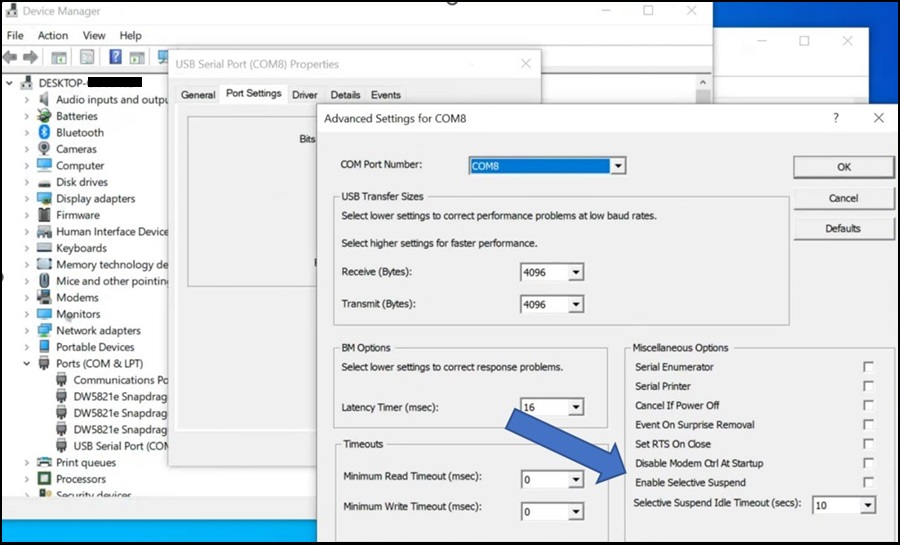
Note: Information about using Device Manager can be found in the following article: How to Access Device Manager
If using a vehicle-mounted dock, confirm whether an external dock antenna is being used. If only using the laptop antenna, the GPS Antenna setting under "Connection" tab in the BIOS must be adjusted from "Dock Antenna" to "System Antenna." If using an external dock antenna, the setting can be left unchanged.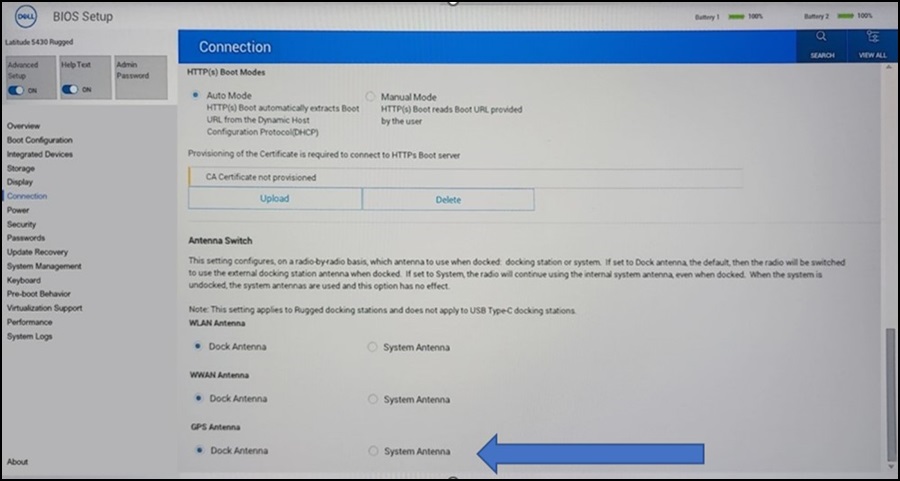
The GPS should work as normal with Baud Rate 38400 and use the port number assigned by Windows in Device Manager.
If the GPS application requires a specific port number and requires a Baud Rate of 9600.
- Install the latest Ublox GNSS Communication Driver available on the Dell Support Website.
- Install the latest FTDI USB Serial Port Driver available on the Dell Support Website.
- In Device Manager, change the port to the port number required by the GPS application.
- Confirm that the GPS can receive NMEA data using the COM Port.
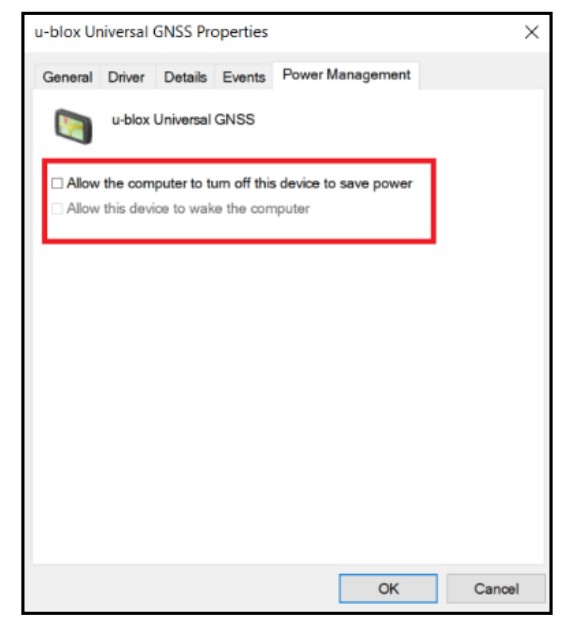
- In Device Manager, select u-blox Universal GNSS. Under the "Power Management Tab," ensure that "Allow the computer to turn off this device to save power" is cleared.
- Download the u-blox Baud Rate Modification Tool available on the Dell Support Website.
- Ensure that that U-Center is NOT running in the background.
- Select "ubloxOCT," the u-blox Baud Rate Modification Tool, in the UBLOX folder.

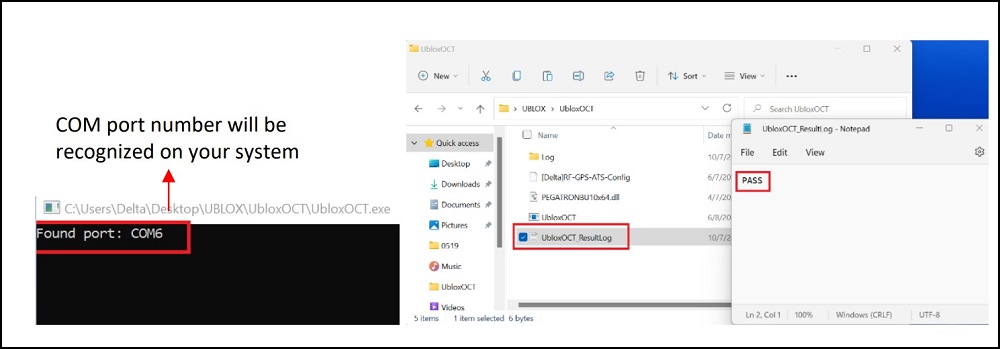
- The "ubloxOCT' tool finds a COM port and sets the Buad Rate. A window will appear and indicate that a COM Port has been found. Also, it can be verified by reviewing the ubloxOCT_ResultLog located in the UBLOXOCT folder. PASS indicates the Baud Rate has been changed to 9600 bps and the following seven NMEA messages have been enabled, GPRMC, GPVTG, GPGGA, GPGSA, GPGLL, GPGSV, and GLGSV.
Affected Products
Dell Pro Rugged 13 RA13250, Dell Pro Rugged 14 RB14250, Latitude 7330 Rugged Extreme, Latitude 5430 RuggedArticle Properties
Article Number: 000212045
Article Type: How To
Last Modified: 06 May 2025
Version: 6
Find answers to your questions from other Dell users
Support Services
Check if your device is covered by Support Services.