PowerFlex 4.5 - Error during deployment "Unable to copy the Server Configuration Profile to the network share."
Summary: PowerFlex 4.5 - Error during deployment "Unable to copy the Server Configuration Profile to the network share."
This article applies to
This article does not apply to
This article is not tied to any specific product.
Not all product versions are identified in this article.
Symptoms
Error in PowerFlex Manager Platform (PFMP) Thin Deployer Logs:-
Debug: Result = #\n\n  \n    http://schemas.xmlsoap.org/ws/2004/08/addressing/role/anonymous\n    http://schemas.xmlsoap.org/ws/2004/09/transfer/GetResponse\
n    uuid:55c86fb7-0a34-1a34-8002-c3e575a07eee\n    uuid:5d393a92-0a39-1a39-81bf-4e1296d64bc8\n  \n  \n    \n      0\n      JID_000913530199\n      NA\n
   Failed\n      NA\n      Unable to copy the Server Configuration Profile to the network share.\n      NA\n      SYS045\n      Export Configuration\n
   100\n    \n  \n\n">
Error in PowerFlex Manager during the Deployment:-
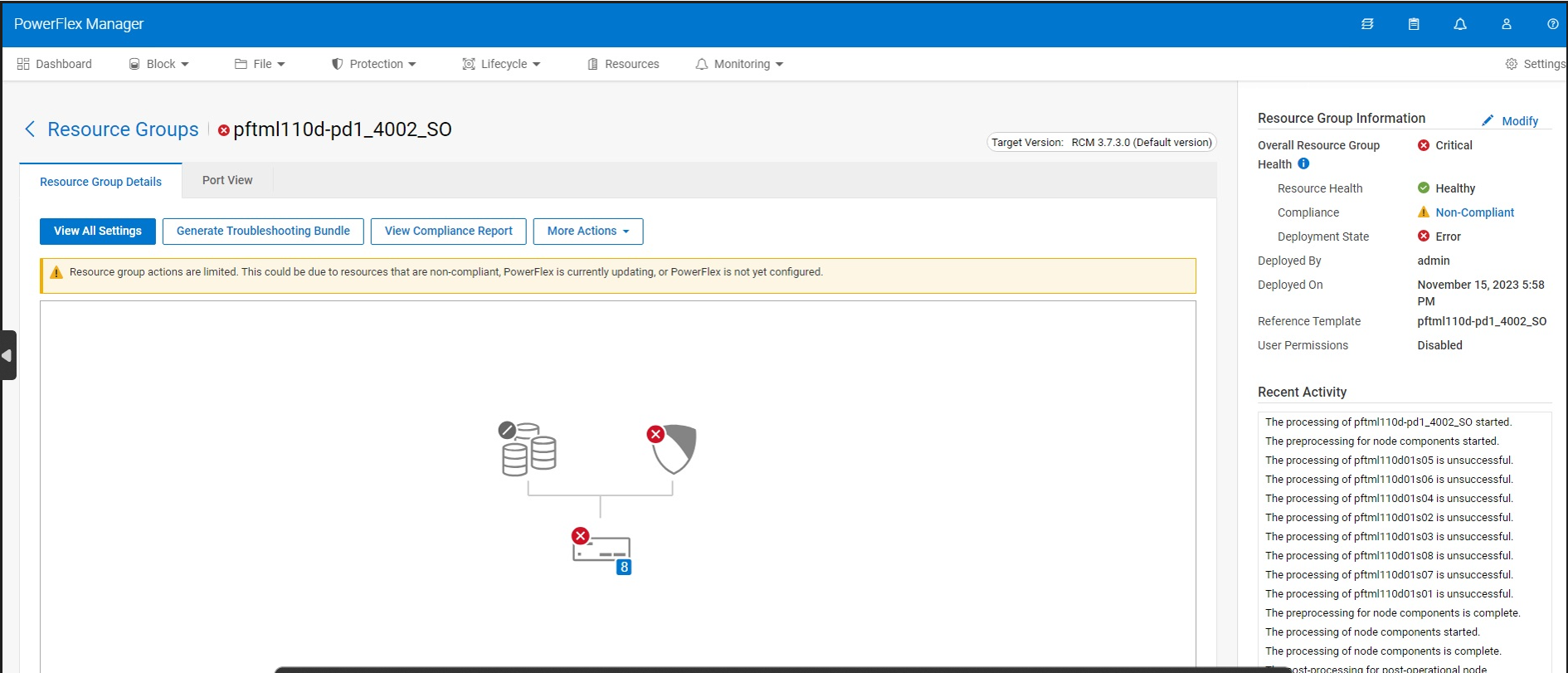
Cause
Folder Permissions not correctly set during deployment.
Resolution
Workaround
Test connection successful to nfs-server-0 exposed service port
Go to the iDRAC and try to export the Lifecycle Log to the NFS share to verify if the NFS is configured correctly and all the required ports are open.
Replace the IP Address with the IP address of the OOB nfs-server-service-tcp-flex-oob-mgmt-r routable IP address in the below screenshot.
You can run the command "kubectl get service -n powerflex | grep nfs" to obtain the nfs-server-service-tcp-flex-oob-mgmt-r routable IP address.
The Share Path is /var/containerpath/idrac_config_xml
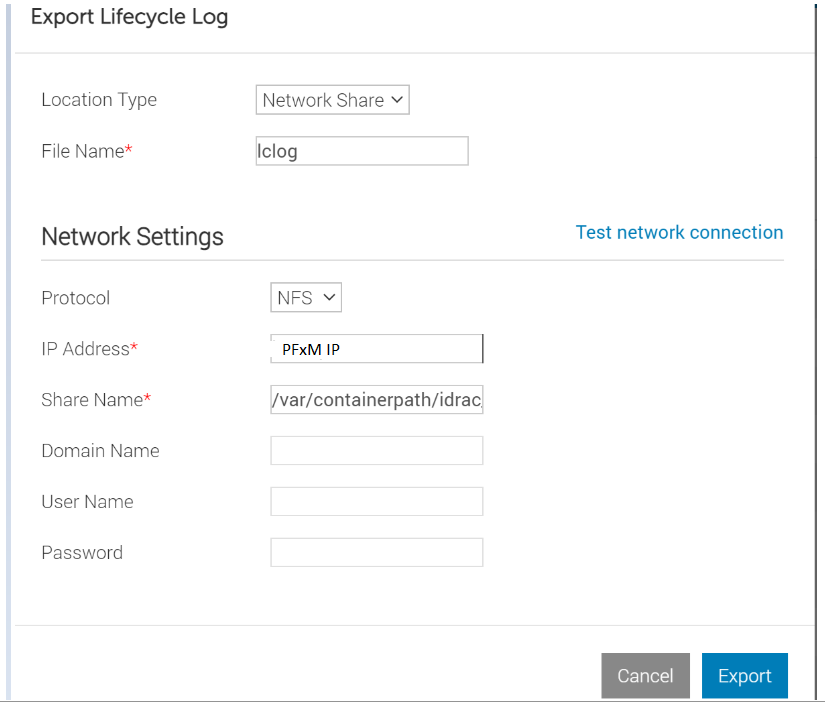
In case the NFS is not configured correctly and there are issues, the job fails with the error "Job JID_XXXXXXXXXXX failed because Cannot write to the network share"

Verify that the following Ports are open:-
Port 111 (TCP and UDP)
Port 2049 (TCP and UDP)
Port 32765 (TCP and UDP)
Port 32767 (TCP and UDP)
Thereafter run the below command for each of the above ports with the IP address of the iDRAC on which the Lifecycle Logs Export to the NFS share failed in the previous step.
echo > /dev/tcp/XX.XX.XX.XX/111 && echo "Port is open" || echo "not open"
echo > /dev/tcp/XX.XX.XX.XX/2049 && echo "Port is open" || echo "not open"
echo > /dev/tcp/XX.XX.XX.XX/32765 && echo "Port is open" || echo "not open"
echo > /dev/tcp/XX.XX.XX.XX/32767 && echo "Port is open" || echo "not open"
echo > /dev/udp/XX.XX.XX.XX/111 && echo "Port is open" || echo "not open"
echo > /dev/udp/XX.XX.XX.XX/2049 && echo "Port is open" || echo "not open"
echo > /dev/udp/XX.XX.XX.XX/32765 && echo "Port is open" || echo "not open"
echo > /dev/udp/XX.XX.XX.XX/32767 && echo "Port is open" || echo "not open"
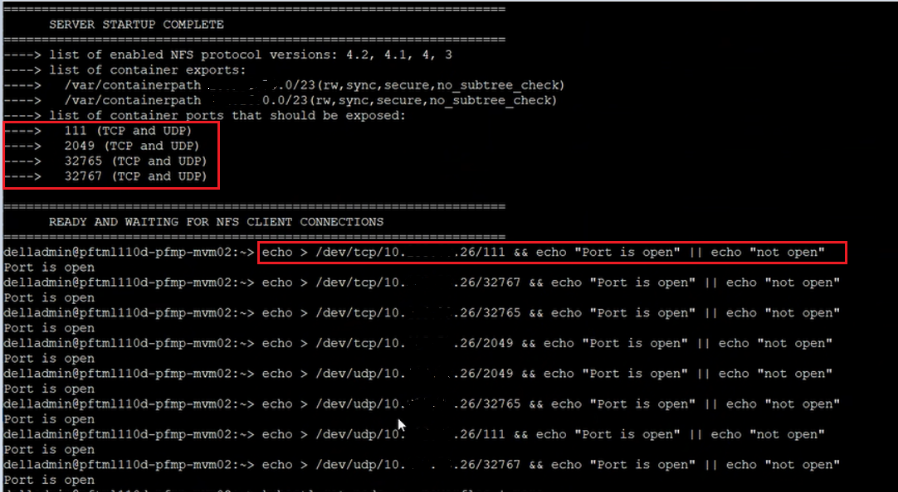
Once you have verified that all the ports are open, change the focus to permissions since the IDRAC could not WRITE to the NFS share. But IDRAC could connect to it.
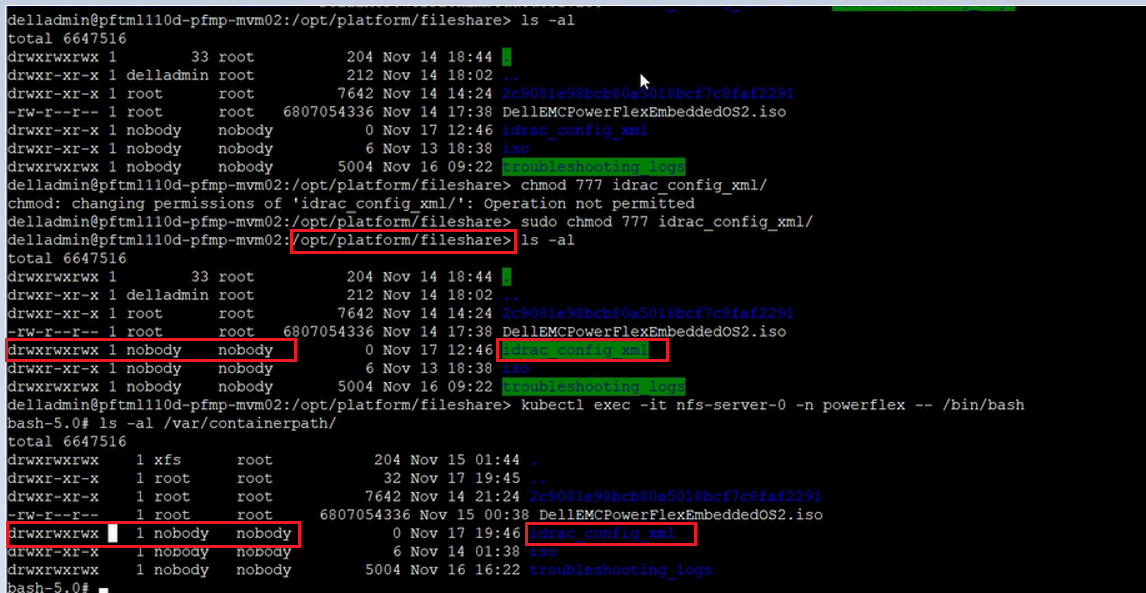
Go to /opt/platform/fileshare/ folder and check the folder permissions on idrac_config_xml.
They should be set to drwxrwxrwx 1 nobody nobody
In the below screenshot, you can notice that the folder permissions were set to drwxr-xr-x 1 root root. Which are not correct permissions.
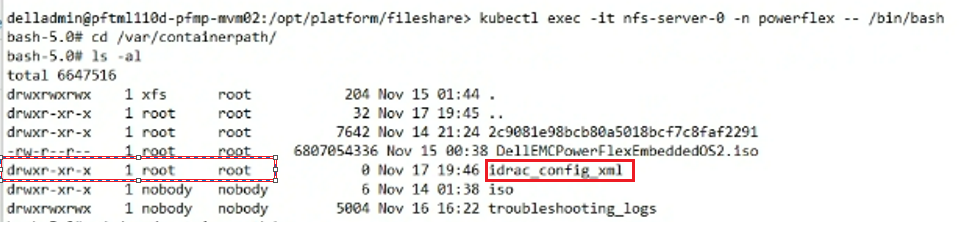
Change the permissions by running the following commands.
chmod 777 /opt/platform/fileshare/idrac_config_xml
chown nobody:nobody /opt/platform/fileshare/idrac_config_xml
Once the permissions are correctly set to drwxrwxrwx 1 nobody nobody on the /opt/platform/fileshare/idrac_config_xml folder.
Run the command "kubectl exec -it nfs-server-0 -n powerflex -- /bin/bash" and go to /var/containerpath folder and check the folder permissions on idrac_config_xml folder. You notice that now the folder permissions are correctly set on this folder as well.
Article Properties
Article Number: 000219658
Article Type: Solution
Last Modified: 10 Feb 2025
Version: 2
Find answers to your questions from other Dell users
Support Services
Check if your device is covered by Support Services.