如何安装和注册 Microsoft Azure 上托管的 Wyse Management Suite 存储库
Summary: 本文提供了注册 Microsoft Azure 上托管的 Wyse Management Suite (WMS) 远程存储库的步骤。
This article applies to
This article does not apply to
This article is not tied to any specific product.
Not all product versions are identified in this article.
Instructions
受影响的产品:
- Wyse Management Suite
受影响的版本:
- v3.6 及更高版本
受影响的操作系统:
- Windows Server 2016 及更高版本
- 按照 Microsoft 文档和准则在 Microsoft Azure 上创建虚拟机 (VM)。WMS 特定的服务器配置可在 WMS 发行说明中找到。
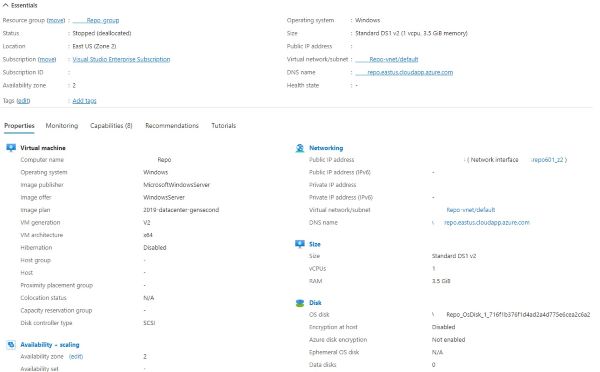
图 1:(仅限英文)Azure 虚拟机
- 从戴尔 驱动程序和下载下载最新的远程存储库。
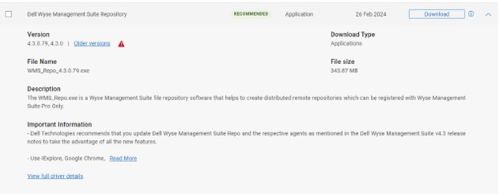
图 2:(仅限英文)Dell Wyse Management Suite 存储库
- 按照以下详细说明在 Azure VM 上安装远程存储库:Install the remote repository on the Azure VM follow the detailed instructions below:
- 发射 WMS_Repo.exe,单击 下一步。

图 3:(仅限英文)Wyse Management Suite Repository 安装程序
- 接受 EULA,单击 下一步。
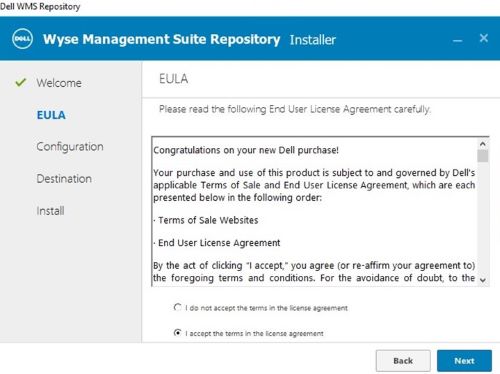
图 4:(仅限英文)接受 EULA,然后单击“Next”
- 输入 信任存储密码 和 软件存储区密码,单击 下一步。
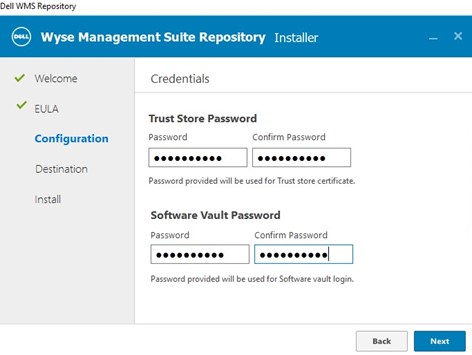
图 5:(仅限英文)输入密码,然后单击下一步
- 创建 新的 服务帐户用户 和 凭据 或使用 现有用户,单击 下一步。
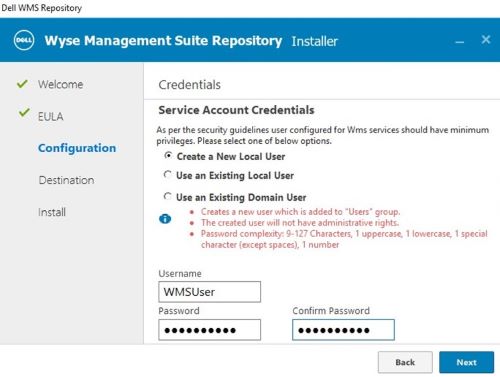
图 6:(仅限英文)创建服务帐户或使用现有帐户,然后单击下一步。
- 确认 安全配置,单击 下一步。
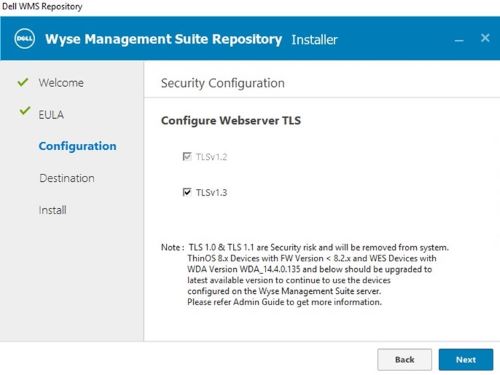
图 7:(仅限英文)确认安全配置,然后单击下一步
- 确认 目标,单击 下一步。
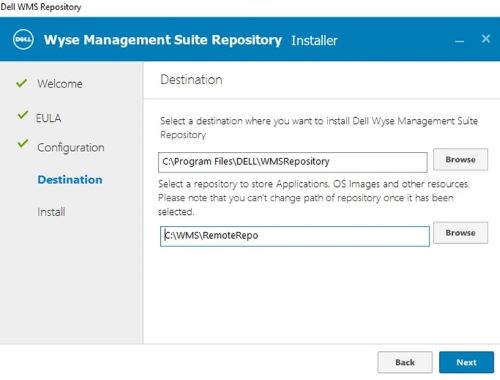
图 8:(仅限英文)确认目标,然后单击下一步
- 安装开始
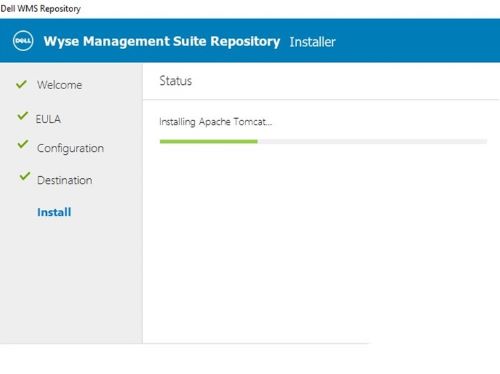
图 9:(仅限英文)安装开始
- 成功安装后,单击 Launch。
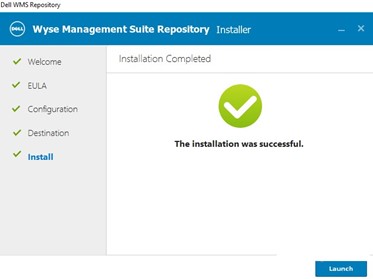
图 10:(仅限英文)单击 Launch
- 在注册页面上:
- 选中 “注册到公共 WMS 管理门户 ”,然后选择相应的 区域云实例。
- 输入 WMS 管理员的登录凭据
- 更改存储库 URL,以反映由 /wms-repo 追加的 Azure DNS 名称
- 例如,https://YourAzureRepo.eastus.cloudapp.azure.com:443/wms-repo
- 确认 存储库位置
- 单击 注册

图 11:(仅限英文)Wyse Management Suite 存储库注册
- 注册成功
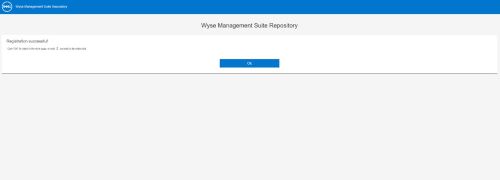
图 12:(仅限英文)注册成功
- 要在 WMS 上确认注册,请登录 WMS>门户管理>文件存储库

图 13:(仅限英文)文件存储库
Affected Products
Wyse Management SuiteArticle Properties
Article Number: 000223718
Article Type: How To
Last Modified: 16 Apr 2025
Version: 4
Find answers to your questions from other Dell users
Support Services
Check if your device is covered by Support Services.