Rectangular Box Appears on Select Alienware or Dell Gaming Monitors Screen
Summary: Learn about a rectangular box that appears on select Alienware or Gaming Monitors screen.
This article applies to
This article does not apply to
This article is not tied to any specific product.
Not all product versions are identified in this article.
Symptoms
A rectangular box appears on the screen.


Affected Monitors:
- Alienware 25 Gaming Monitor AW2523HF
- Alienware 27 280Hz QD-OLED Gaming Monitor AW2725D
- Alienware 27 360Hz QD OLED Gaming Monitor AW2725DF
- Alienware 27 4K Dual-Resolution Gaming Monitor AW2725QF
- Alienware 27 4K QD-OLED Gaming Monitor AW2725Q
- Alienware 27 Gaming Monitor AW2723DF
- Alienware 27 Gaming Monitor AW2724DM
- Alienware 27 Gaming Monitor AW2724HF
- Alienware 32 4K QD OLED Gaming Monitor AW3225QF
- Alienware 34 240Hz QD-OLED Gaming Monitor AW3425DW
- Alienware 34 Curved QD OLED Gaming Monitor AW3423DWF
- Alienware 500Hz Gaming Monitor AW2524HF
- Dell 25 Gaming Monitor G2524H
- Dell 27 Gaming Monitor G2723H
- Dell 27 Gaming Monitor G2724D
- Dell 32 Gaming Monitor G3223D
Cause
The rectangular box is part of the AlienVision feature for selected Alienware Monitors or the Vision Engine feature for selected Dell Gaming Monitors. The feature is turned on by moving the joystick towards you (For Alienware Monitors) or pressing the shortcut key (For Dell Gaming monitors).
Resolution
For Alienware Monitors, move the joystick towards you to turn off AlienVision. For some models, you need to continue moving the joystick towards you to switch between the different AlienVision options until AlienVision is turned off.
For Dell Gaming Monitors, continue pressing the shortcut key to switch between the different Vision Engine options until Vision Engine is turned off.
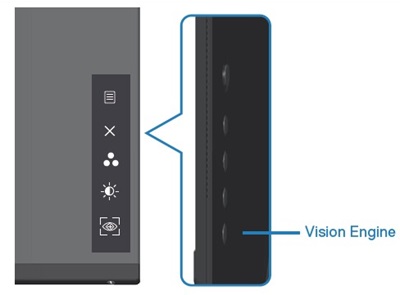
Alternatively, AlienVision or Vision Engine can be turned off by going to OSD:
- For Alienware Monitors: Game -> AlienVision -> Off
- For Dell Gaming Monitors: Game -> Vision Engine -> Off
For more information, go to the AlienVision or Vision Engine section of the User Guide. See Manuals and Documentation for your Dell Product to learn how to find the User Guide for your product.
Affected Products
Alienware 25 Gaming Monitor AW2523HF, Alienware 500Hz Gaming Monitor AW2524HF, Alienware 27 Gaming Monitor AW2723DF, Alienware 27 Gaming Monitor AW2724DM, Alienware 27 Gaming Monitor AW2724HF, Alienware 27 280Hz QD-OLED Gaming Monitor AW2725D
, Alienware 27 360Hz QD OLED Gaming Monitor AW2725DF, Alienware 27 4K QD-OLED Gaming Monitor AW2725Q, Alienware 27 4K Dual-Resolution Gaming Monitor AW2725QF, Alienware 32 4K QD OLED Gaming Monitor AW3225QF, Alienware 34 Curved QD OLED Gaming Monitor AW3423DWF, Alienware 34 240Hz QD-OLED Gaming Monitor AW3425DW, Dell 25 Gaming Monitor G2524H, Dell 27 Gaming Monitor G2723H, Dell 27 Gaming Monitor G2724D, Dell 32 Gaming Monitor G3223D
...
Article Properties
Article Number: 000225165
Article Type: Solution
Last Modified: 21 May 2026
Version: 13
Find answers to your questions from other Dell users
Support Services
Check if your device is covered by Support Services.