MacBook M1 Pro or Max Auto Power-On When Connected to USB-C Monitors
Summary: Learn to handle your MacBook M1 Pro or Max's unexpected startup behavior when hooked to a monitor using USB-C.
This article applies to
This article does not apply to
This article is not tied to any specific product.
Not all product versions are identified in this article.
Symptoms
MacBook M1 Pro or Max may Power On automatically after shutting down or hibernating when connected to a monitor using a USB-C cable.
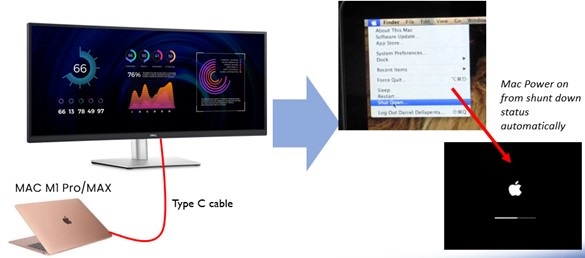
(Figure 1 - MacBook connected to a USB-C Monitor)
Affected Systems:
- Dell 34 Curved USB-C Hub Monitor - P3424WE
- Dell UltraSharp 38 Curved USB-C Hub Monitor - U3824DW
- Dell UltraSharp 49 Curved USB-C Hub Monitor - U4924DW
- MacBook M1 Max with OS version: 14.5
- MacBook M1 Pro with OS version: 14.4.1
Steps to Reproduce:
- Connect the MacBook M1 Pro or Max and monitor using a USB-C cable.
- Make the system enter shutdown or sleep mode and wait for the monitor to go to standby mode.
- The MacBook M1 Pro or Max will power on(/wake up) from sleep mode automatically
Cause
Apple MacBook M1 Pro or Max behaves differently from other Apple products (Mac Intel chipset).
Resolution
MacBook M1 Pro or Max shut down status:
- Enter the monitor’s OSD menu and set USB-C Changing 90 W to Off in Off Mode, which is the same as the default setting.
Personalize → USB-C Charging 90 W → Off in Off Mode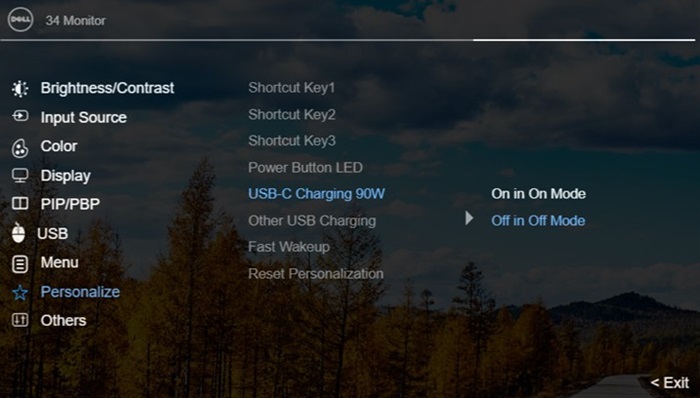
(Figure 2 - Monitor OSD Menu)
- When the MacBook M1 Pro or Max is going to shut down.
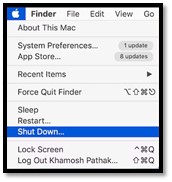
(Figure 3 - MacBook M1 Pro or Max Shut Down)
- Press the Power Button on the back side of the monitor to turn off the monitor.
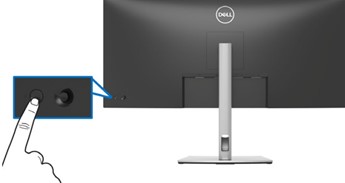
(Figure 4 - Power Button)
- MacBook M1 Pro or Max will not power on (/wake up) automatically.
MacBook M1 Pro or Max hibernate status:
- Open the Mac terminal window

- Type in:
sudo pmset -a hibernatemode 3 - Select Sleep Mode to make the MacBook M1 Pro or Max enter sleep status.
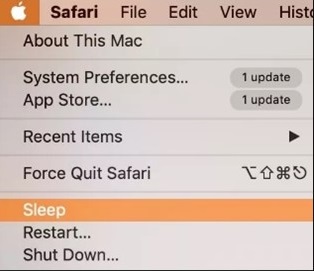
(Figure 5 - Sleep Mode)
- The MacBook M1 Pro or Max stays in sleep status, and it does not wake up automatically until the user wakes up.
Affected Products
Dell P3424WE, Dell U3824DW, Dell U4924DWArticle Properties
Article Number: 000240189
Article Type: Solution
Last Modified: 22 Apr 2025
Version: 3
Find answers to your questions from other Dell users
Support Services
Check if your device is covered by Support Services.