Dell PowerFlex Licensing Guide
Summary: Licensing PowerFlex is a multi step process to activate and create licenses files to be applied through PowerFlex Manager. This document details the steps required to fully activate and license a PowerFlex Rack or PowerFlex Appliance. ...
This article applies to
This article does not apply to
This article is not tied to any specific product.
Not all product versions are identified in this article.
Instructions
Dell PowerFlex Licensing Guide
PowerFlex Capacity vs Solution Licensing
Capacity Licensing: Each PowerFlex system (cluster) requires a “Capacity License” file which ties the licensed capacity to the corresponding installation id from PowerFlex core SW
During the license activation process, allocated TB’s, from the capacity entitlements, are activated/associated to a cluster installation id (aka machine), resulting in a capacity license file and SWID (ELMSIOxxxxxxx). The capacity license file is then uploaded to the system through PowerFlex Manager
Solution Licensing: PowerFlex Rack & Appliance also have a “solution” SWID that comes from activating PowerFlex rack or PowerFlex Appliance license entitlements.
- Only a single entitlement qty activation required per Rack or Appliance solution.
- The solution SWID is used to help distinguish PowerFlex (clusters) that are part of a rack or appliance solution.
- The solution SWID (ELMVXRxxx, ELMVXFxxx) isn’t imported in a license file.
Combinations of Solution and Capacity Licensing:

PowerFlex Capacity License Activation Process
STEPS
- Go to Dell Digital Locker, click Sign in.
- Login with the email addressed used at the time of purchase or used to assign software licenses.
- Note if you have trouble with logging into the Locker click on either “Create or Reset Password” or “Create an account”.
- In “Software & Licenses” search using Product Name or ORDER NO/DPID.
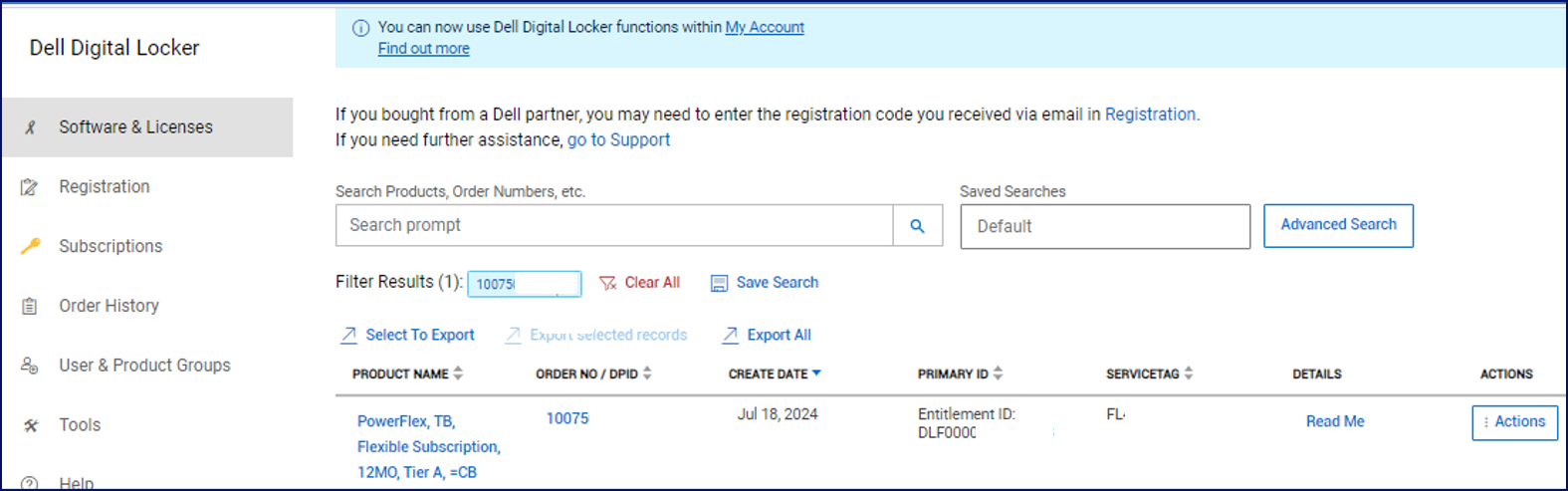
- Click on any of the Software Entitlements you want to activate.
- Within Entitlement details you will see your LAC (License Authorization Code).
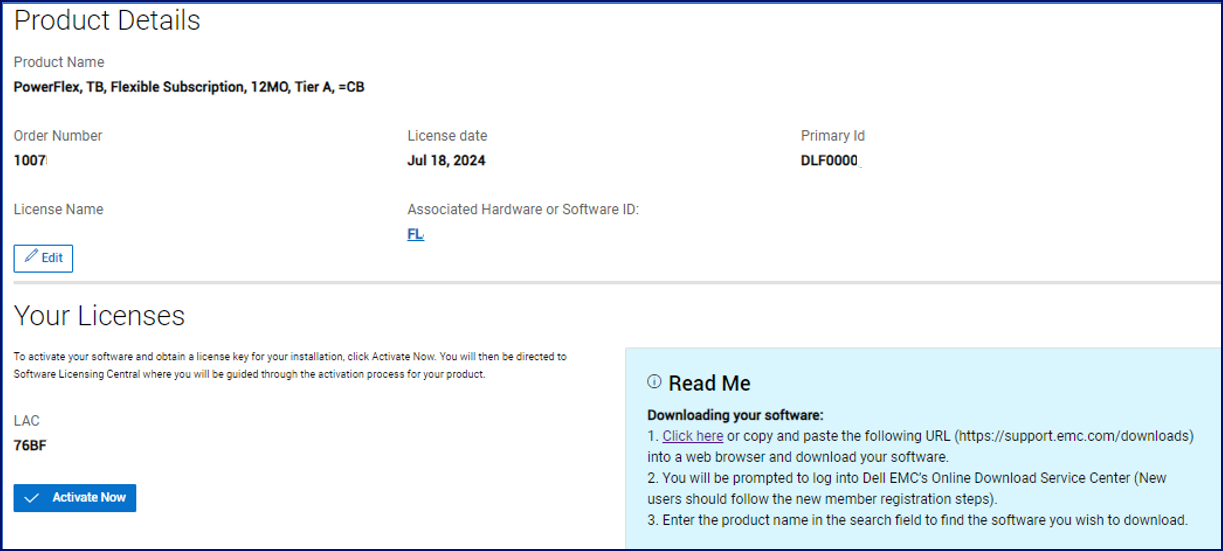
- To activate your software and obtain your license key for your installation, click Activate Now.
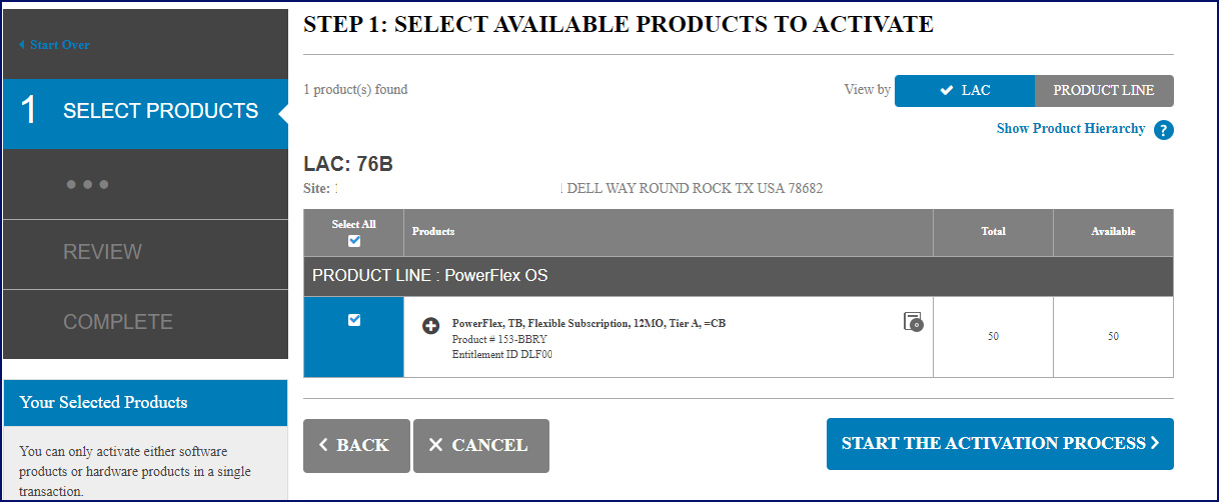
- You are redirected to the Software Licensing Central user interface (UI). Select the product that you want to activate and click on Start the Activation Process.
- Confirm the Company name and Site address. If you want to change the site address, click Change Site.
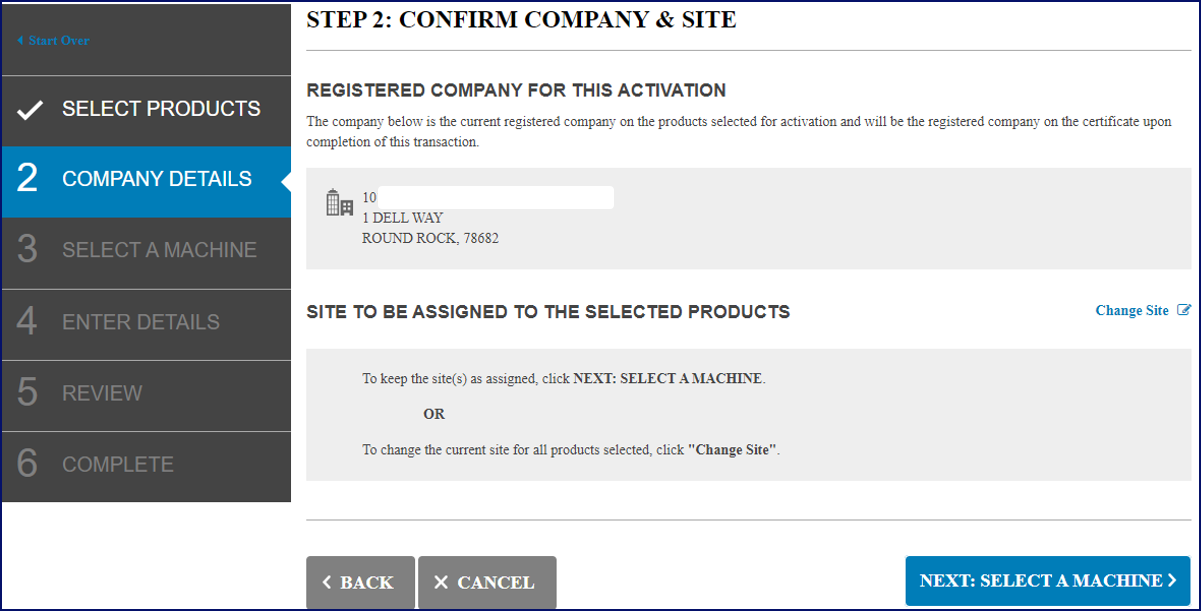
- To continue, click Next: Select a Machine. You will either search for an existing Machine or create a new one and enter it in the Add a New Machine, to proceed click on Save Machine & Continue to Next Step. (This field is free form text)
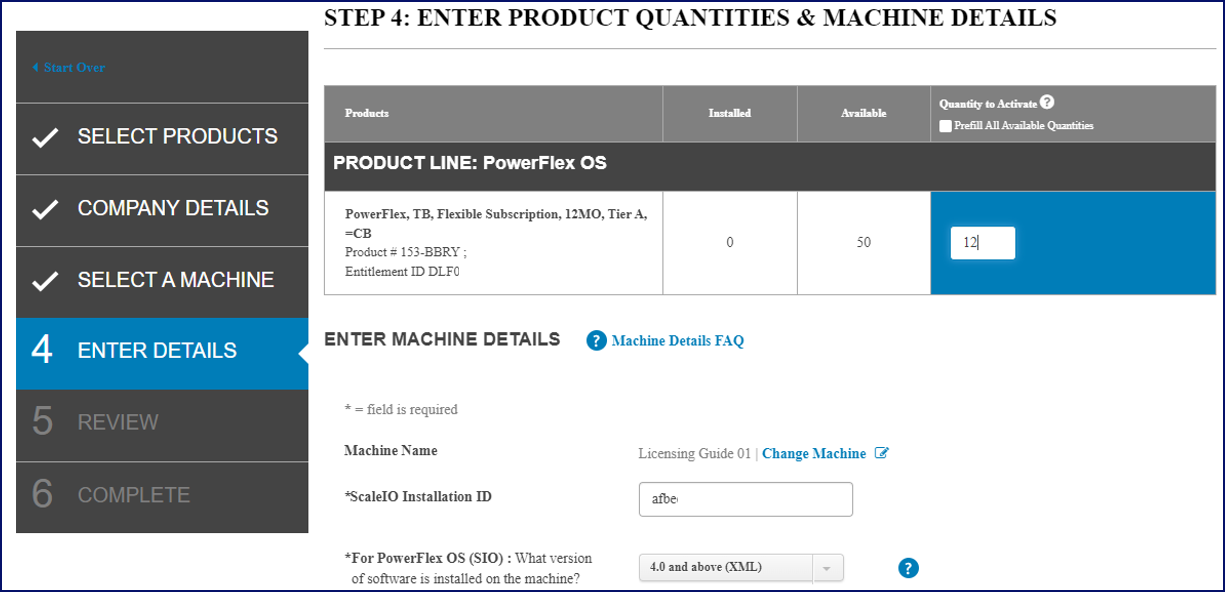
- Enter Details: enter a portion of the available capacity to the Machine you have chosen “ScaleIO installation ID”
- Next: Review. Displays the capacity being activated, provide opportunity to enter emails to send the activated Software License(s), and a note section.

- Click on Activate to proceed with the activation of the Software Entitlements.
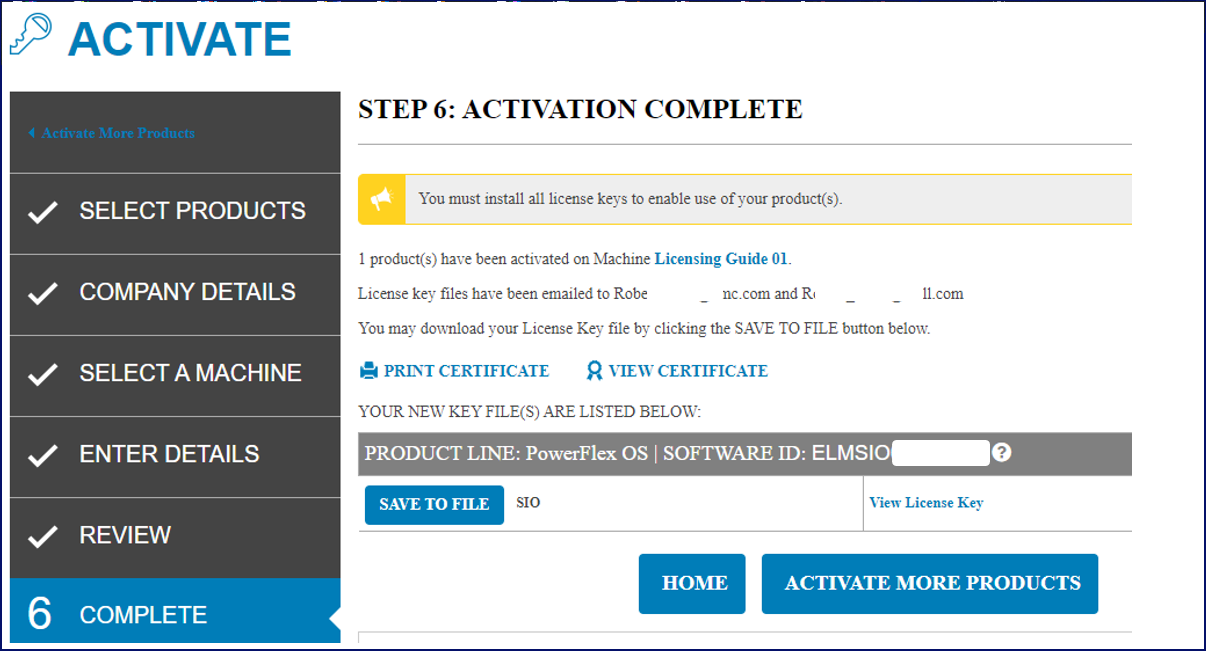
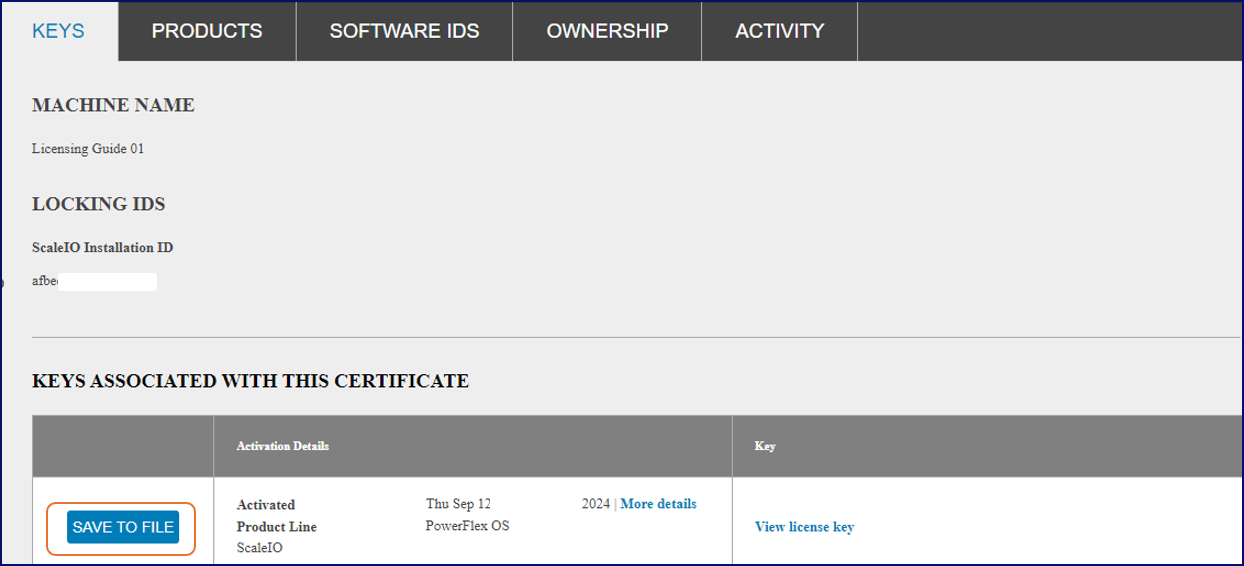
- An activation summary will be displayed in the portal, and you will receive an email with the activated Software License(s).
How to Contact Dell License Operations:
Please open a Dell Service Request using one of the below methods:
- Click here to use the Live Chat feature between the hours of 12:00 AM EST Monday - 11:59 PM EST Friday
- Click here to use the Online Support Feature
- Contact Dell EMC’s Live Support by calling 001-800-782-4362 and mention "licensing"
Documentation Software Licensing Central: Activation, Entitlements, Rehost and Regeneration Guide
Affected Products
PowerFlex rack, PowerFlex Appliance, PowerFlex custom node, ScaleIO, PowerFlex rack connectivity, PowerFlex SoftwareArticle Properties
Article Number: 000242214
Article Type: How To
Last Modified: 31 Oct 2024
Version: 1
Find answers to your questions from other Dell users
Support Services
Check if your device is covered by Support Services.