CloudLink: Navigate through CloudLink Center UI
Summary: This topic provides information about how to navigate through the CloudLink Center UI.
This article applies to
This article does not apply to
This article is not tied to any specific product.
Not all product versions are identified in this article.
Instructions
The following screenshot shows CloudLink Center and identifies the primary navigation features:

The following screenshot shows the home page and includes the following panels:
Going through CloudLink Center UI.
- 1 - CloudLink Center server
Identifies the CloudLink Center server that you are logged in to
- 2 - Contents panel
Lists the pages that you can select in the Edit panel.
- 3 - Edit panel
Shows the page that is selected in the Contents panel
- 4 - Manual lock
Indicates that the CloudLink Vault is locked.
The Manual lock icon disappears when the CloudLink Center Vault is unlocked. For more information, see the Manage CloudLink Vault section of the CloudLink Administrative Guide.
The Manual lock icon disappears when the CloudLink Center Vault is unlocked. For more information, see the Manage CloudLink Vault section of the CloudLink Administrative Guide.
- 5 - Alarms notification
Displays a badge with the number of current alarms, if any
An alarm represents a state or condition that you should be aware of. Click the Alarms notification icon to view alarms. For more information, see the View CloudLink Center Alarms section of the CloudLink Administrative Guide.
An alarm represents a state or condition that you should be aware of. Click the Alarms notification icon to view alarms. For more information, see the View CloudLink Center Alarms section of the CloudLink Administrative Guide.
- 6 - User Name menu
Displays your username
You can log out of CloudLink Center from this menu.
You can log out of CloudLink Center from this menu.
NOTE: Every CloudLink Center user is assigned a role that determines the permissions of the user. If you notice that a few of the CloudLink Center features are not available to you, contact your
secadmin user.
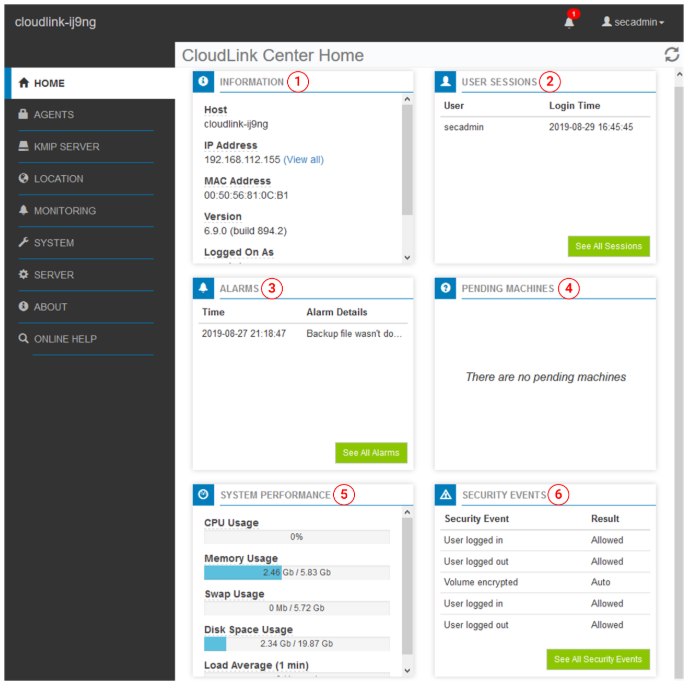
The following screenshot shows the home page and includes the following panels:
Dell CloudLink Center home page
- 1 - Information
Provides connection information about the server on which CloudLink Center is running.
- 2 - User Sessions
Lists the users who are logged in to CloudLink Center, including the time of the user’s login and last action.
For more information, see the View User Session in CloudLink Center section of the CloudLink Administrative Guide.
For more information, see the View User Session in CloudLink Center section of the CloudLink Administrative Guide.
- 3 - Alarms
Lists the alarms that are active
An alarm represents a state or condition of which you must be aware. For more information, see the View and Manage Alarms section of the CloudLink Administrative Guide.
An alarm represents a state or condition of which you must be aware. For more information, see the View and Manage Alarms section of the CloudLink Administrative Guide.
- 4 - Pending Machines
Lists the machines that are waiting for you to accept or reject startup
For more information, see the Accept or Reject Pending Machines in CloudLink Center section of the CloudLink Administrative Guide.
For more information, see the Accept or Reject Pending Machines in CloudLink Center section of the CloudLink Administrative Guide.
- 5 - System Performance
Provides information about the server that is hosting CloudLink Center, including CPU and memory usage, available disk space, and so forth.
- 6 - Security Events
Provides information about user logins, failed vault unlock attempts, machine registration, changes to the CloudLink Center Vault, secure user actions, and encryption key activities. For more information, see the Monitor CloudLink Center section of the CloudLink Administrative Guide.
Additional Information
For more information, see the manual at Dell CloudLink 8.1.1 Administration Guide | Dell US
Affected Products
CloudLink SecureVM, PowerFlex rack, ScaleIOArticle Properties
Article Number: 000271839
Article Type: How To
Last Modified: 07 Feb 2025
Version: 2
Find answers to your questions from other Dell users
Support Services
Check if your device is covered by Support Services.