How to Deploy Dell Client Device Manager With Dell Management Portal
Summary: Guide for IT Admins providing step by step how to select the wanted modules for the Dell Client Device Manager (DCDM) application and publish (or republish) to Microsoft Intune with Dell Management Portal (DMP). ...
This article applies to
This article does not apply to
This article is not tied to any specific product.
Not all product versions are identified in this article.
Instructions
- In a web browser, go to the Dell Management Portal.

- Click the Connect Now button.

- Sign in with your Microsoft 365 Account.
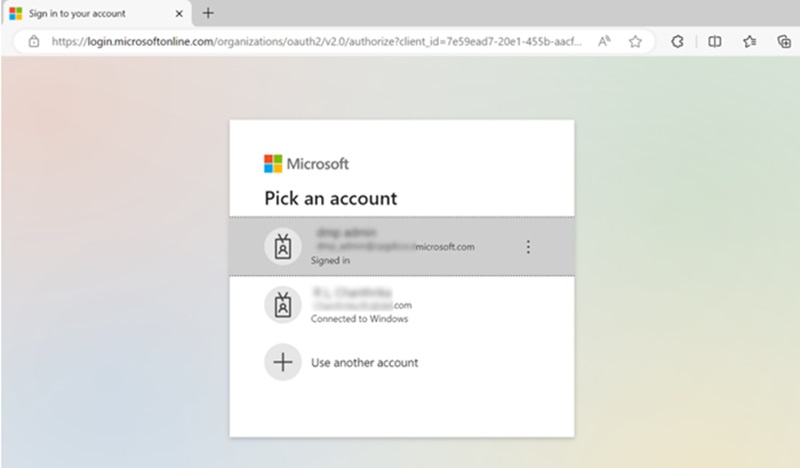 Note: A valid Microsoft 365 Subscription with Intune licensing is required to activate Dell Management Portal. For more information about subscriptions and licensing for Microsoft Intune see Microsoft Intune licensing
.
Note: If this is your first time using the Dell Management Portal, you are prompted to enable the integration. See the Dell Management Portal Technical Paper section 3 for more information and permission requirements. - After sign in, you will see the Dashboard page. Click the Apps tab.

- In the Apps page click, Dell Client Device Manager from the list of available applications.

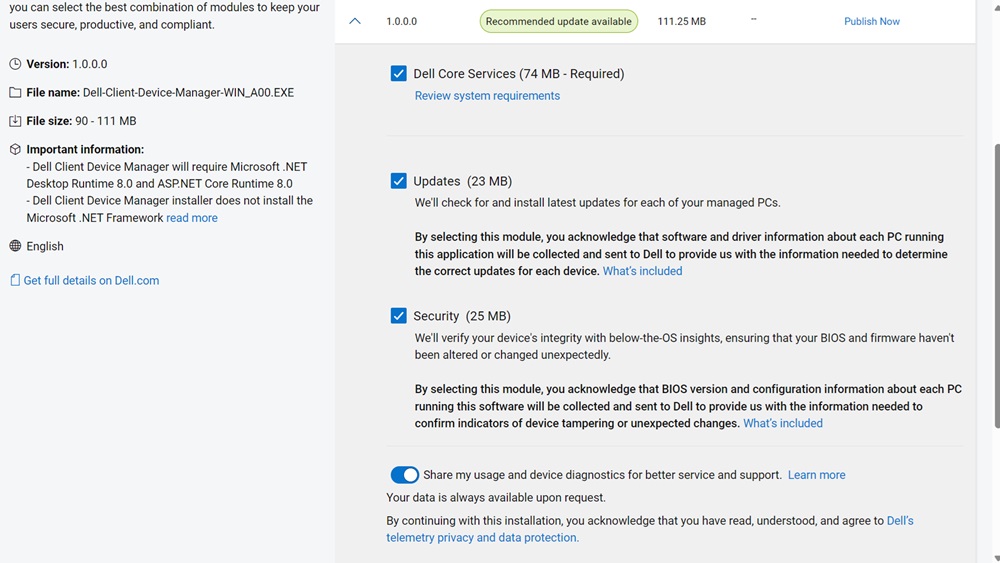
- By default, all the modules are selected. Dell Core Services module is mandatory and the other two modules (Updates and Security) can be selected, consent for sharing usage and device diagnostics can be enabled or disabled, based on user preferences.
Note: For more information about what telemetry Dell collects, see Dell Client Device Manager Data Collection Policy.
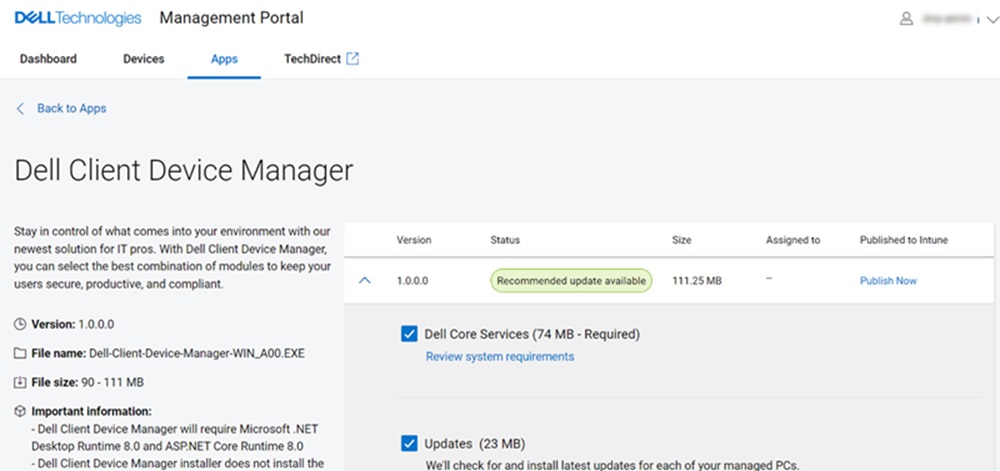
- Once the optional modules are selected, click Publish Now.
- During app publishing, you are given an option to download a supporting Administrative Template (.ADMX) files that can be used to set application policies. Click Download and continue or Skip download to continue the application publishing process.
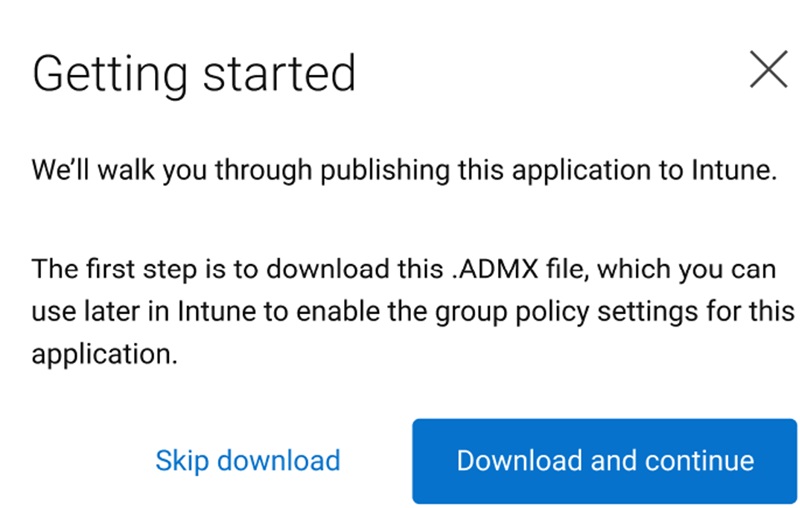 Note: If you do not want to download the files now, or need another copy you can repeat the app publish process again.
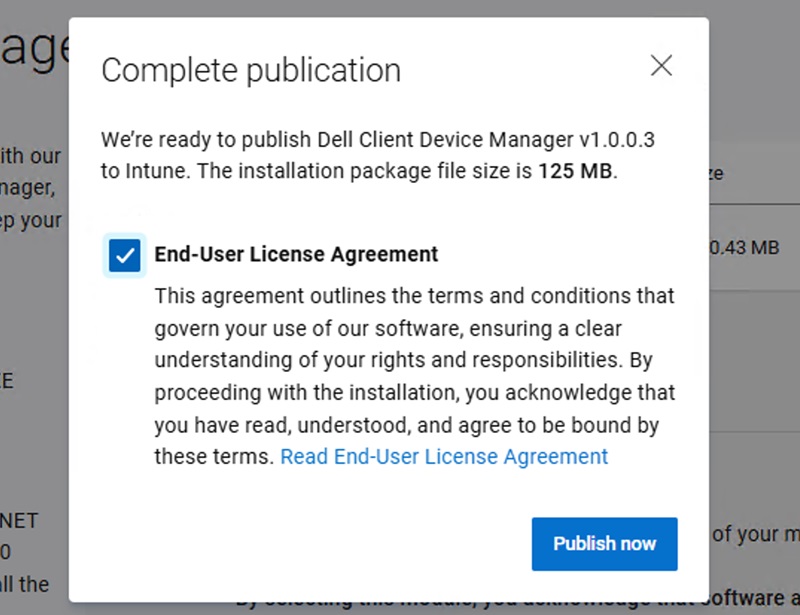
 - A License agreement dialog box appears. Click the End-User License Agreement checkbox to accept and click the Publish Now button.
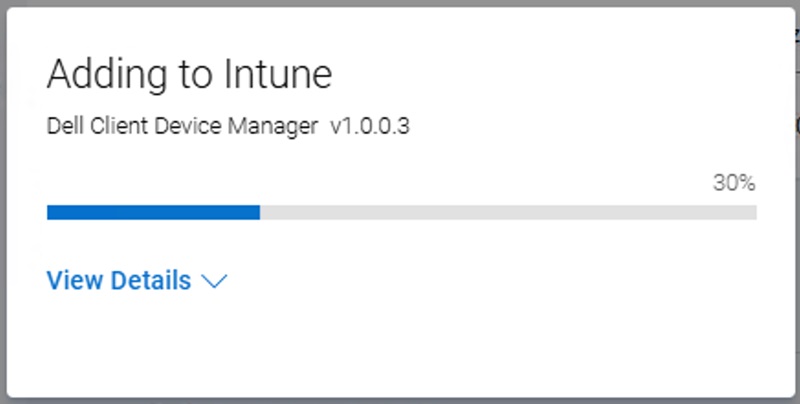
- Once you click Publish Now, the DCDM application publishing process is initiated. You can check the progress by clicking View Details.
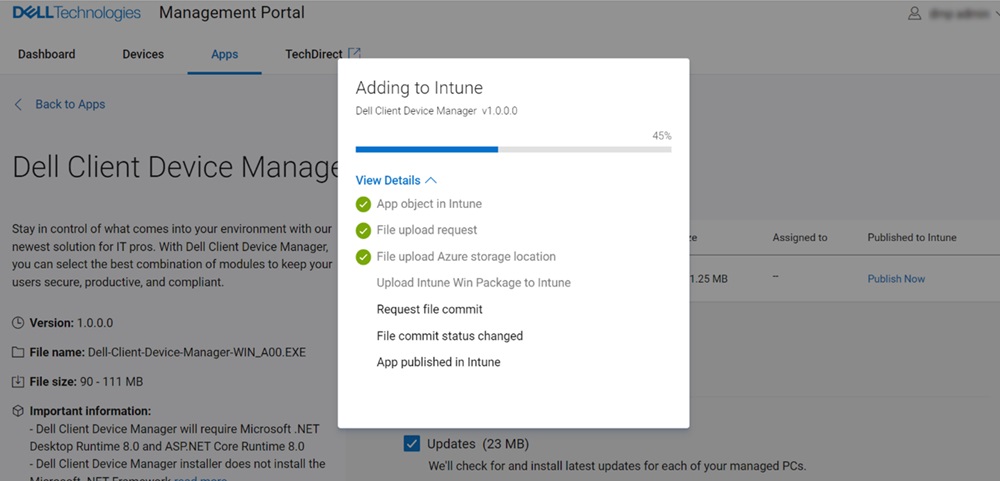
- Once the DCDM application is published successfully to Microsoft Intune, the summary of the DCDM application is displayed which includes one or more selected modules and whether the user has enabled usage and diagnostic data sharing. Click Yes, open Intune apps to go to Intune page and view the published application.

- The details of the published DCDM application in Intune are displayed.
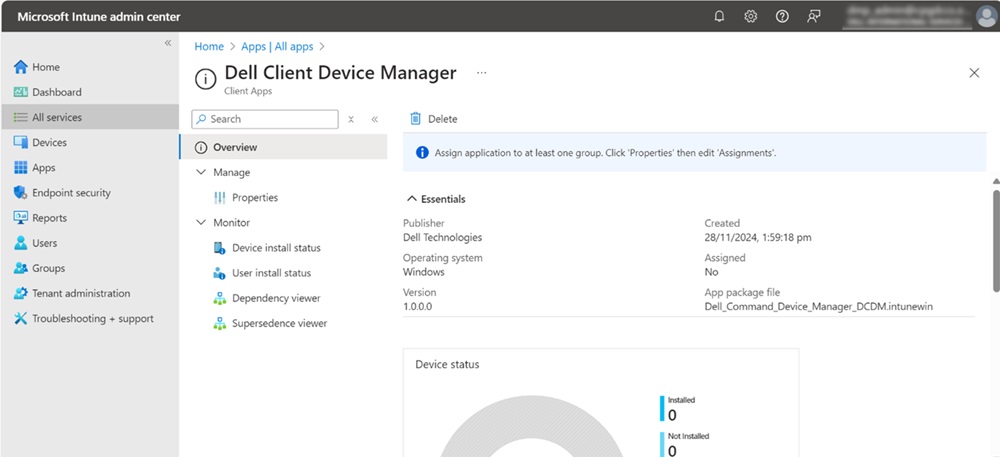
- Click Properties to view more information.
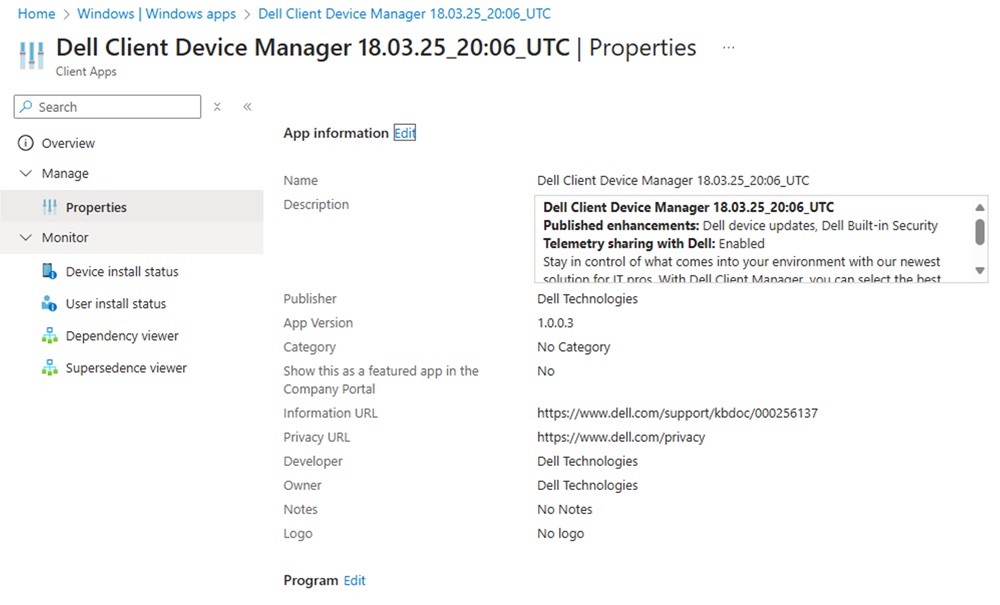
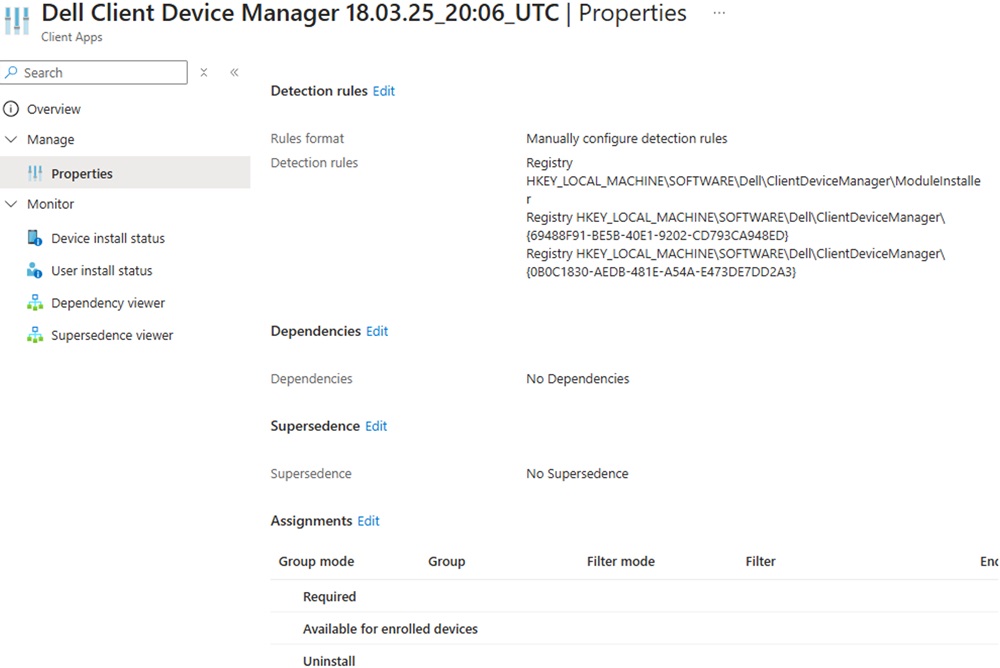
- To target users or devices click the edit option in the Assignments section at the bottom of the properties page to edit device or user assignments.
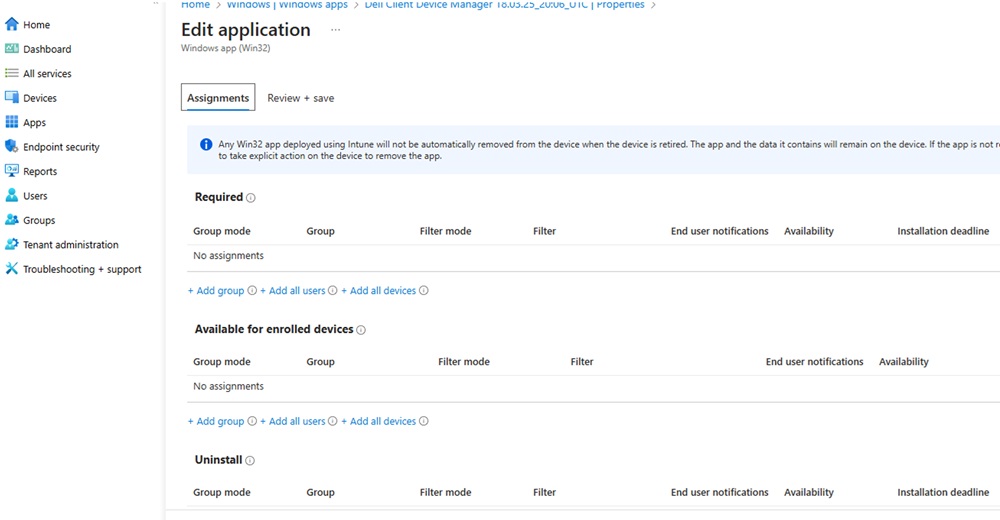
- Click Add group to select a device or user group to which the DCDM application can be assigned from the options given under any of the three segments (Required/ Available for enrolled devices/ Uninstall) based on IT Admin requirements.
 Note: If needed you can republish the DCDM application again, by clicking the Publish Again button and following the above procedure. This allows IT Admins to create multiple DCDM packages for deployment based on module needs and telemetry requirements.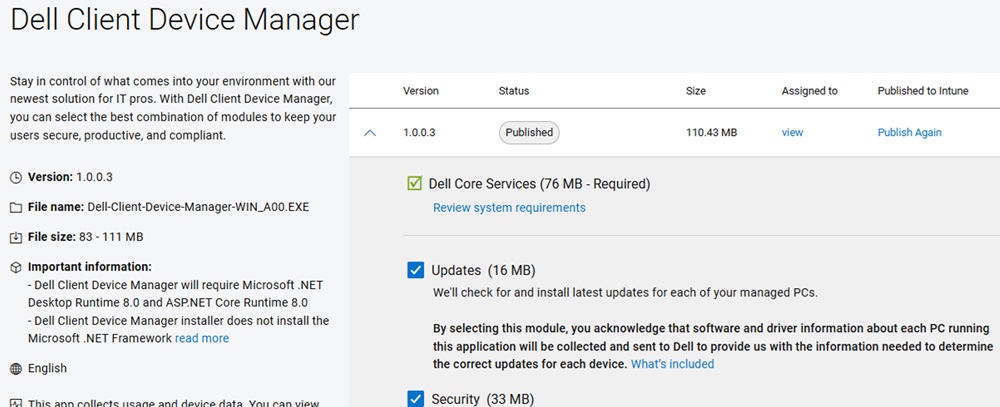
Affected Products
Dell Client Device ManagerArticle Properties
Article Number: 000297879
Article Type: How To
Last Modified: 24 Mar 2025
Version: 1
Find answers to your questions from other Dell users
Support Services
Check if your device is covered by Support Services.