Mac용 Dell Encryption Enterprise를 제거하려면 어떻게 해야 합니까?
Sommaire: 다음 지침에 따라 Mac용 Dell Encryption Enterprise/Mac용 Dell Data Protection Enterprise Edition 로그를 수집할 수 있습니다.
Cet article s’applique à
Cet article ne s’applique pas à
Cet article n’est lié à aucun produit spécifique.
Toutes les versions de produits ne sont pas identifiées dans cet article.
Instructions
참고:
- 2021년 2월부터 Mac용 Dell Encryption Enterprise에 대한 유지 보수가 종료됩니다. 이 제품 및 관련 문서는 더 이상 Dell에서 업데이트하지 않습니다. 자세한 내용은 Dell Data Security의 제품 수명주기(지원 종료 및 EOL(End Of Life)) 정책을 참조하십시오. 다른 문서에 대한 질문이 있는 경우 영업 팀에 문의하거나 endpointsecurity@dell.com으로 문의하십시오.
- 최신 제품에 대한 자세한 내용은 엔드포인트 보안을 참조하십시오.
이 문서는 Mac용 Dell Encryption Enterprise(이전 Mac용 Dell Data Protection | Enterprise Edition)를 제거하는 단계를 제공합니다.
다음과 같은 이유로 엔드포인트에서 Mac용 Dell Encryption Enterprise를 제거해야 할 수 있습니다.
- 라이선스 부여 불일치 수정
- 제품 문제 해결
- 운영 체제 비호환성 문제 해결
영향을 받는 제품:
- Mac용 Dell Encryption Enterprise
- Mac용 Dell Data Protection | Enterprise Edition
영향을 받는 버전:
- v8.0.x 이상
영향을 받는 운영 체제:
- Mac
Mac용 Dell Encryption Enterprise를 제거하기 전에 시스템을 해독해야 합니다.
Mac용 Dell Encryption Enterprise는 다음을 통해 제거할 수 있습니다.
원하는 방법을 클릭하여 자세한 내용을 확인하십시오.
UI
UI를 통한 제품 제거는 v8.15.0 이상이 설치되어 있는지 또는 v8.0.0에서 8.13.2가 설치되어 있는지에 따라 다릅니다. Mac용 Enterprise를 제거하는 단계를 위해 해당하는 제품 버전을 클릭합니다. 자세한 내용은 Mac용 Dell Encryption Enterprise 다운로드 방법을 참조하십시오.
v8.15.0 이상
제거를 시작하기 전에 Mac용 Dell Encryption Enterprise를 다운로드해야 합니다.
- 두 번 클릭
Dell-Encryption-Enterprise-X.X.dmg설치 프로그램을 마운트합니다.
 참고:
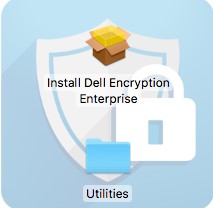
참고:X.X= 설치 프로그램 버전 변수 - 디스크 이미지에서 Utilities를 두 번 클릭합니다.
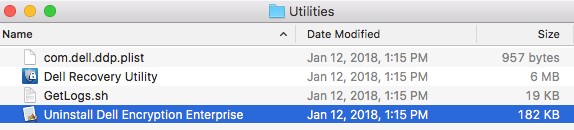
- Uninstall Dell Encryption Enterprise를 두 번 클릭합니다.
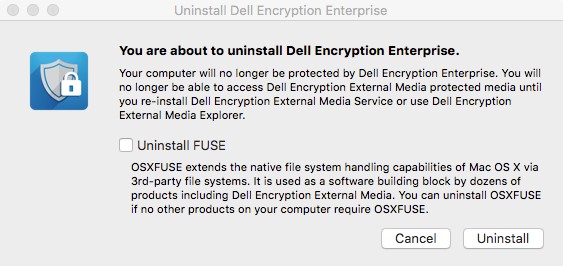
- 필요에 따라 Uninstall FUSE를 선택한 다음 Uninstall을 클릭합니다.
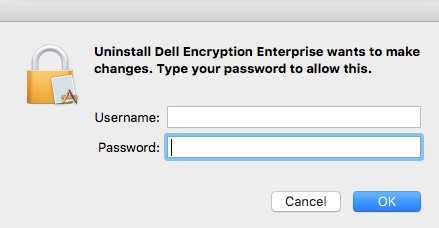
- 관리자 계정의 사용자 이름과 비밀번호를 입력합니다. 입력한 후에 OK를 클릭합니다.
- 제거 시 Quit를 클릭합니다.

v8.0.0~8.13.2
제거를 시작하기 전에 Mac용 Dell Encryption Enterprise를 다운로드해야 합니다.
- 두 번 클릭
Dell-Data-Protection-X.X.dmg설치 프로그램을 마운트합니다.
 참고:
참고:X.X= 설치 프로그램 버전 변수 - 디스크 이미지에서 Utilities를 두 번 클릭합니다.

- Uninstall Dell Data Protection을 두 번 클릭합니다.
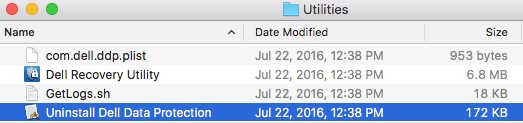
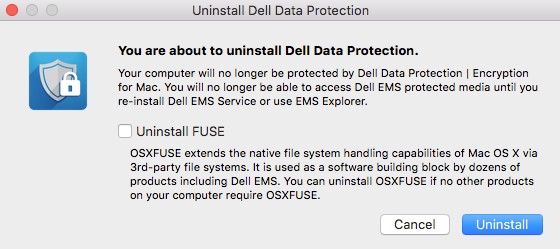
- 필요에 따라 Uninstall FUSE를 선택한 다음 Uninstall을 클릭합니다.
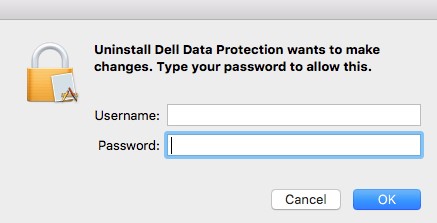
- 관리자 계정의 사용자 이름과 비밀번호를 입력합니다. 입력한 후에 OK를 클릭합니다.
- 제거 시 Quit를 클릭합니다.

터미널
UI를 통한 제품 제거는 v8.15.0 이상이 설치되어 있는지 또는 8.13.2 이하 가 설치되어 있는지에 따라 다릅니다. Mac용 Enterprise를 제거하는 단계를 위해 해당하는 제품 버전을 클릭합니다. 자세한 내용은 Mac용 Dell Encryption Enterprise 다운로드 방법을 참조하십시오.
v8.15.0 이상
- Apple 메뉴에서 Go를 클릭한 다음 Utilities를 선택합니다.
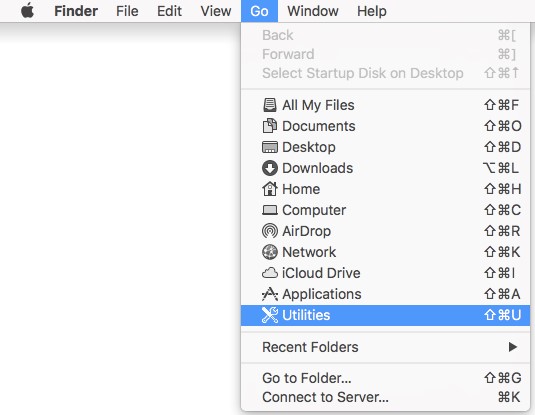
- Utilities 메뉴에서 Terminal을 두 번 클릭합니다.
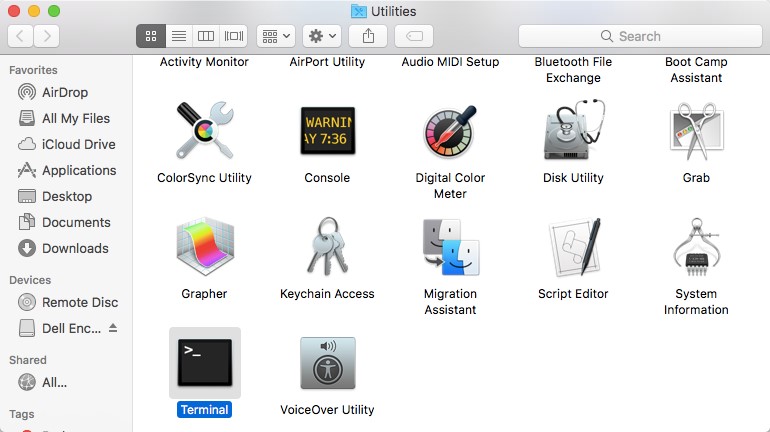
- Terminal에서
sudo /Library/Dell/Dell\ Encryption\ Enterprise/Dell\ Encryption\ Enterprise.app/Contents/Resources/Scripts/uninstall.sh입력한 다음 키를 누릅니다. - sudo 권한이 있는 계정의 자격 증명을 입력하고 <Enter> 키를 누릅니다.

v8.13.2 이하
제거를 시작하기 전에 Mac용 Dell Encryption Enterprise를 다운로드해야 합니다.
- Apple 메뉴에서 Go를 클릭한 다음 Utilities를 선택합니다.
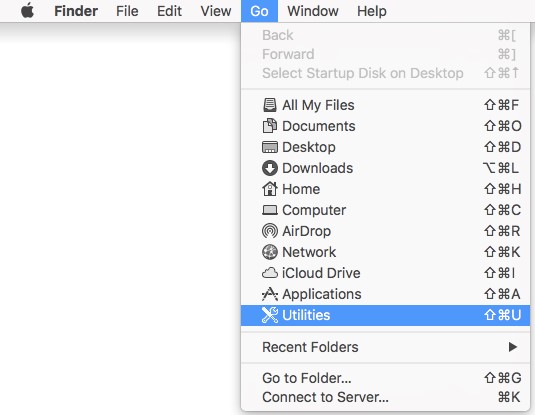
- Utilities 메뉴에서 Terminal을 두 번 클릭합니다.
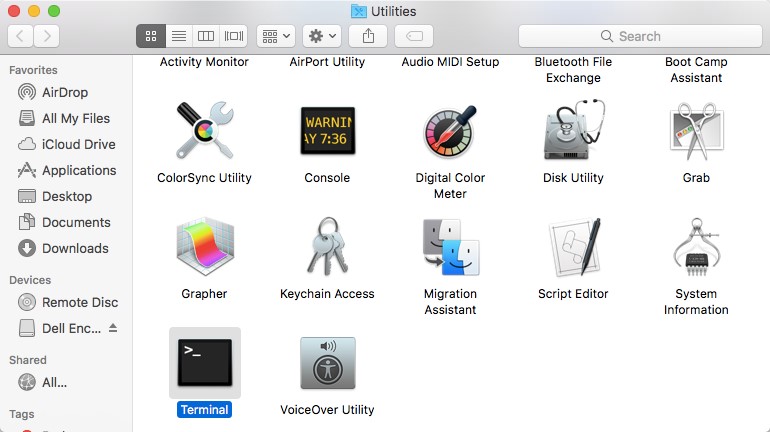
- Terminal에서
sudo /Library/Extensions/DellDataProtection.kext/Contents/Resources/Scripts/uninstall.sh입력한 다음 키를 누릅니다.

- sudo 권한이 있는 계정의 자격 증명을 입력하고 <Enter> 키를 누릅니다.
Renseignements supplémentaires
Vidéos
Produits touchés
Dell EncryptionPropriétés de l’article
Numéro d’article: 000123776
Type d’article: How To
Dernière modification: 10 août 2026
Version: 20
Obtenez des réponses à vos questions auprès d’autre utilisateurs de Dell
Services de soutien
Vérifiez si votre appareil est couvert par les services de soutien.