如何-識別-dell-full-disk-encryption-的版本
Sommaire: 瞭解如何依照這些逐步指示來識別 Dell Full Disk Encryption 的版本。
Cet article s’applique à
Cet article ne s’applique pas à
Cet article n’est lié à aucun produit spécifique.
Toutes les versions de produits ne sont pas identifiées dans cet article.
Instructions
瞭解 Dell Full Disk Encryption 的版本可讓系統管理員:
- 識別已知問題
- 判斷 UI 差異
- 瞭解工作流程變更
- 確認系統需求
受影響的產品:
- Dell Full Disk Encryption
受影響的作業系統:
- Windows
可透過產品使用者介面 (UI) 或透過產品安裝程式來判斷版本。如需詳細資訊,請按一下適當的方法。
UI
必須先安裝 Dell Full Disk Encryption,才能透過 UI 識別版本。
- 在 Windows 桌面上,按兩下 Dell Data Security 主控台。
 或者,可使用 Windows 檔案總管在 存取 Dell Data Security 主控台。
%SYSTEMDRIVE%\Program Files\Dell\Dell Data Protection\Security Tools\Dell.SecurityFramework.Console.exe。 - 在 Dell Data Security 主控台的右上角,按一下齒輪圖示,然後選取關於。

- 記下所顯示的版本。
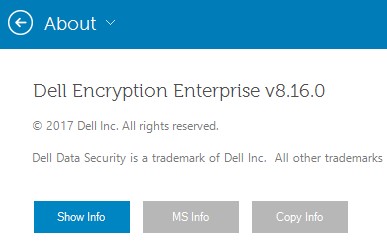 版本可能會與以上範例不同。
安裝程式
如需有關下載安裝程式的資訊,請參閱如何下載 Dell Encryption Enterprise 或 Dell Encryption Personal。
- 從 Dell Data Security 主安裝程式中擷取子安裝程式。
如需詳細資訊,請參閱如何從 Dell Data Security 主安裝程式中擷取子安裝程式。
- 在解壓縮的主安裝程式路徑中,以滑鼠右鍵按一下 [解壓縮路徑]
\Encryption Management Agent\EMAgent_[位深度]_setup.exe,然後選擇 屬性。
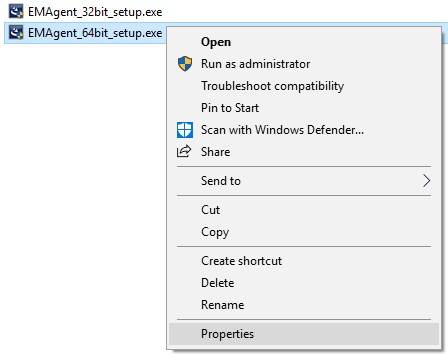
- 按一下詳細資料標籤。

- 記下產品版本的前三個數字。在範例中,前三個數字為 8.16.0。
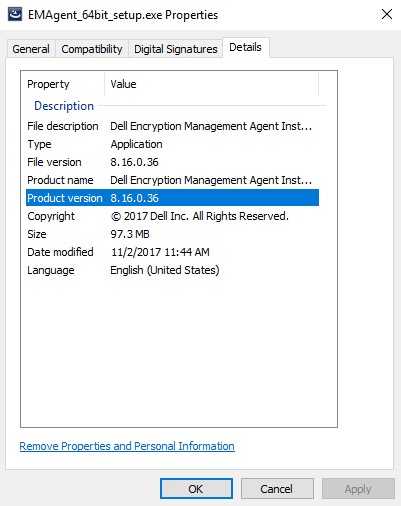 版本可能會與以上範例不同。
Renseignements supplémentaires
Vidéos
Produits touchés
Dell EncryptionPropriétés de l’article
Numéro d’article: 000124907
Type d’article: How To
Dernière modification: 10 août 2026
Version: 13
Obtenez des réponses à vos questions auprès d’autre utilisateurs de Dell
Services de soutien
Vérifiez si votre appareil est couvert par les services de soutien.