Avamar: Modify Avamar Administrator Console (Java GUI) Timeout
Résumé: This article describes how to modify the inactivity timeout on the Avamar Administrator Console.
Instructions
Avamar Server
Log in to the Avamar server as the admin.
Check the current value of the entry "consoleInactiveMinutesToReport."
grep console /usr/local/avamar/var/mc/server_data/prefs/mcserver.xml
If the value is not negative 1, change it to negative 1.
Change the entry for the Administrator Console inactivity timeout in the Management Console Service (MCS) configuration file.
/usr/local/avamar/var/mc/server_data/prefs/mcserver.xml
Change the value of the entry "consoleInactiveMinutesToReport."
<entry key="consoleInactiveMinutesToReport" value="-1" />
Changing the value can be done with a text editor such as vi, or with the following command.
sed -i '/consoleInactiveMinutesToReport/s/value="[^"]*"/value="-1"/' /usr/local/avamar/var/mc/server_data/prefs/mcserver.xml
Restart the MCS.
mcserver.sh --restart --force
Start the backup scheduler.
dpnctl start sched
Avamar Administrator Console
Edit the following configuration file:
C:\Users\<username>\.avamardata\var\mc\gui_data\prefs\mcclient.xml
Find the entry "timeout_exit_minutes" which has a default value of 10 minutes.
If the entry "timeout_exit_minutes" does not exist, create it with the timeout value of your choice.
To create the entry, add it below the "ddr_max_streams" entry.
Example:
<entry key="ddr_max_streams" value="50" />
<entry key="timeout_exit_minutes" value="9999"/>
Change the value of the timeout, do not use a value larger than 9999 minutes.
<entry key="timeout_exit_minutes" value="9999"/>
Save the file.
Re-launch the Avamar Administrator Console with the new timeout applied.
Informations supplémentaires
To remove existing installations of other Avamar Administrator versions, go to the following path on Windows:
C:\ProgramData\Microsoft\Windows\Start Menu\Programs\EMC Avamar\Administrator
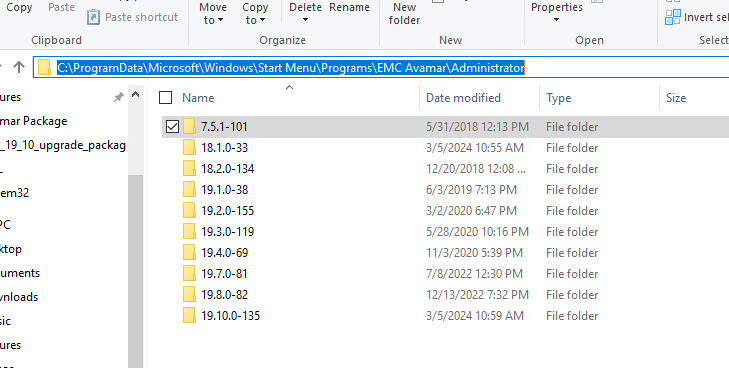
Go into each folder and run "Uninstall Avamar Administrator"
To uninstall all Avamar Administrator console versions and want to completely remove the installation folders, go to the following path and delete the "avs" folder under C:\Program Files (x86)