NetWorker: How to update AD information for NMC AD/LDAP external authentication
概要: How to update AD/LDAP external authentication configurations when access to the NMC with AD/LDAP accounts is unavailable due to an AD/LDAP change. For example: domain controller hostname change, service account user-name/password change. ...
この記事は次に適用されます:
この記事は次には適用されません:
この記事は、特定の製品に関連付けられていません。
すべての製品パージョンがこの記事に記載されているわけではありません。
手順
AD/LDAP auth fields that require updating (e.g: service provider hostname, service account user/password) can be updated using the authc_config script. The default NetWorker administrator account password must be known. If the administrator password has expired or is not known, follow NetWorker: How to reset Administrator password; Otherwise, use one of the following options to update the external authority in NetWorker.
NOTE: The AD/LDAP service account password must be known in order to update the configurations. The service account used can be identified from NetWorker when using options 1 and 2.
Option 1
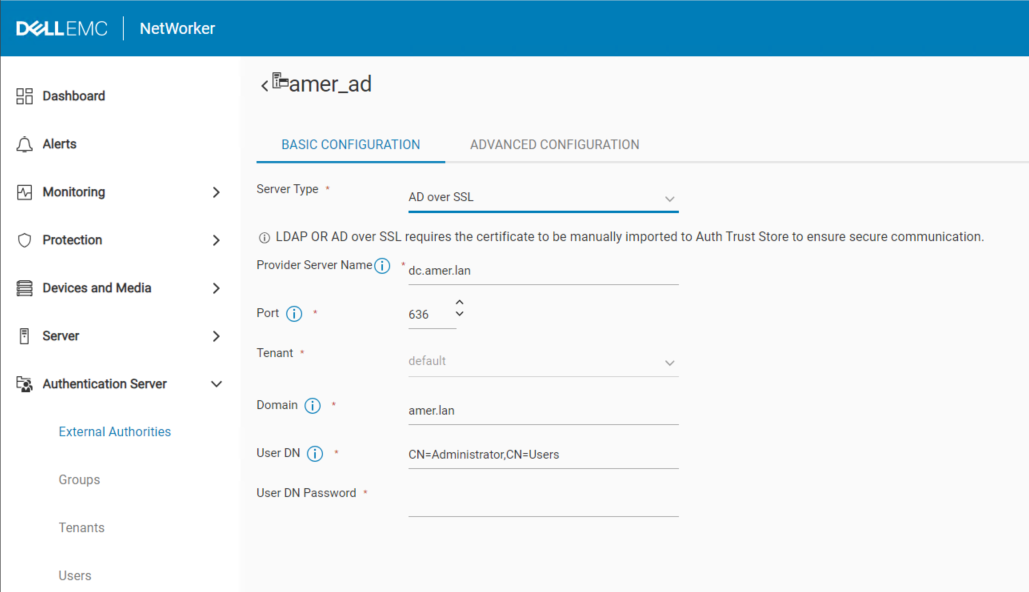
This method is preferred, particularly if AD over SSL (LDAPS) authentication is configured. If the NetWorker Web User Interface (NWUI) is not available, use option 3 to update AD over SSL integrations. Log in to the NWUI using the NetWorker Administrator account. Go to Authentication Server->External Authorities. Select the external authority and click Edit:
Option 2
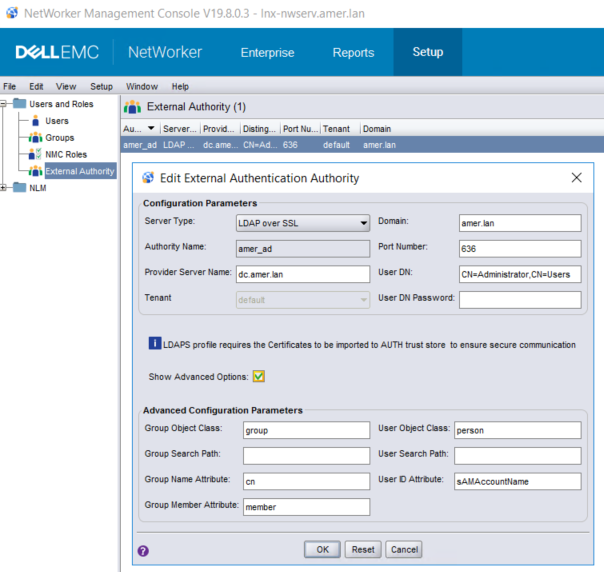
Log in to the NetWorker Management Console (NMC) using the NetWorker Administrator account. Go to Setup->Users and Roles->External Authority. Open the External Authority configuration and update the fields which require updating:
Option 3
The authc script template can be modified to contain update-config instead of add-config. This allows the required fields to be updated when the script is run from the command line:
Windows: C:\Program Files\EMC NetWorker\nsr\authc-server\scripts\
Linux: /opt/nsr/authc-server/scripts/
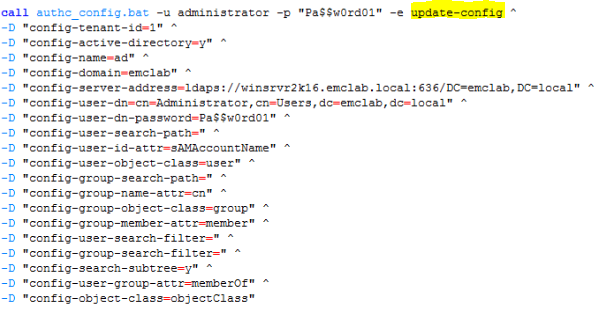
NOTE: There are two different script templates: authc-create-ad-config and authc-create-ldap-config. Ensure that the correct script is used depending on the authentication service. For example, when using Microsoft Active Directory (AD) uses the authc-create-ad-config template. When using Linux LDAP (e.g: OpenLDAP) use authc-create-ldap-config.
Option 4
Run the authc_config command with the options which require updating.
Example: The AD/LDAP service account password must be specified in the command:
C:\>authc_config -u administrator -p nmc_admin_password -e update-config -D "config-tenant-id=tenant_id" -D "config-name=config_name" -D "config-user-dn-password=new_service_account_password"
Configuration lab is updated successfully.
NOTE: Run authc_config and authc_mgmt without any options to see all available options. All required information can be collected using these commands.
Confirm that the changes by either logging into the NMC or using the nsrlogin command:
nsrlogin -t tenant -d domain -u user
If successful, run:
nsrlogout
その他の情報
NetWorker NWUI: How to Configure AD/LDAP from the NetWorker Web User Interface
NetWorker: How to configure "AD over SSL" (LDAPS) from The NetWorker Web User Interface (NWUI)
対象製品
NetWorker製品
NetWorker, NetWorker Management Console文書のプロパティ
文書番号: 000013856
文書の種類: How To
最終更新: 13 3月 2025
バージョン: 6
質問に対する他のDellユーザーからの回答を見つける
サポート サービス
お使いのデバイスがサポート サービスの対象かどうかを確認してください。