Disabling or Enabling the Touchpad on a Dell Laptop
概要: Follow the instructions on how to turn the laptop touchpad (laptop mouse, trackpad, mousepad) off and on.
この記事は次に適用されます:
この記事は次には適用されません:
この記事は、特定の製品に関連付けられていません。
すべての製品パージョンがこの記事に記載されているわけではありません。
手順
For information about questions such as, "Why is my touchpad not working?" or "How do I use the touchpad on my laptop?", check out our touchpad troubleshooting guide.
CAUTION: Dell does not recommend disabling the touchpad unless you have installed an external USB, wireless USB, or Bluetooth mouse, or your computer has a touch screen.
CAUTION: When the setting Leave touchpad on when a mouse is connected is cleared (in Windows 11 it is located in the drop-down menu when you select the down arrow next to the Touchpad On or Off toggle), inserting the dongle for a wireless mouse with disable the touchpad even if the mouse is turned off.
NOTE: There are settings that prevent the cursor from jumping around while typing. If that is your issue, see the Resolving the Cursor Jumping Around While Typing on the Notebook Keyboard section of the Dell Knowledge Base article Fixing Your Laptop Touchpad not Working in Windows.
The process to disable or enable the touchpad on a Dell notebook is very simple:
-
Number of Steps: About 3 main steps (Open Settings > Go to Touchpad > Turn On/Off).
-
Estimated Time: Usually 2–3 minutes, even for someone unfamiliar with computers.
If you include optional settings (like disabling when a mouse is connected), it might take an extra minute.
Windows 11
Step 1: Open Settings
To access Touchpad settings using the fastest method:
- Press Windows+I to open Settings.
- Navigate to Bluetooth & devices.
- Click Touchpad.
Alternatively, use the search function:
- Press Windows+S or click the Search icon.
- Type Touchpad settings.
- Press Enter.
Step 2: Turn Touchpad On or Off
- Find the switch that says Touchpad.
- Slide it to ON to use the touchpad.
- Slide it to OFF to turn it off.
Windows 10
Step 1: Open Settings
- Click the Start button (bottom-left corner).
- Click Settings (looks like a gear).
Step 2: Go to Touchpad Settings
- In Settings, click Devices.
- Click Touchpad on the left side.
Step 3: Turn Touchpad On or Off
- Find the switch that says Touchpad.
- Slide it to ON to use the touchpad.
- Slide it to OFF to turn it off.
Extra Option
- If you use a mouse and want the touchpad off when the mouse is plugged in:
- Uncheck Leave touchpad on when a mouse is connected.
If You Can’t Use the Mouse
- Use the Tab key to move between options.
- Press Spacebar to turn the switch on or off.
Tip: Restart your computer after making changes.
Turning the Touchpad On and Off With an External Mouse or the Touchscreen
- Press and hold the Windows (
 ) key, and then press the q key.
 - In the Search box, type touchpad settings.
- Select Touchpad settings (System settings) from the list.
- Select the Touchpad On or Off toggle to turn the touchpad on or off (Figure 1).
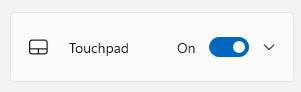
Figure 1: Touchpad On or Off Toggle
- Press and hold the Windows (
 ) key, and then press the q key.
 - In the Search box, type touchpad settings.
- Using the up or down arrows, highlight Touchpad settings (System settings), and then press the Enter key.
- Ensure the Touchpad On or Off toggle is highlighted (it should have a box around it), and press the Spacebar to enable or disable the touchpad (Figure 2).
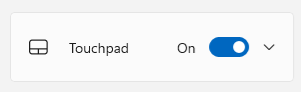
Figure 2: Touchpad On or Off ToggleNOTE: When there is no box around the Touchpad On or Off toggle, the press the Tab key until there is.
対象製品
Chromebook, G Series, Alienware, Dell Plus, Dell Pro, Dell Pro Max, Dell Pro Plus, Dell Pro Premium, Inspiron, Latitude, Dell Pro Rugged, Vostro, XPS, Mobile Workstations文書のプロパティ
文書番号: 000124374
文書の種類: How To
最終更新: 10 11月 2025
バージョン: 26
質問に対する他のDellユーザーからの回答を見つける
サポート サービス
お使いのデバイスがサポート サービスの対象かどうかを確認してください。