How to Manually Back Up Encryption Keys in Dell Encryption Personal
概要: Learn how to back up encryption keys for Dell Encryption Personal and Dell Data Protection Personal Edition by following these instructions.
この記事は次に適用されます:
この記事は次には適用されません:
この記事は、特定の製品に関連付けられていません。
すべての製品パージョンがこの記事に記載されているわけではありません。
手順
This article provides information about how to manually back up encryption keys (also known as escrowing the keys) in Dell Encryption Personal (formerly Dell Data Protection Personal Edition).
Affected Products:
- Dell Encryption Personal
- Dell Data Protection Personal Edition
Affected Operating Systems:
- Windows
The method to manually back up the encryption keys differs between version 8.15.0 and Later, 8.11.0 to 8.13.X, and 8.0.0 to 8.10.1. Click the appropriate client version for specific steps to back up the encryption keys. For more information about versioning, reference How to Identify the Dell Encryption Enterprise or Dell Encryption Personal Version.
Note:
- To successfully backup keys, Dell Encryption Personal requires a storage device (outside of the endpoint with Dell Encryption Personal installed).
- The Encryption Administrator Password is required to back up the keys.
8.15.0 and Later
- Log in to the Windows computer.
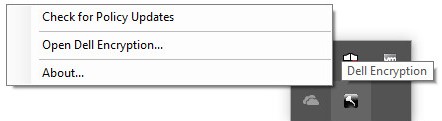
- In the Windows System Tray, right-click the Dell Encryption icon and then select Open Dell Encryption.
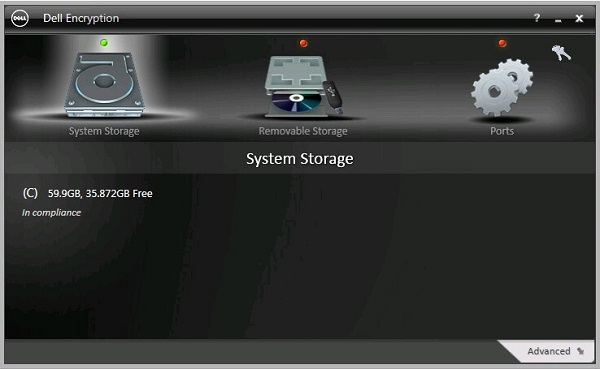
- Click the key icon in the upper-right.
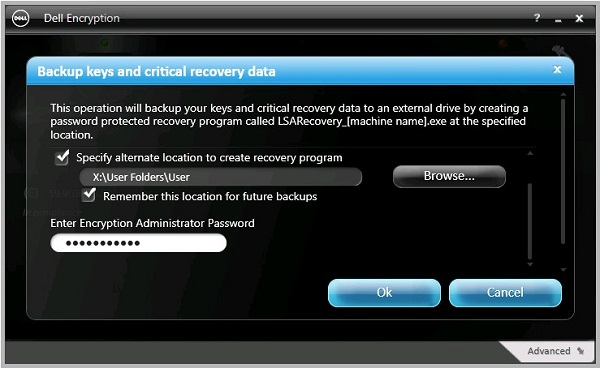
- From the Backup keys and critical recovery data menu:
- Check Specify alternate location to create recovery program.
- Click to Browse to a secondary storage device.
- Optionally, check Remember this location for future backups.
- Populate the Encryption Administrator Password.
- Click OK.
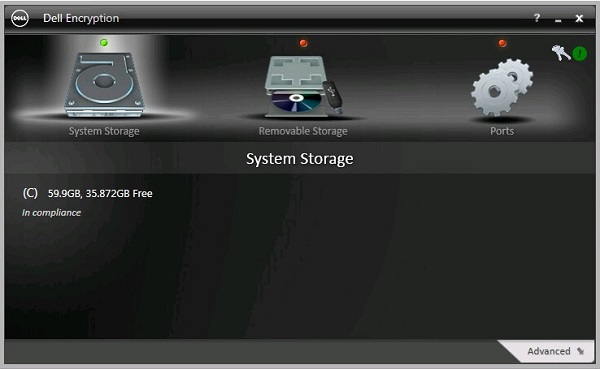
- The key icon (Step 2) displays a green exclamation mark (!) icon beside it upon completion of the backup.
- LSARecovery_<NAME> appears in the location chosen (Step 4).
 Note: <NAME> = Name of the endpoint
8.11.0 to 8.13.X
- Log in to the Windows computer.
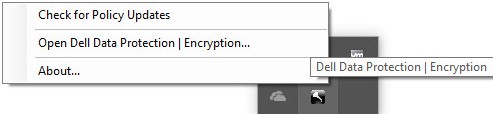
- In the Windows System Tray, right-click the Dell Data Protection | Encryption icon and then select Open Dell Data Protection | Encryption.
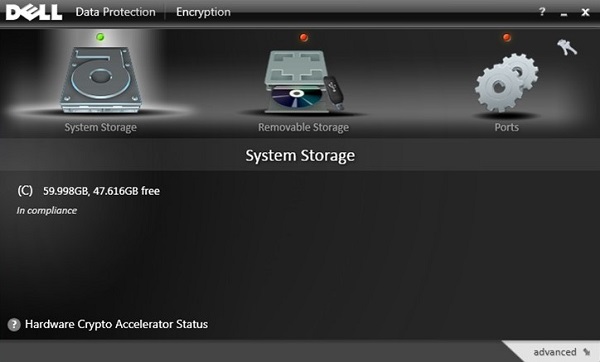
- Click the key icon in the upper right.
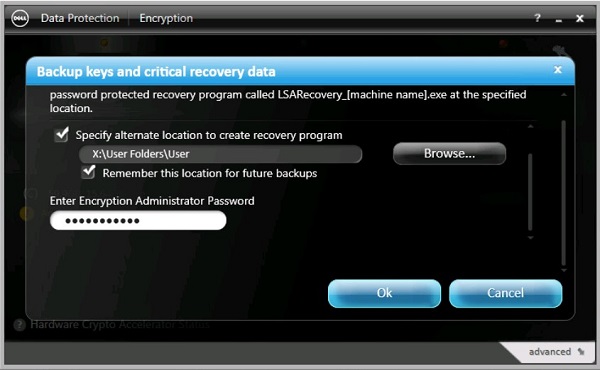
- From the Backup keys and critical recovery data menu:
- Check Specify alternate location to create recovery program.
- Click to Browse to a secondary storage device.
- Optionally, check Remember this location for future backups.
- Populate the Encryption Administrator Password.
- Click OK.
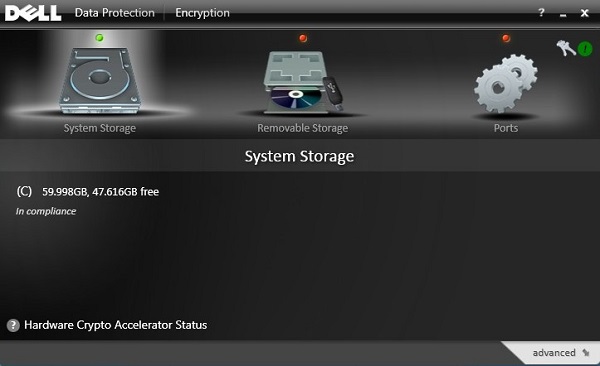
- The key icon (Step 2) displays a green exclamation mark (!) icon beside it upon completion of the backup.
- The LSARecovery_<NAME> appears in the location chosen (Step 4).
 Note: <NAME> = Name of the endpoint
8.0.0 to 8.10.1
- Log in to the Windows computer.
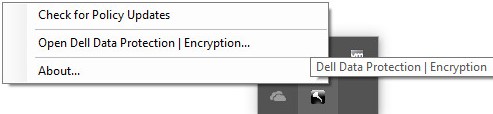
- In the Windows System Tray, right-click the Dell Data Protection | Encryption icon and then select Open Dell Data Protection | Encryption.
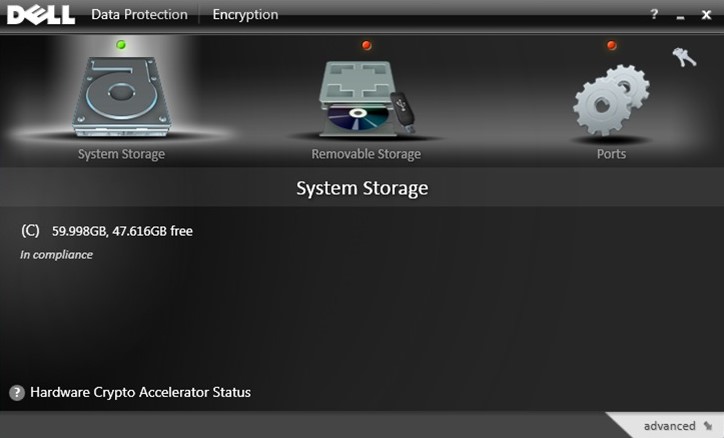
- Click the key icon in the upper-right.
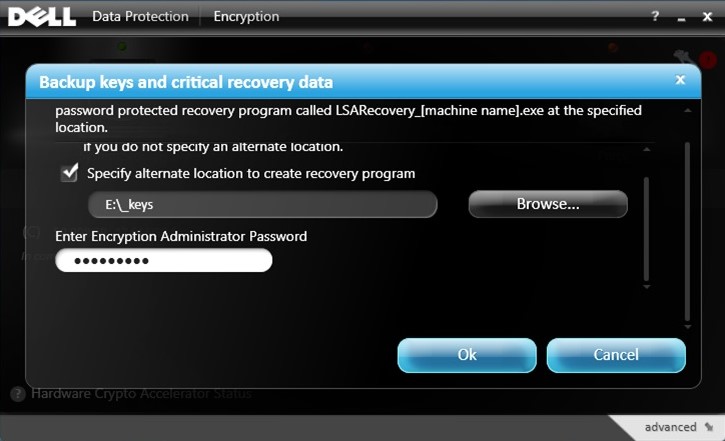
- From the Backup keys and critical recovery data menu:
- Check Specify alternate location to create recovery program.
- Click to Browse to a secondary storage device.
- Populate the Encryption Administrator Password.
- Click OK.
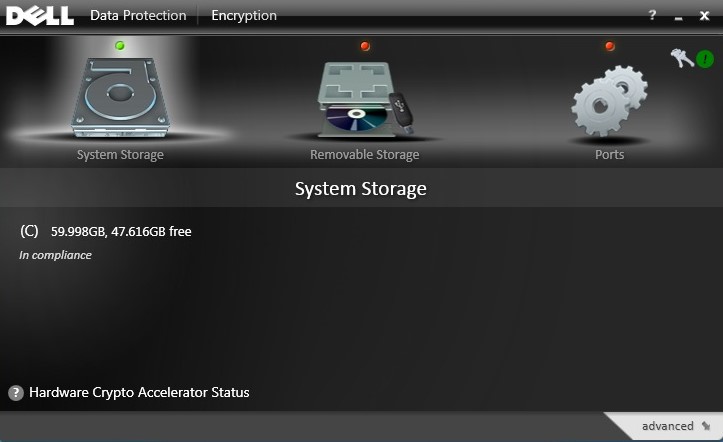
- The key icon (Step 2) displays a green exclamation mark (!) icon beside it upon completion of the backup.
- The LSARecovery_<NAME> appears in the location chosen (Step 4).
 Note: <NAME> = Name of the endpoint
対象製品
Dell Encryption文書のプロパティ
文書番号: 000126842
文書の種類: How To
最終更新: 02 7月 2026
バージョン: 10
質問に対する他のDellユーザーからの回答を見つける
サポート サービス
お使いのデバイスがサポート サービスの対象かどうかを確認してください。