PowerStore: How to connect to the service console over SSH
概要: Instructions to connect to the service console (service container) on PowerStoreT and PowerStoreX
この記事は次に適用されます:
この記事は次には適用されません:
この記事は、特定の製品に関連付けられていません。
すべての製品パージョンがこの記事に記載されているわけではありません。
現象
PowerStore T and PowerStore X models use different physical ports for the management network access.
- PowerStore T uses port labelled 6.
- PowerStore X uses ports 0-1 (or bond) on the module labelled 1.

For ssh access using the service port instead of the management port, see PowerStore: SSH and PowerStore Manager access using the Service LAN Ports.
Note: When connecting to the service port, do not disconnect the management cables.
The ssh port used to log in to the service container is:
- 22 - After the cluster creation is completed.
- 26 - Before the Initial Configuration Wizard (ICW) is run.
原因
SSH access to the nodes may be required for troubleshooting.
解決方法
SSH is not enabled for PowerStore appliances by default. To enable SSH access to the appliance:
- Go to Settings.
- Select SSH Management from the Security section.
- Select the appliance or appliances on which to enable SSH.
- Click ENABLE SSH. To disable SSH access, follow the same procedure, but click DISABLE SSH.
Only the user service can log in over ssh. The error below is observed if the wrong username is entered:
No supported authentication methods available (server sent: publickey,gssapi-keyex,gssapi-with-mic)
Example: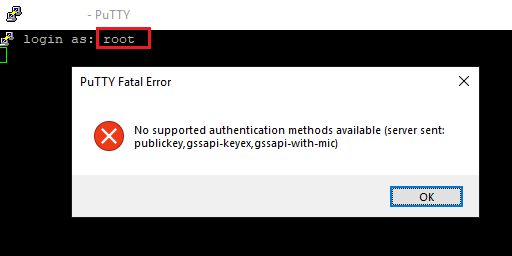
The service user password is the password that you have setup during the Initial Configuration Wizard (ICW). The service password can be reset from the PowerStore Manger user interface, under Settings > Support > Service Account.
対象製品
PowerStore文書のプロパティ
文書番号: 000131579
文書の種類: Solution
最終更新: 19 12月 2022
バージョン: 6
質問に対する他のDellユーザーからの回答を見つける
サポート サービス
お使いのデバイスがサポート サービスの対象かどうかを確認してください。