Dell Monitor Not Turning On or Has No Power and Power LED is Off
概要: Dell monitor not turning on? Discover troubleshooting steps for intermittent power issues or an off LED. Learn how to check cable connections, test power outlets, and more to resolve power problems. ...
この記事は次に適用されます:
この記事は次には適用されません:
この記事は、特定の製品に関連付けられていません。
すべての製品パージョンがこの記事に記載されているわけではありません。
現象
Your Dell monitor may be experiencing a power issue if you are noticing one or more symptoms such as:
- The monitor has no video, and the power button LED has no light.
- The monitor does not turn on when you press the power button.
- The monitor turns on intermittently.
- The monitor turns off automatically.
- The monitor turns off when it is tilted or swiveled.
原因
No cause information is available.
解決方法
Power Cable Not Connected Correctly
Dell have thoroughly examined several displays that were purported to have this issue, and this research has resulted in the following information:
- The power cable was not fully engaged into the power connector of the monitor. The power cable may appear to be connected, but a gap between the plug seating surface and the base cover of the LCD display can occur.
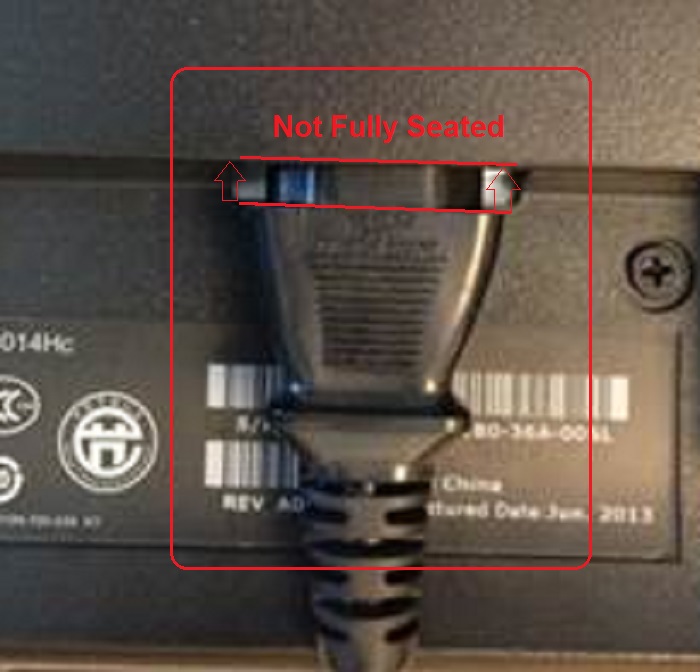
- Remove the power cable, ensure that there is no debris or other mechanical reason for the cable to not fully seat. Then reseat the power cable until the connector is flush with the display chassis.
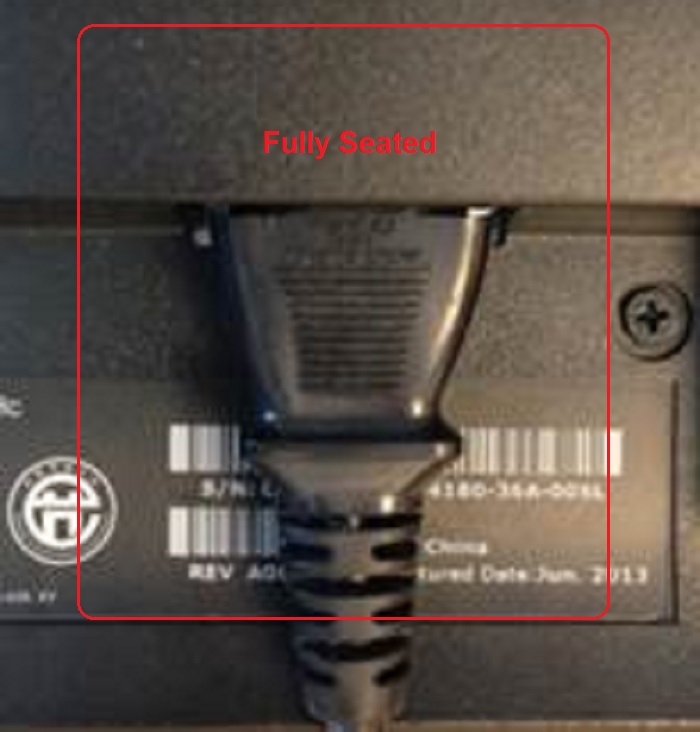
The Monitor Has No Power, and the Power LED is Off
If the monitor appears to have no power and there is no indication that the power LED is on, try these steps to see if any of them corrects the issue:
- Press the power button and wait for three to five seconds.
- Test the power outlet being used by plugging in another electrical device and verify that there is power.
- Ensure that the power cable is fully inserted at both ends.
- Swap with a known-good power cable, if another is available.
- Verify the exact location of the power light on the monitor by using the monitor's User Guide. These can be in different locations on different monitor models.
If there is an indication of power but there is no video displayed on the monitor, check out our display troubleshooting guide.
If the monitor still indicates that there is no power after these steps, contact: Dell Technical Support
Record the monitor's PPID number and have it ready for Dell Technical Support, as agents are required to record the PPID number of the monitor in their call logs.
 More information and support for your Dell monitor, laptop, or tablet screen can be found on our Monitor Support site.
対象製品
Chromebox, Alienware, Dell Pro Max Micro, Dell Pro Max Slim, Dell Pro Max Tower, Dell Pro Micro, Dell Pro Slim, Dell Pro Tower, Dell Slim, Dell Tower, Inspiron, Legacy Desktop Models, OptiPlex, Vostro, XPS, G Series
, Alienware and Dell Gaming Monitors, C Series, D Series, E Series, P Series, S Series, SE Series, UltraSharp Premier (UP) Series, UltraSharp (U) Series, Dell Monitors, Dell Plus Monitors, Dell Pro Monitors, Dell Pro Plus Monitors, Chromebook, G Series, Alienware, Dell Plus, Dell Pro, Dell Pro Max, Dell Pro Plus, Dell Pro Premium, Inspiron, Latitude, Dell Pro Rugged, Vostro, XPS, Legacy Laptop Models, Fixed Workstations, Mobile Workstations, Dell Pro Max Micro XE FCM2250, Dell Pro Max Slim XE FCS1250, Dell Pro Max Tower T2 XE FCT2250, Dell Pro Max 16 XE MC16250, Dell Pro Micro Plus XE QBM1250, Dell Pro Slim Plus XE5 QBS1250, Dell Pro Tower Plus XE5 QBT1250, Latitude 3140
...
文書のプロパティ
文書番号: 000132245
文書の種類: Solution
最終更新: 30 7月 2025
バージョン: 14
質問に対する他のDellユーザーからの回答を見つける
サポート サービス
お使いのデバイスがサポート サービスの対象かどうかを確認してください。