BitLocker Cannot Be Enabled When You Change the Boot Sequence to Legacy Mode
Summary: This article provides the steps to resolve BitLocker asking for a recovery key after changing to Legacy mode.
Acest articol se aplică pentru
Acest articol nu se aplică pentru
Acest articol nu este legat de un produs specific.
Acest articol nu acoperă toate versiunile de produs existente.
Symptoms
BitLocker Cannot Be Enabled
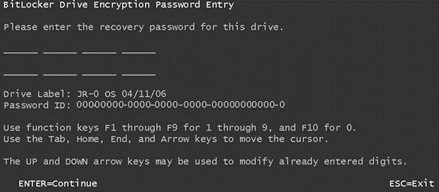
XPS 12-9250 and Latitude 12-7275 Users have reported that BitLocker cannot be enabled when you change the Boot sequence to Legacy mode in the BIOS setup menu. Windows asks the User to enter the recovery key every time during a warm boot or cold boot if you enable BitLocker in the legacy mode with the Windows 8.1 or 10.
Cause
These systems are designed for boot only in the Unified Extensible Firmware Interface (UEFI) boot mode using the Windows 10, so if you change to the legacy boot mode the system prompts for the BitLocker key recovery.
Resolution
Return the BIOS to UEFI Boot
You can resolve this issue by returning the system to the UEFI boot mode.
- From a power off state, power on the system and Press F2 boot into the BIOS setup menu.
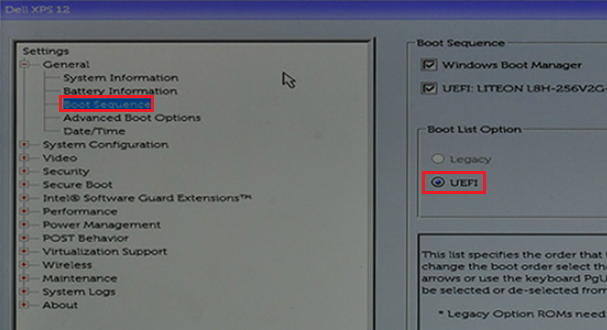
- Choose "Boot sequence" and change the option from "Legacy" to "UEFI" then press "Apply" on the right-down corner.
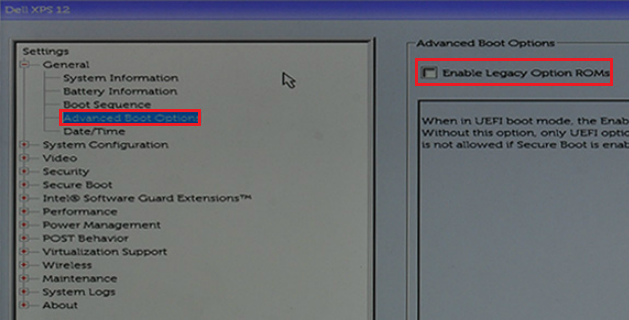
- Choose "Advance Boot options" and disable "Enable Legacy Operation ROMs" then press "Apply" on the right-down corner.
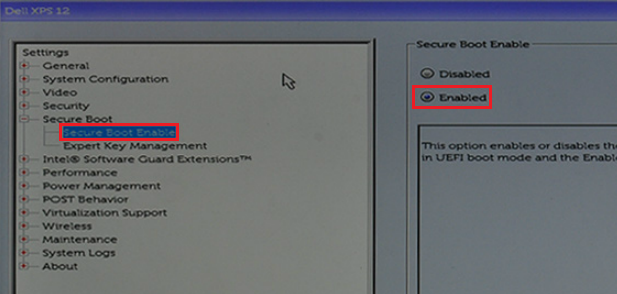
- Choose "Secure Boot" -> "Secure Boot Enable" and change the option from "Disabled to Enabled," then press "Apply" on the right-down corner.
- Press "Exit" on the right-down corner and wait the system reboot.
Produse afectate
Latitude 7275, XPS 12 9250Proprietăți articol
Article Number: 000141374
Article Type: Solution
Ultima modificare: 13 nov. 2025
Version: 7
Găsiți răspunsuri la întrebările dvs. de la alți utilizatori Dell
Servicii de asistență
Verificați dacă dispozitivul dvs. este acoperit de serviciile de asistență.