How to access ONIE Prompt in Dell EMC Networking N3000E-ON series switches
Summary: How to access ONIE Prompt in Dell EMC Networking N3000E-ON series switches
This article applies to
This article does not apply to
This article is not tied to any specific product.
Not all product versions are identified in this article.
Symptoms
This article explains how to access ONIE Prompt in Dell Networking N3000E-ON series switches
Index
Why We need to access ONIE
N3000E switches also support the Open Network Install Environment (ONIE), enabling installation of alternate network operating systems. By default, the Dell N3000E-ON switches are preloaded with Dell OS6. Hence, we need to manually boot ONIE in the switch.
Supported Platforms
This document is applicable for the following models
- N3024EF-ON
- N3024ET-ON
- N3024EP-ON
- N3048EP-ON
- N3048ET-ON
Procedure
1. Connect a serial cable to the serial console port of the switch (115,200 BAUD, 8 data bits, no parity, 1 stop bit,)
2. Power cycle the switch
3. When the boot menu appears to select "Display boot Menu", type 2
 You have only 3 seconds to make the selection. If we miss this we will have to reboot the switch again to get the prompt
4. From Boot Menu to select "BOOT ONIE (Rescue Mode), type 13
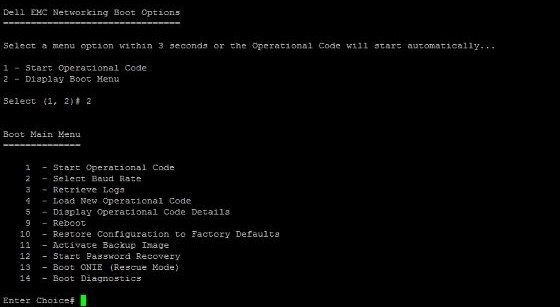
This will take us to ONIE prompt
ONIE:/ #
Affected Products
Dell EMC PowerSwitch N3000E-ON SeriesArticle Properties
Article Number: 000134769
Article Type: Solution
Last Modified: 23 Sep 2024
Version: 4
Find answers to your questions from other Dell users
Support Services
Check if your device is covered by Support Services.