VPLEX: "show-use-hierarchy" CLI command error: "No device with the name <device name>"
Summary: This article talks to the issue where when a leg is reattached to a mirror the show-use-hierarchy command is reporting that there is no device with that name.
This article applies to
This article does not apply to
This article is not tied to any specific product.
Not all product versions are identified in this article.
Symptoms
The "show-use-hierarchy" command is failing to get the details of a device after a leg is reattached with the same name.
After Reattaching a same mirror leg, the "show-use-hierarchy" command is failing with the error:
No device with the name <device name>".
Example of this error:
VPlexcli:/> show-use-hierarchy distributed-storage/distributed-devices/device_EAST_UNITY_NONPROD_255
show-use-hierarchy:  Evaluation of <<show-use-hierarchy distributed-storage/distributed-devices/device_EAST_UNITY_NONPROD_255>> failed.
cause:               Cannot get value of attribute 'used-by'.
cause:               Firmware command error.
cause:               No device with the name <device name>.
Cause
N/A
Resolution
-
List the device reporting error and check if it is healthy.
Example:
VPlexcli:/> ll /distributed-storage/distributed-devices/device_EAST_UNITY_NONPROD_255

Attributes:
Name                    Value
----------------------  ---------------------------------
application-consistent  false
auto-resume             true
block-count             1342177280
block-size              4K
capacity                5T
clusters-involved       [cluster-1, cluster-2]
geometry                raid-1
health-indications      []
health-state            ok
locality                distributed
operational-status      ok
rebuild-allowed         true
rebuild-eta             -
rebuild-progress        -
rebuild-status          done
rebuild-type            full
rule-set-name           cluster-2-detaches
service-status          running
stripe-depth            -
system-id               device_EAST_UNITY_NONPROD_255
thin-capable            false
transfer-size           2M
virtual-volume          device_EAST_UNITY_NONPROD_255_vol
-
Check on the UI to see if the device hierarchy is visible.
Follow the steps to check from the UI:
- Go to Provision storage -- Distributed -- Distributed Devices
- Select the Distributed device name and right click the DD name, then click the "View map" option as shown below:
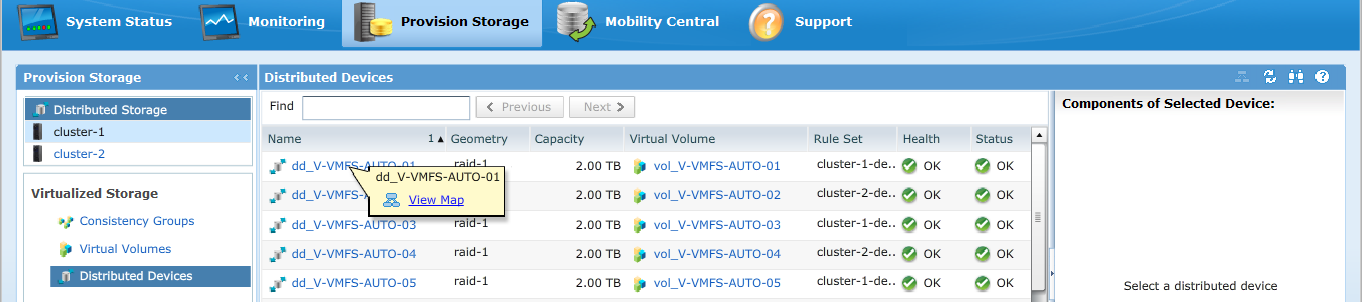
Example of the UI map view: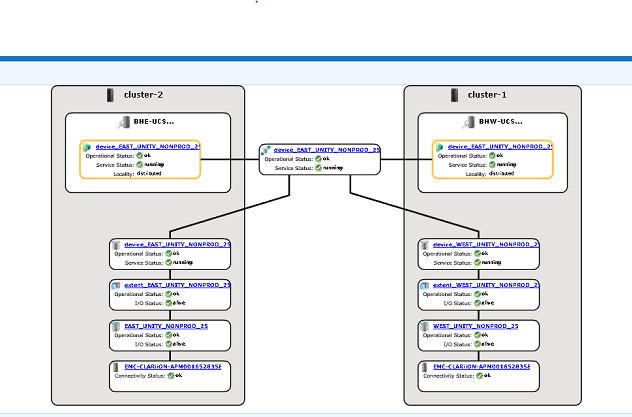
-
If the device is present in the map view, follow the below workaround.
- Restart the Management console using the below command
service@managementserver:~> sudo /etc/init.d/VPlexManagementConsole restart
Restarting EMC VPlex Management Console...                     done
- Or refer to the article listed below on how to restart the management console:
000040517: VPLEX: How to Restart VPlexManagementConsole to Refresh VPLEX CLI or UI
- Restart the Management console using the below command
If the Device Map is not viewable in the UI or if the VPLEX Management console did not fix the issue, open a live chat with VPLEX support.
NOTE: To open a chat with support go to https://www.dell.com/support/ once on the Support page you should see a Black menu bar, click "Contact Support" at the far right on the menu bar, this takes you to the "Contact Information" page. On the right side of the screen, you see "Dell EMC Administrative Chat," click this choice and you are taken to the Live Chat page. For the first step from the "Select Chat Topic" field click the drop-down arrow on the right and then select the related topic for the chat. Then follow the rest of the steps as asked supplying the necessary info for each questions/selection.
Affected Products
VPLEX SeriesProducts
VPLEX Series, VPLEX VS1, VPLEX VS6Article Properties
Article Number: 000168361
Article Type: Solution
Last Modified: 05 فبراير 2026
Version: 5
Find answers to your questions from other Dell users
Support Services
Check if your device is covered by Support Services.