Data Protection Advisor: How to Get a List of Scheduled Reports and Associated Email IDs
Summary: How to get a list of the Scheduled Reports configured on the DPA UI and their associated list of email recipients and IDs.
This article applies to
This article does not apply to
This article is not tied to any specific product.
Not all product versions are identified in this article.
Instructions
A custom report must be created for this purpose:


Steps:
- On the DPA UI, go to Reports > Report Templates > Custom Report Templates
- Select CREATE CUSTOM TEMPLATE
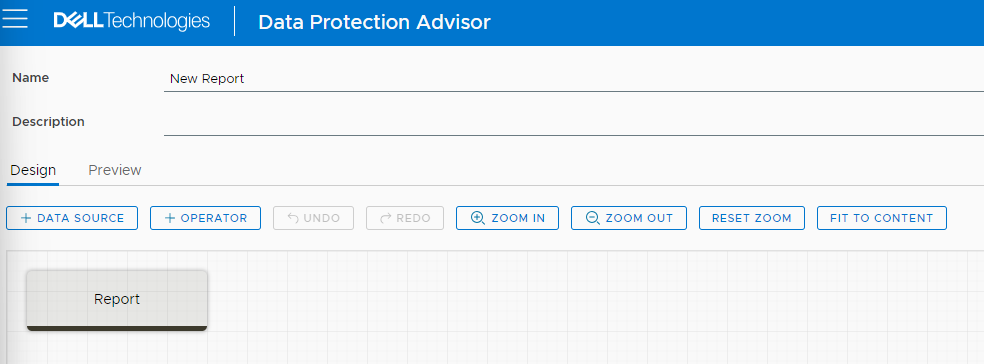
This brings the user to the following screen:
- Give the Name and Description that makes the report relevant, for example "List of DPA Scheduled Reports"
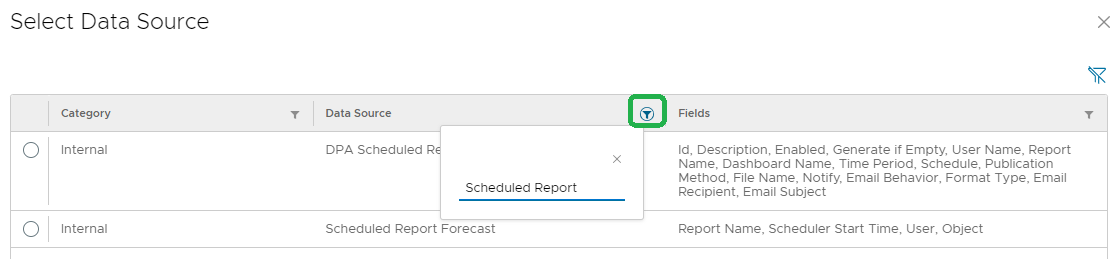
Select the + DATA SOURCE tab above. This brings the user to a window with a list of Data Sources. Click the Filter button on the Data Source column and type in Scheduled Report.
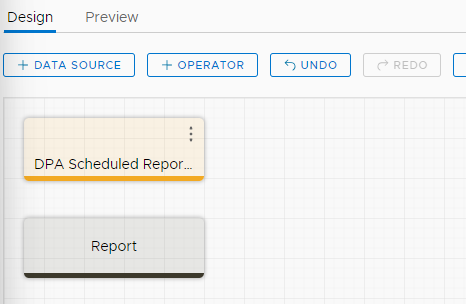
- Select the first Data Source and then click the SELECT button at the end. This brings the user to the following window, example:
- Click the Data Source and drag it down to the Report button so that it connects.
NOTE: To schedule such a report or email it, the user must add the report to a menu. See the Help section on the UI. Search for Creating, editing, or copying a report menu and menu item and complete the steps.
Affected Products
Data Protection AdvisorArticle Properties
Article Number: 000222033
Article Type: How To
Last Modified: 13 Feb 2024
Version: 1
Find answers to your questions from other Dell users
Support Services
Check if your device is covered by Support Services.